Example Program 2: MMS2VizBasic

You are currently viewing the documentation for a pre-release version (2.2.0). To access documentation for other versions, click the "Switch Version" button located in the upper-right corner of the page.

■ If you're unsure about the version of the product you are using, please contact Mech-Mind Technical Support for assistance.

Program Introduction

Description

The robot triggers the Mech-Viz project to run, and then obtains the planned path for picking and placing.

File Name

You can navigate to the installation directory of Mech-Vision and Mech-Viz and find the file by using the Communication Component/Robot_Interface/MELFA/MMS2VizBasic path.

Project

Mech-Vision and Mech-Viz projects

Prerequisites

This example program is provided for reference only. Before using the program, please modify the program according to the actual scenario.

Program Description

This part describes the MMS2VizBasic example program.

  #Include "MMMODULE"
  MM_DROP_COM()
  Mcomnum = 7
  MM_INIT_COM(Mcomnum)
  Tool P_NTool
  PMTool=(+0.00,+0.00,+0.00,+0.00,+0.00,+0.00)
  Tool PMTool
  MM_SET_MOD(1,1,MM_Status)
  If MM_Status <> 1107 Then
    Hlt
  EndIf
  MM_START_VIZ(1,JntSend,MM_Status)
  If MM_Status <> 2103 Then
    Hlt
  EndIf
  MM_SET_BCH(1,1,MM_Status)
  If MM_Status <> 2105 Then
    Hlt
  EndIf
  Dim MM_Result(30,8)
  MM_GET_VIZ(1,5,MM_Status,MM_WayPt_Num,MM_VPos_Num,MM_Result)
  If MM_Status <> 2100 Then
    Hlt
  EndIf
  MM_GET_JNT(MM_Result,1,JntPick_pre,MM_Label,MM_ToolID)
  MM_GET_JNT(MM_Result,2,JntPick,MM_Label2,MM_ToolID2)
  MM_GET_JNT(MM_Result,3,JntPick_after,MM_Label3,MM_ToolID3)
  MM_DROP_COM()
  Mov JntPick_pre
  Fine 0,P
  Mov JntPick
  Hlt
  JntPick_after

The workflow corresponding to the above example program code is shown in the figure below.
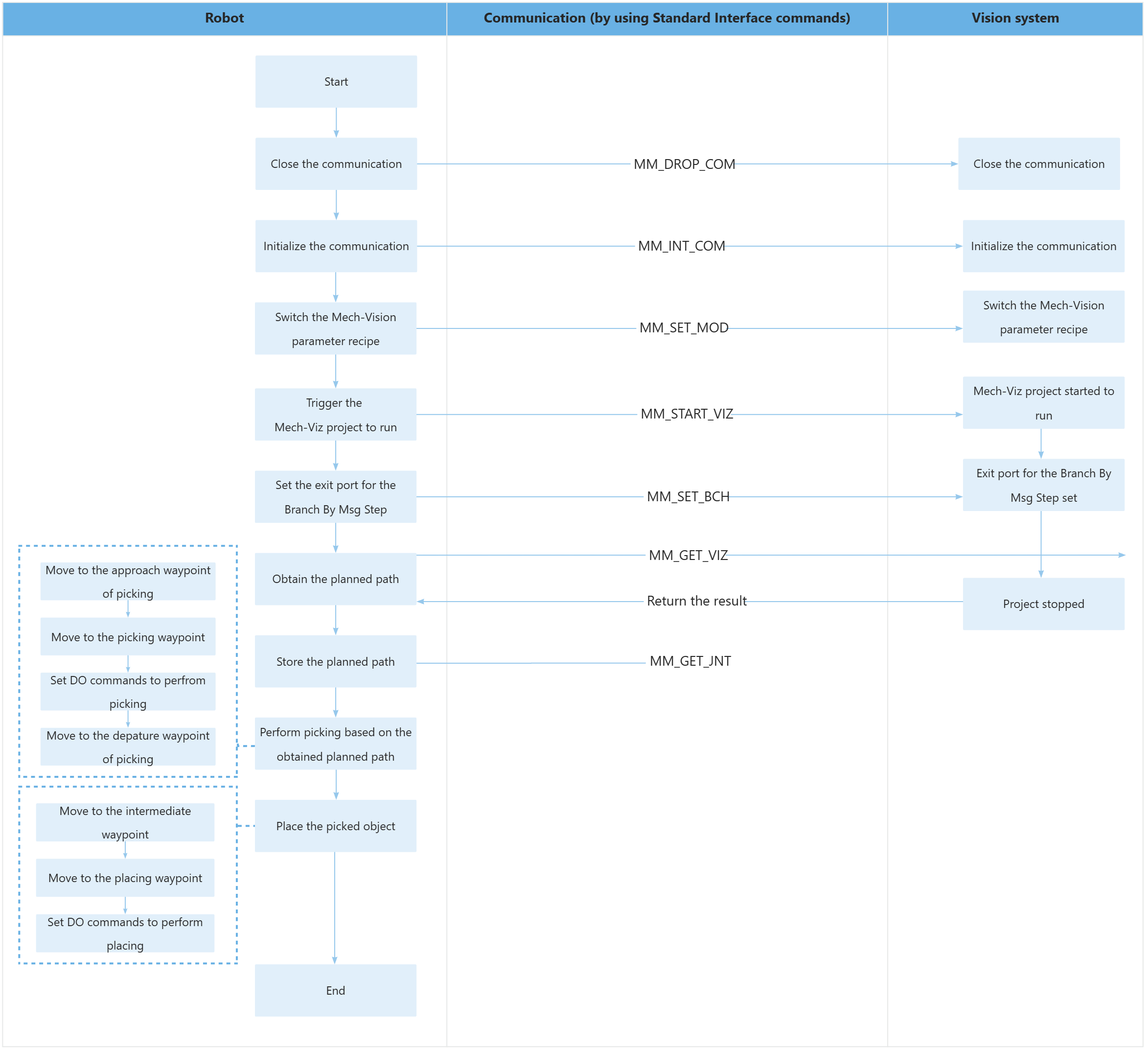
The table below explains the above program. You can click the hyperlink to the command name to view its detailed description.

Feature Code and description

Include the MM_Module header file

  #Include "MMMODULE"

Initialize communication parameters

  MM_DROP_COM()
  Mcomnum = 7
  MM_INT_COM(Mcomnum)
  • MM_DROP_COM: command to terminate the communication.

  • MM_INIT_SKT: The command to initialize the communication.

Close the communication first, then reconnect to ensure no project is currently connected.

Reset the control points to their initial values and declare the tool variables

  Tool P_NTool
  PMTool=(+0.00,+0.00,+0.00,+0.00,+0.00,+0.00)
  Tool PMTool

Switch the Mech-Vision system’s parameter recipe and verify the status code.

  MM_SET_MOD(1,1,MM_Status)
  If MM_Status <> 1107 Then
    Hlt
  EndIf
  • MM_SET_MOD: The command to switch the Mech-Vision parameter recipe.

  • First 1: The Mech-Vision project ID.

  • Second 1: The ID of the parameter recipe in the Mech-Vision project.

  • <>: Not equal. When MM_Status is 1107, the robot has successfully switched the parameter recipe.

Trigger the Mech-Viz project to run

  MM_START_VIZ(1,JntSend,MM_Status)
  If MM_Status <> 2103 Then
    Hlt
  EndIf
  • MM_START_VIZ: The command to trigger the Mech-Viz project to run.

  • 2: Pass the joint angle data represented by the JntSend variable into the Mech-Viz project.

The entire command indicates that the robot triggers the vision system to run the Mech-Viz project, and then Mech-Viz plans the robot’s picking path base on the vision result output by Mech-Vision.

  • <>: Not equal. When MM_Status is 2103, the robot has successfully switched the parameter recipe.

Set the Exit Port for the Branch by Msg Step in Mech-Viz

  MM_SET_BCH(1,1,MM_Status)
  If MM_Status <> 2105 Then
    Hlt
  EndIf
  • MM_SET_BCH: The command to set the exit port for the Branch by Msg Step in Mech-Viz.

  • First 1: The Step ID of the Branch by Msg Step.

  • Second 1: The Mech-Viz project takes exit port 0 of the Branch by Msg Step. Note that if this parameter is set to N, the exit port is N-1.

  • <>: Not equal. When MM_Status is 2105, the robot has successfully switched the parameter recipe.

Obtain the planned path

  Dim MM_Result(30,8)
  MM_GET_VIZ(1,5,MM_Status,MM_WayPt_Num,MM_VPos_Num,MM_Result)
  If MM_Status <> 2100 Then
    Hlt
  EndIf
  • MM_GET_VIZ: The command to obtain the path planned by Mech-Viz.

  • Dim MM_Result(30,8): Define a two-dimensional array for storing path points.

  • 1: Specify the pose type of obtained waypoints as joint positions.

  • 5: Maximum number of positions per transmission.

  • MM_WayPt_Num: The variable that stores the number of waypoints returned by the vision system.

  • MM_VPos_Num: The variable that stores the sequence number of the Vision Move waypoint (picking waypoint) in the path.

The entire statement stores the TCP, label, and tool ID of the first vision point in the specified registers.

  • <>: Not equal. When MM_Status is 2100, the robot has successfully switched the parameter recipe.

Store the planned path

  MM_GET_JNT(MM_Result,1,JntPick_pre,MM_Label,MM_ToolID)
  MM_GET_JNT(MM_Result,2,JntPick,MM_Label2,MM_ToolID2)
  MM_GET_JNT(MM_Result,3,JntPick_after,MM_Label3,MM_ToolID3)
  • MM_GET_JNT: The command to store the planned path. Take the first item as an example

  • MM_Result: This variable stores a two-dimensional array for the planned path.

  • 1: Store the first waypoint.

  • JntPick_pre: The variable that stores the joint positions of the first waypoint.

  • MM_Label: The variable that stores the label of the first waypoint.

  • MM_ToolID: The variable that stores the tool ID corresponding to the first waypoint.

Disconnect the communication.

  MM_DROP_COM()

Move to the approach waypoint of picking

  Mov JntPick_pre
  Fine 0,P

Move to the grasp approach point and set absolute positioning for arrival.

Move to the picking waypoint

  Mov JntPick
  Hlt

The robot moves from the approach waypoint of picking to the picking waypoint linearly.

Hlt indicates to stop the program execution. If you have added a statement to set a DO command, you can delete the PAUSE statement here.

Move to the departure waypoint of picking

  Mvs JntPick_after

The robot moves to position above the picking waypoint and reaches the departure waypoint of picking.

Adding departure waypoints of picking can prevent the robot from colliding with objects (such as bins) in the scene when moving. You can modify the Z-axis negative offset based on the actual scenario to ensure that no collision occurs during the departing process.

Is this page helpful?

You can give a feedback in any of the following ways:

We Value Your Privacy

We use cookies to provide you with the best possible experience on our website. By continuing to use the site, you acknowledge that you agree to the use of cookies. If you decline, a single cookie will be used to ensure you're not tracked or remembered when you visit this website.