Use Production Interface
This section introduces how to use the production interface.
View Measurement Results
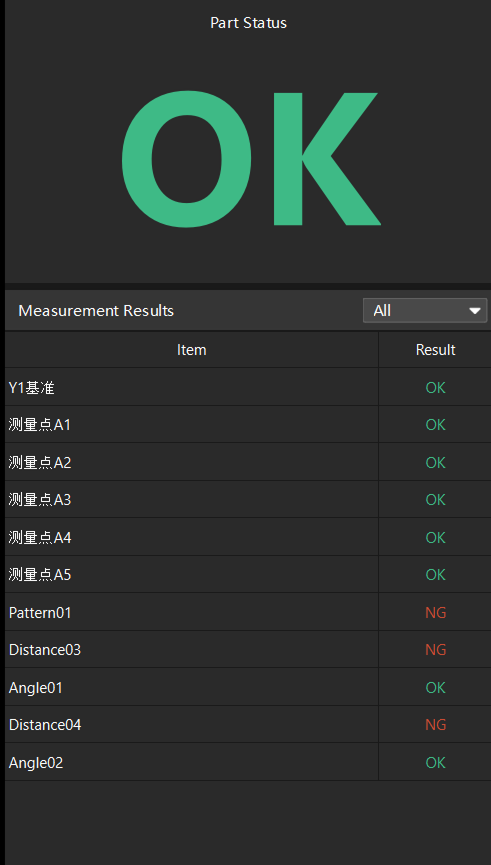
In the Measurement Results table on the left side of the Production interface, you can view the results (OK or NG) for each feature of the current part.
|
In the filter drop-down list in the status bar, select All or a specified measurement group to filter the features displayed in the measurement results table. Measurement groups are configured in the Measurement Group Editor. |
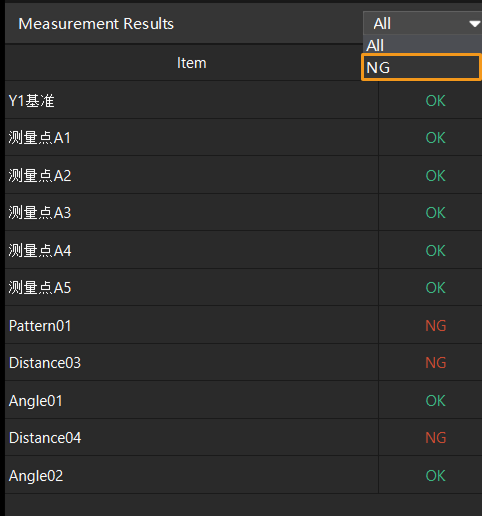
To filter the NG measurement results, click the drop-down list in the upper right corner of the Measurement Results table and select NG. All NG features will be displayed.
View Trend Charts
In the middle of the Mech-Metrics Production interface, view the trend of features in the Trend Charts area, and select whether to enable History Mode.
View Trends in Real-Time Mode
-
In the Measurement Results table on the left of the Production interface, click a feature.
-
In the Trend Charts area, the trend chart of each control item of the current feature is displayed. You can click each control item’s tab to view the measured values for the last 50 to 200 measurements and the data trends.
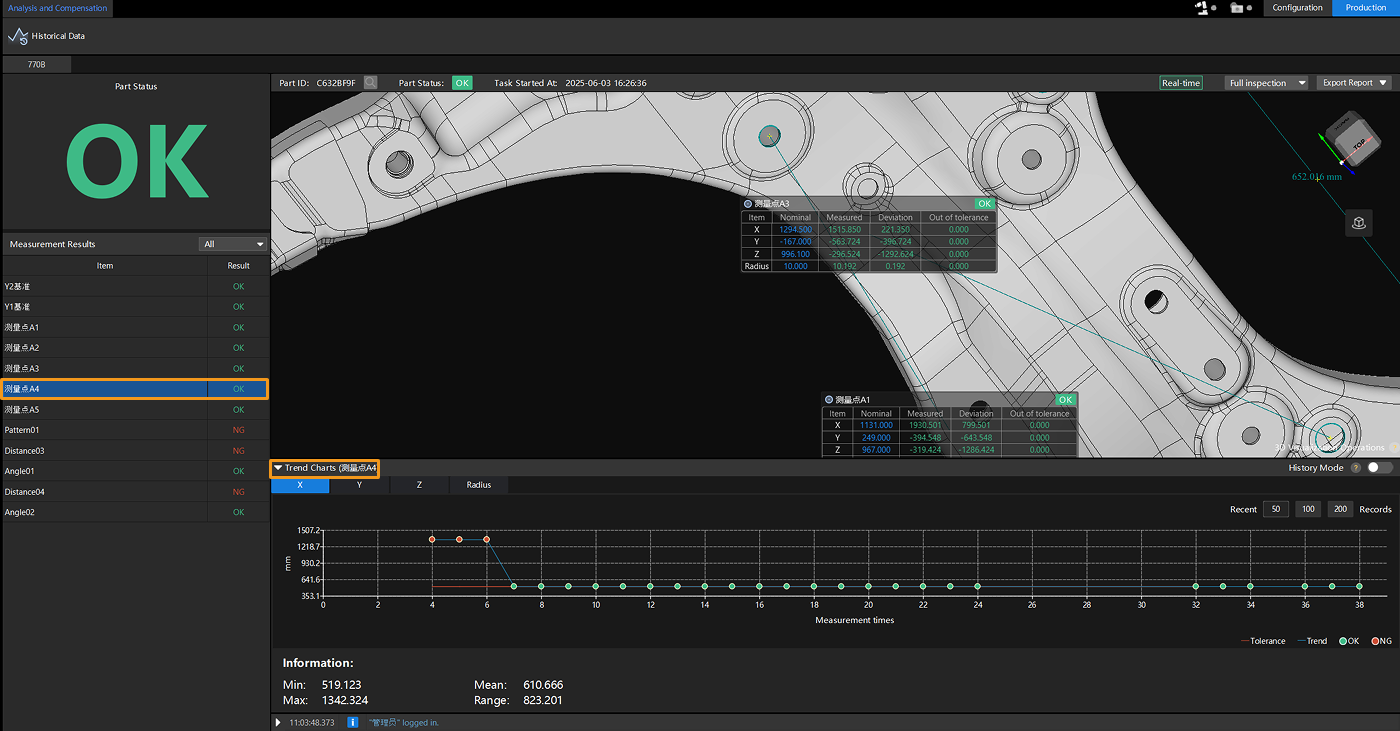
In this case, the History Mode button in the Trend Charts area is turned off, indicating that the Production interface is in Real-time mode.
View Trends in Historical Mode
-
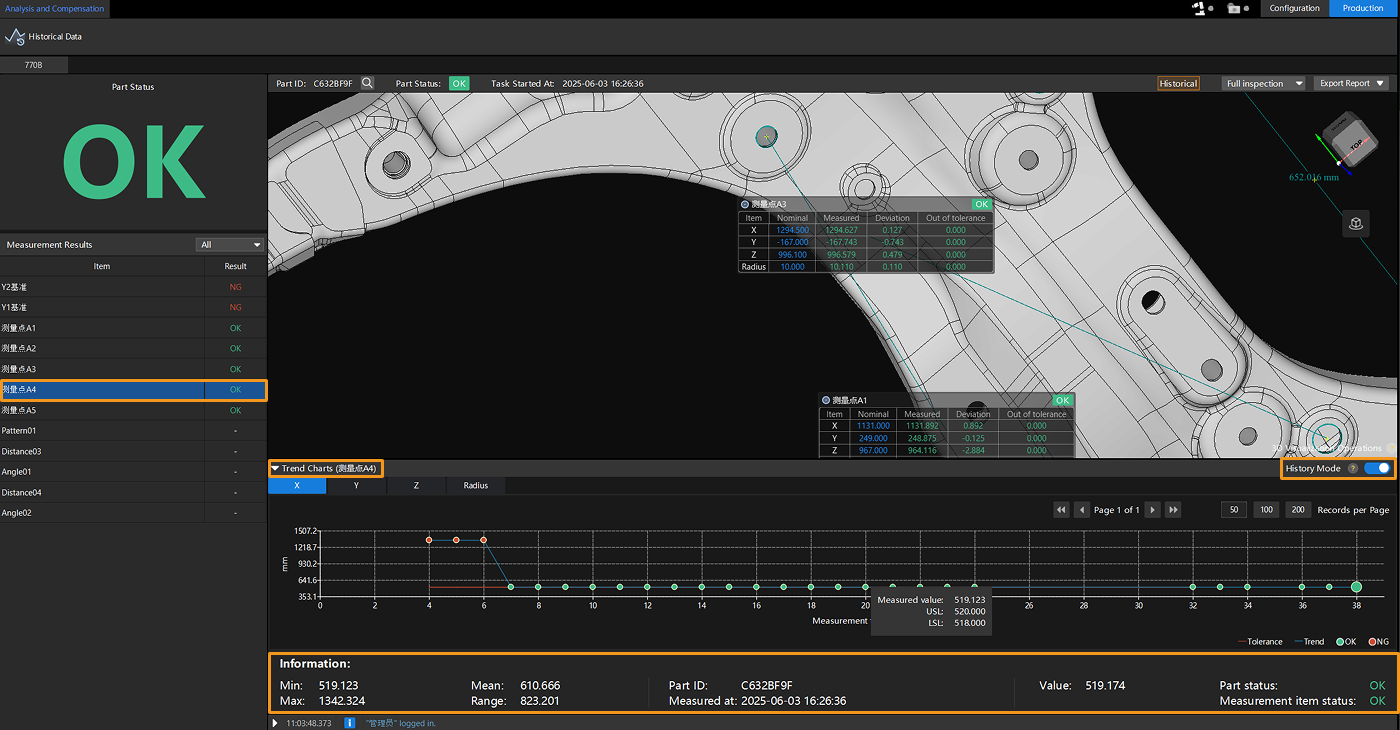
In the Measurement Results table on the left of the Production interface, click a feature.
-
In the Trend Charts area, click the History Mode button to open History Mode.
-
Click the tab for each control item to view the measured values, data trends, and other information (such as the status of the associated feature, the status of the associated part, the part SN, etc.) for each measurement time.
Export Report
Measurement reports can be exported in the production interface. For details, refer to Export Report.