Use Best Fit Alignment
This section introduces how to use Best Fit Alignment.
To use Best Fit Alignment, perform the following operations:
-
You can open the Best Fit Alignment dialog box in either of the following ways and add features to use:
-
In the upper functional area of the Configuration interface, select . In the pop-up dialog box, click + next to Basis features and add features as needed.
-
You can also hold the Ctrl key and click to select multiple features in the left-side resource tree of the current part, and then right-click and select .
You can select all features of reference fixture spheres. -
-
After you add the features, select features in the table below Basis features.
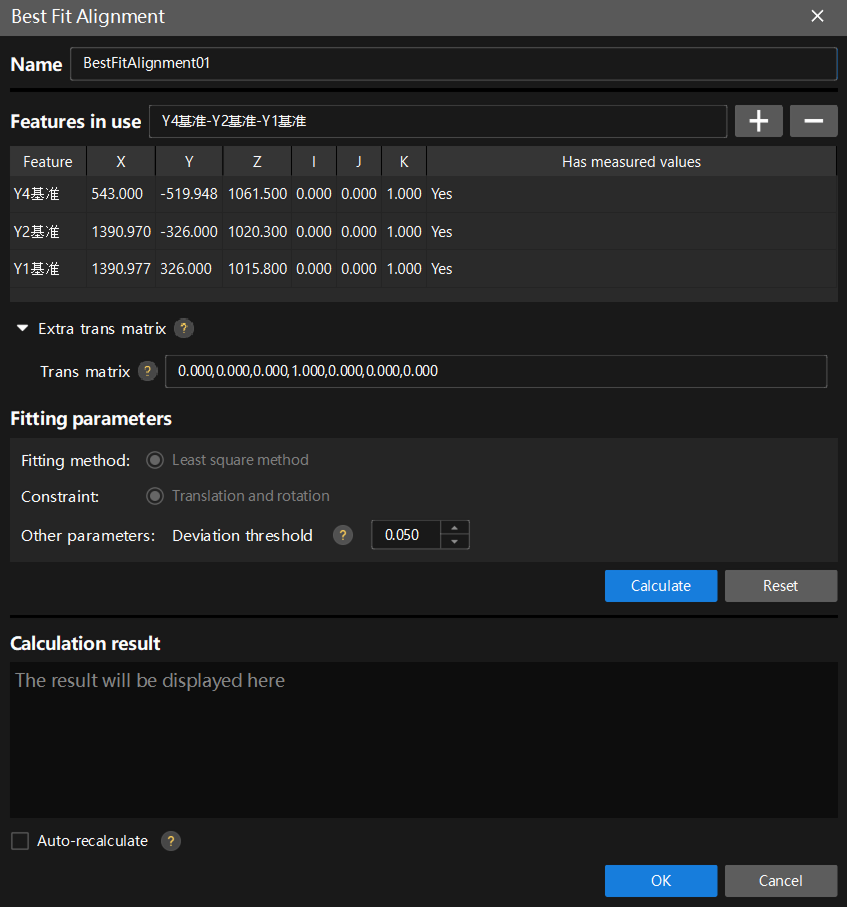
-
Click OK.
Since there is no measurement data at this point, you do not need to click Calculate. Once you obtain all the measurement data for the selected features, you can return to this dialog box and then click Calculate. How to determine whether the calculation result is valid?
Obtain the measured values for a feature, and then check the deviation values for that feature on the annotation card. If the deviation values are not highlighted in red, it indicates that the alignment is valid.
Managing Alignment Methods
After an alignment method is created, click the alignment method in the resource tree on the left to view and manage its configuration in the parameter panel on the right. The parameter panel consists of three parts: Basic Info, Alignment Result, and Scope Features.
You can also right-click the alignment method in the resource tree and then select Modify to open the alignment dialog box and modify its configuration.
This section covers the following content:
Activating and Deactivating Alignment Methods
In the Basic Info section of the parameter panel, select Activate to activate the alignment method, or clear it to deactivate the alignment method.
|
Viewing and Exporting Alignment Results
The Alignment Result section of the parameter panel displays the Translation and Rotation results of the alignment.
-
Click Copy Result to copy the alignment result.
-
Click Export Result, and the software will export the alignment result to the specified path.
-
Export Path: Click Browse… to select the export path.
-
Auto Export: If selected, the software will automatically export the alignment result.
-
Configuring Scope Features
Scope features are used to specify the features that the current alignment method applies to.
In the Scope Features section of the parameter panel, click Edit Scope Features to open the Edit Scope Features dialog box. In this dialog box:
-
You can search for features in the Search features box, or click Select all or Deselect all to select features in batches.
-
Available features are all the features that the current alignment method can apply to. Among them, the basis features that constitute the alignment method are always selected and cannot be changed.
-
Unavailable features are features that have been occupied by other alignment methods and cannot be selected.
|
Click the alignment overview entry in the resource tree to open the Alignment Overview, where you can centrally view the scope features of each alignment method. |