Measurement Settings Editor
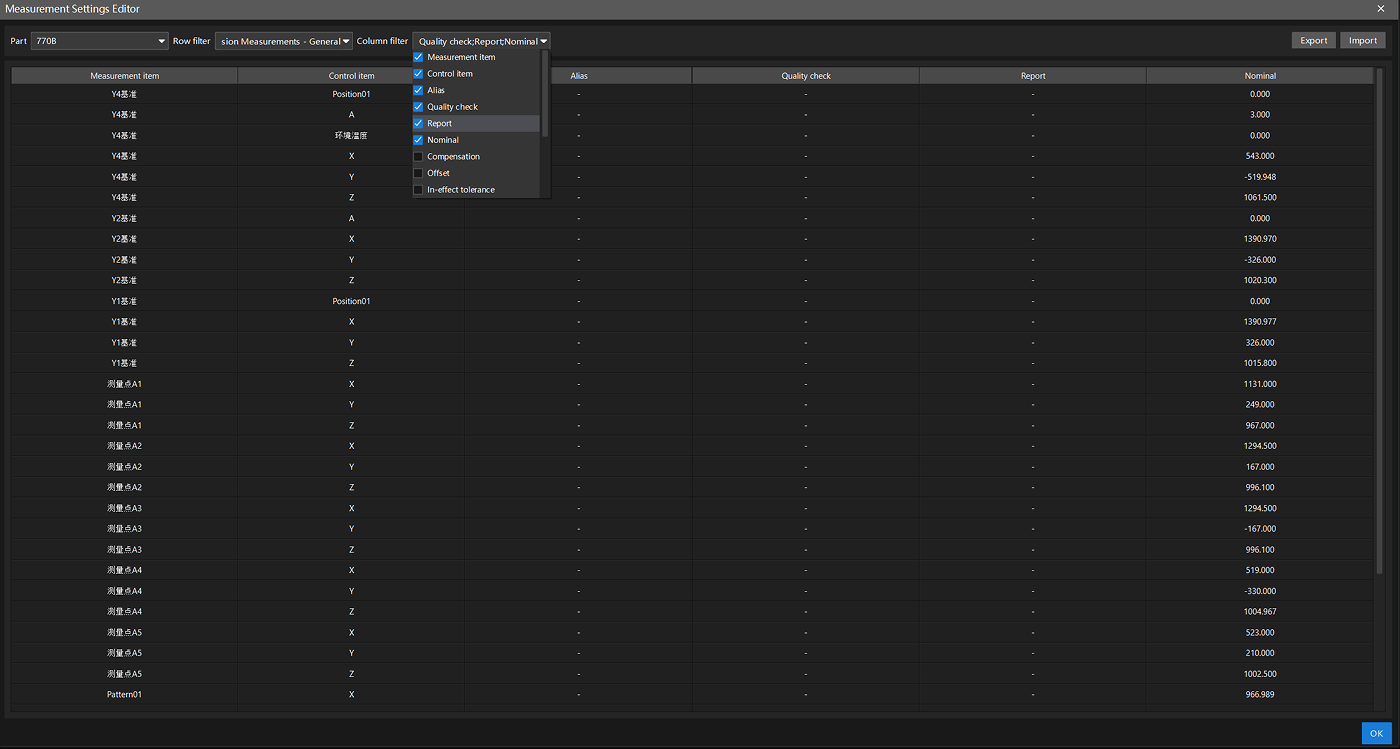
This section introduces how to use the Measurement Settings Editor. The Measurement Settings Editor allows you to configure measurement settings for all features by editing rows and columns. It is designed for users who need to perform batch configurations. The following describes how to use the Measurement Settings Editor.
-
In the upper functional area of the Configuration interface of the software, select .
-
In the Measurement Settings Editor, use the row filter to select the desired features and control items for the current project (such as dimension control items and GD&T control items), and use the column filter to select the measurement data you want to view (such as Quality check, Nominal, Compensation, Offset, In-effect tolerance, etc.).
-
If you have selected Quality check in the column filter, select Quality check for the desired features in this column. In this case, the features will be involved in the quality judgment of the part.
-
To modify specific measurement data, you can click Export in the upper-right corner of the Measurement Settings Editor to export the current data. After you export the current data, you can modify specific measurement data on your local device and then click Import in the upper-right corner of the Measurement Settings Editor to import the modified data.