Manage Deep Learning Model Packages in Mech-MSR
In Mech-MSR, you can use the deep learning model package management tool to import model packages.
Introduction
Deep learning model package management tool is designed to manage all deep learning model packages in Mech-MSR. It can be used to optimize single model packages exported from Mech-DLK 2.6.1 or above and manage and monitor the operation mode, hardware type, model efficiency, and model package status. Besides, this tool can be used to monitor the GPU memory usage of the IPC.
If a Deep Learning Model Package Inference Step is used in the project, you can import the model packages to the deep learning model package management tool first and then use the models in the Step. By importing the model packages into the tool in advance, you can optimize the model package beforehand.
|
|
Since Mech-DLK 3.0.0, model packages are available in two types: single model packages and multiple model packages. Versions from Mech-DLK 2.4.1 and Mech-DLK 3.0.0 support exporting only single-model packages and cascaded model packages (that is, serial models).
|
![][align="center"](_images/manage-deep-learning-model-packages/terminal-comprehensive-inspection-module-combination.png)
Start the Feature
You can open the tool in the following ways:
-
After creating or opening a project, select in the menu bar.
-
In the graphical programming workspace of the software, click the Config wizard button on the Deep learning model package inferenceStep.
-
In the graphical programming workspace of the software, select the Deep learning model package inference Step and then click Open the editor button under the Model manager tool parameter in the Parameters section.
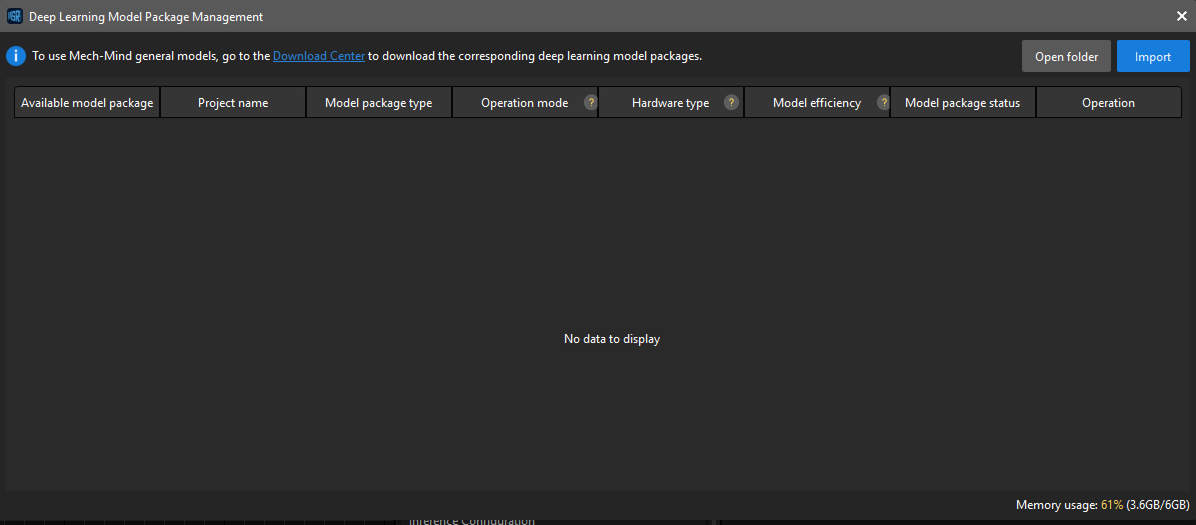
Interface Description
The fields in this tool are described as follows:
| Field | Description | ||
|---|---|---|---|
Available model package |
The name of the imported model package. |
||
Project name |
The Mech-MSR project that uses the corresponding model package. |
||
Model package type |
Model package types include single-model packages (such as object detection and text recognition) and multi-model packages. |
||
Operation mode |
The operation mode of the model package during inference, including Sharing mode and Performance mode.
|
||
Hardware type |
The hardware type used for model package inference, including GPU (default), GPU (optimization), and CPU.
|
||
Model efficiency |
The inference efficiency of the model package. |
||
Model package status |
The statuses of the model package, including loading and optimizing, optimization failure, not loaded, and loading completed.
|
||
Operation |
You can release or delete a model package.
|
Common Operations
Follow the steps below to learn about common operations for using the deep learning model package management tool.
Import a Deep Learning Model Package
-
Open the deep learning model package management tool and click the Import button in the upper right corner.
-
In the pop-up window, select the model package you want to import, and click the Open button. The model package will appear in the list.
Switch the Operation Mode
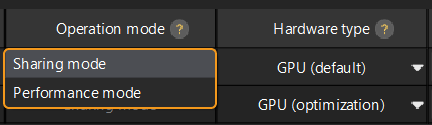
If you want to switch the Operation mode for deep learning model package inference, you can click  in the Operation mode column in the deep learning model package management tool, and select Sharing mode or Performance mode.
|
Switch the Hardware Type
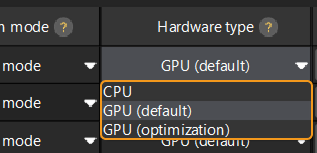
You can change the hardware type for deep learning model package inference to GPU (default), GPU (optimization), or CPU.
Click the button in the Hardware type column in the deep learning model package management tool, and select GPU (default), GPU (optimization), or CPU.
|
Configure the Model Efficiency
The process of configuring model efficiency is as follows:
-
Determine the deep learning model package to be configured.
-
Click the corresponding Configure button under Model efficiency and set the Batch size and Precision in the pop-up window. The model execution efficiency is affected by batch size and precision.
Batch size: the number of images that will be passed through the neural network at once during inference, ranging from 1 to 128. Increasing the value will increase the model’s inference speed, but more video memory will be used. If the value is not set properly, the inference speed will be slowed down.
|
-
Precision (only available when the Hardware type is set to GPU (optimization)):
-
FP32: high-precision model with slow inference.
-
FP16: low-precision model with fast inference.
-
Troubleshooting
Failed to Import a Deep Learning Model Package
Symptom
After a deep learning model package to import was selected, the system shows the error message of “Failed to import the deep learning model package”.
Possible cause
-
If the model package is downloaded from the Download Center, the package may be corrupted during downloading.
-
The model package may be damaged or edited.
-
The versions of Mech-MSR and Mech-DLK may be incompatible.
-
IPC hardware may not meet the requirements, such as insufficient memory or hard drive space.
Solutions
-
If the model package is downloaded from the Download Center, use the CRC-32 value to verify the integrity of the package. If the CRC-32 value does not match, download the model package again.
-
Check if the model package is damaged or edited. If so, export the model package from Mech-DLK again.
-
Ensure that the versions of Mech-MSR and Mech-DLK are compatible. For more information about version compatibility, see Deep Learning Compatibility.
-
Check the IPC hardware to ensure there is sufficient memory and hard drive space.
-
If the issue still exists, contact Technical Support.
Failed to Optimize a Deep Learning Model Package
Symptom
When optimizing a deep learning model package, an error message saying “Model package optimization failed” popped up.
Possible cause
Insufficient GPU memory.
Solutions
-
Remove the unused model packages in the tool and then re-import the model package for optimization.
-
Switch the “Operation mode” of other model packages to “Sharing mode” and then import the model package for optimization again.