Quick Guide to Output Management
This section introduces the operations related to output management.
Overview
Output management mainly provides the following functions:
-
Quality judgment: Evaluates the measurement data of the project to determine whether the target object meets predefined quality standards or specifications. Quality judgment can be used to evaluate measurement items as a whole and obtain the overall quality judgment result of the project. You can configure a comprehensive judgment rule or custom judgment rules for quality judgment.
-
Communication output: Used to customize external output content and supports standard measurement and inline measurement modes. In standard measurement mode, you can add specific measurement items to the project output so that external devices can obtain the corresponding measurement results and judgment results through standard communication mode. In inline measurement mode, you can set a communication key for each output measurement item so that the inline measurement system can retrieve the corresponding measurement result.
|
The following operations are mainly introduced:
Quality Judgment
Configure the Comprehensive Judgment Rule for the Project
The comprehensive judgment rule can be used to evaluate the measurement data of multiple measurement items as a whole. The quality judgment result of a project is OK only if the results of all selected measurement items are OK. If any selected item is NG, the overall quality is NG.
To configure the comprehensive judgment rule, follow these steps:
-
On the toolbar of Mech-MSR, select .
-
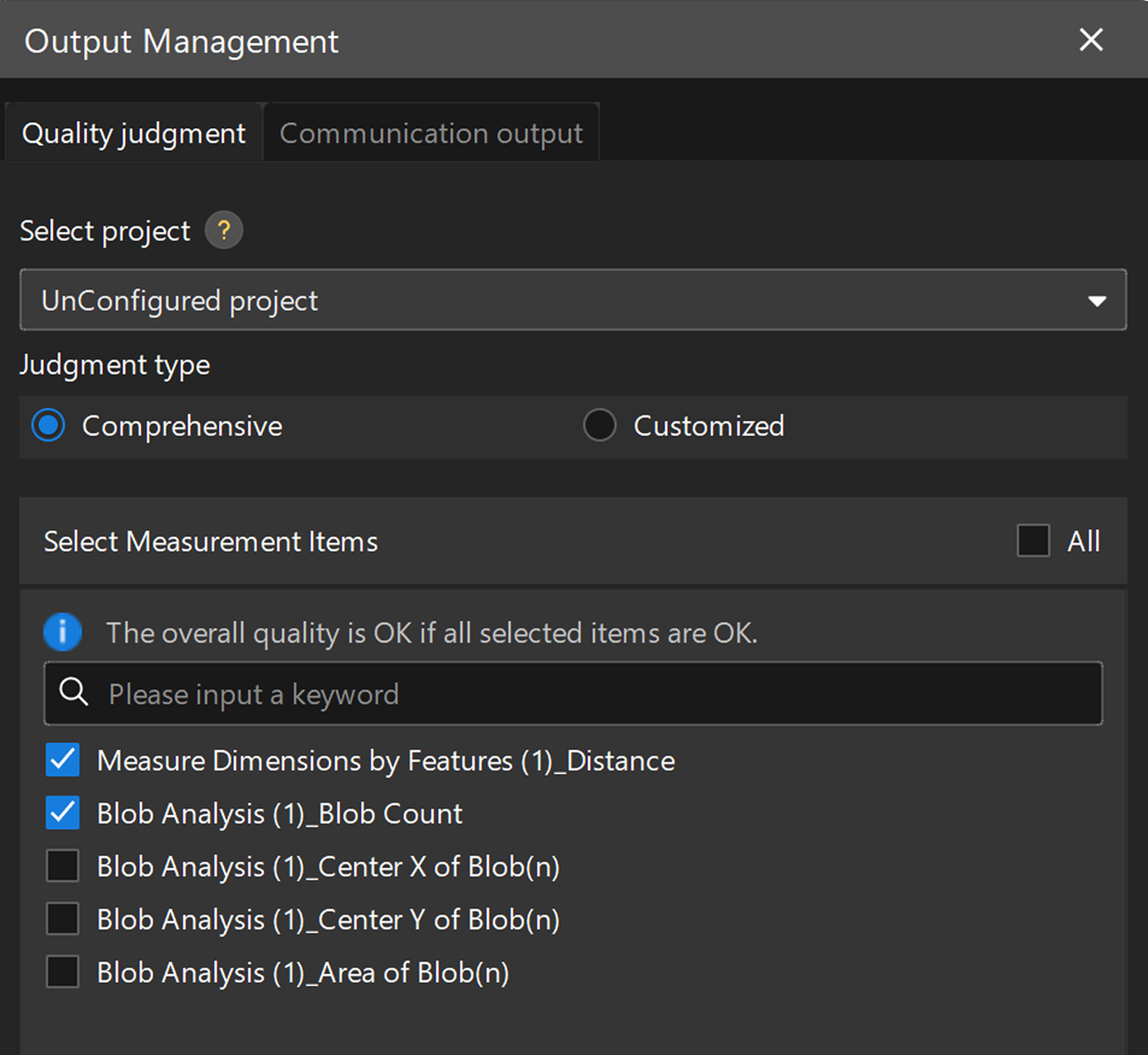
In the Quality judgment tab, set the Select project parameter to the desired project, and then select the Comprehensive option.
-
In the Select Measurement Items area, select the measurement items to be used for comprehensive judgment, and then click the Save button.
|
Configure Custom Judgment Rules for the Project
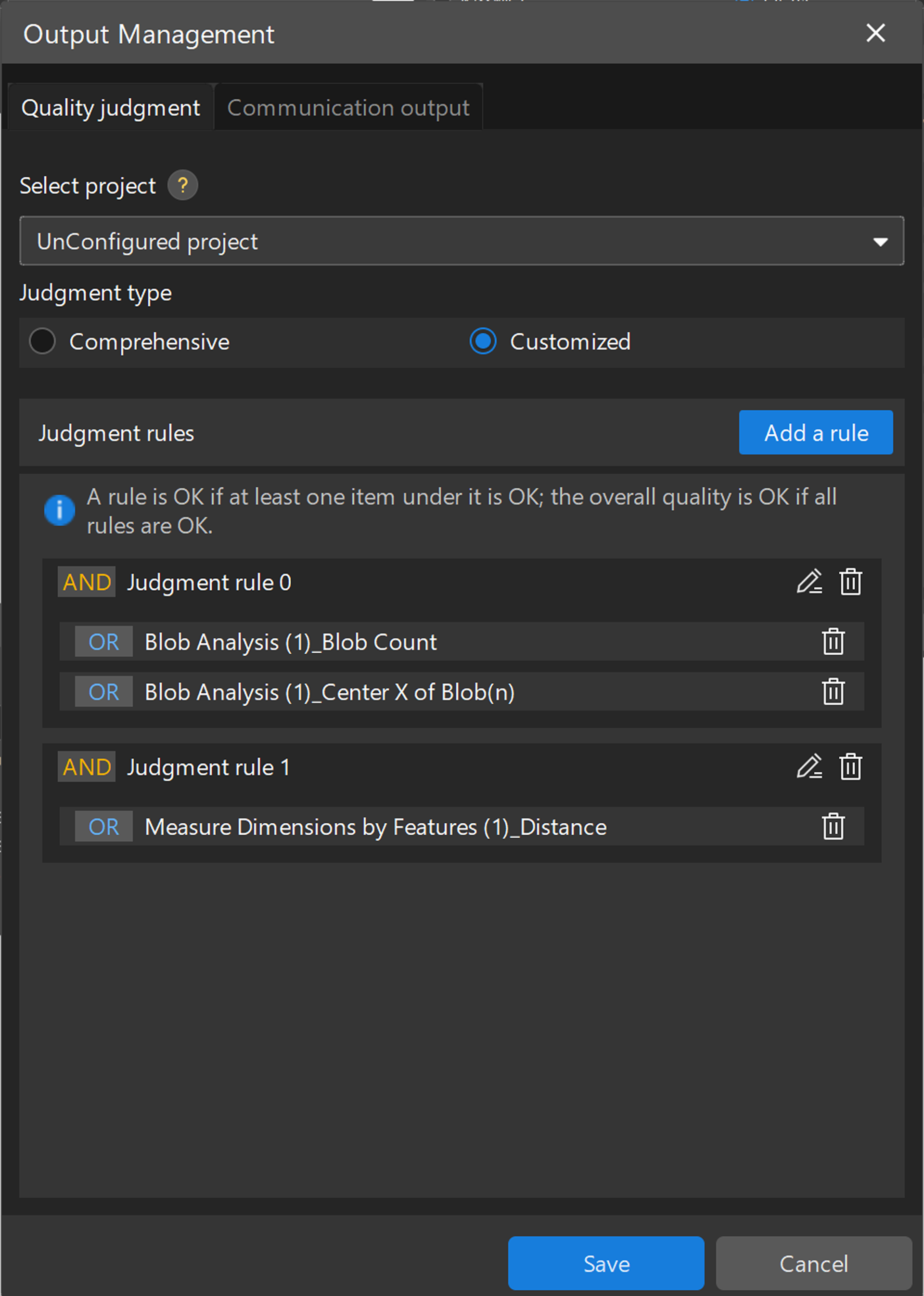
Custom judgment rules are used to meet complex quality judgment needs. You can configure multiple custom judgment rules, and each rule can contain multiple measurement items.
The fit relationship between the judgment rules and measurement items is as follows:
-
A rule is OK if at least one item under it is OK.
-
The overall quality is OK if all rules are OK.
To configure custom judgment rules for the project, follow these steps:
-
On the toolbar of Mech-MSR, select .
-
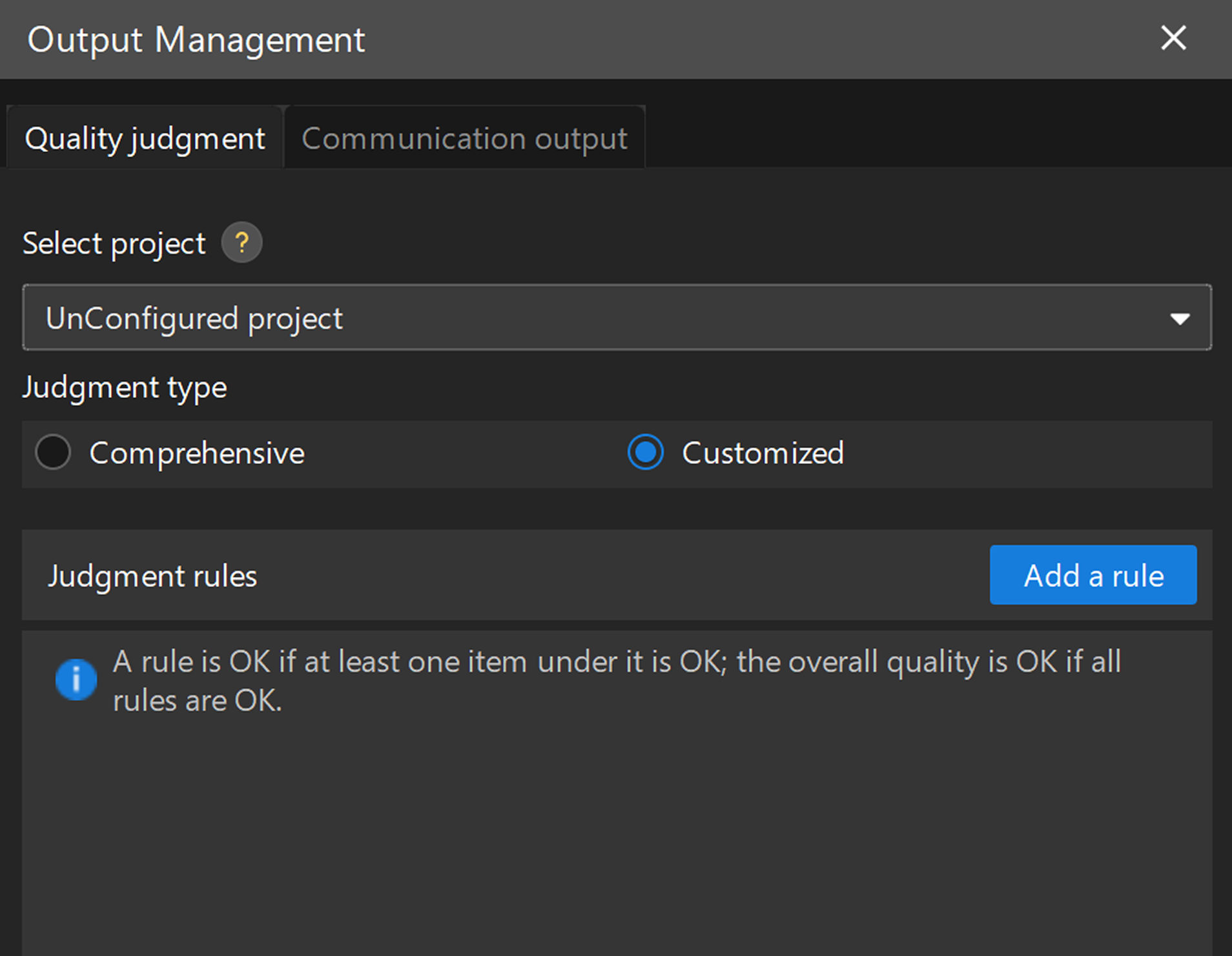
In the Quality judgment tab, set the Select project parameter to the desired project, and select the Customized option.
-
In the Judgment rules area, click the Add rules button.
-
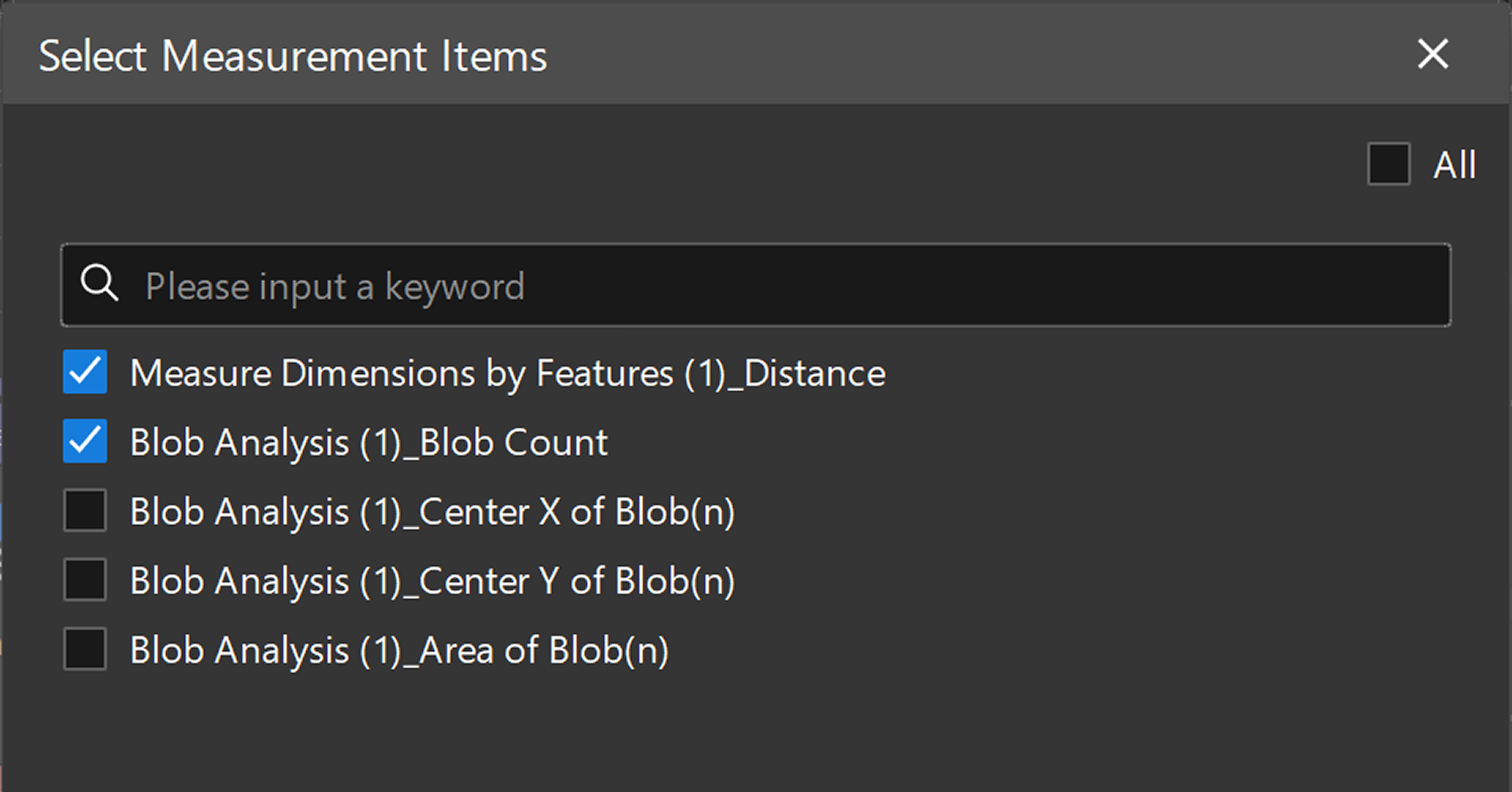
In the pop-up Select Measurement Items dialog box, select the measurement items you need, and then click the OK button.
-
Repeat the previous two steps to add more judgment rules, and then click the Save button.
To delete a custom judgment rule, click the delete icon  behind the custom judgment rule in the Judgment rules area, and then click the Save button.
| In a project, one measurement item can be included in only one custom judgment rule. If you want to add a measurement item to another custom judgment rule, you need to delete the measurement item from the current custom judgment rule before adding it to another rule. |
To delete a measurement item from a custom judgment rule, in the Judgment rules area, click the delete icon behind the measurement item, and then click the Save button.
To add a measurement item to a custom judgment rule, follow these steps:
-
In the Judgment rules area, click the edit icon
 behind the custom judgment rule.
 -
In the pop-up Select Measurement Items dialog box, select the measurement items you want to add, and then click the OK button.
-
Click the Save button.
Communication Output
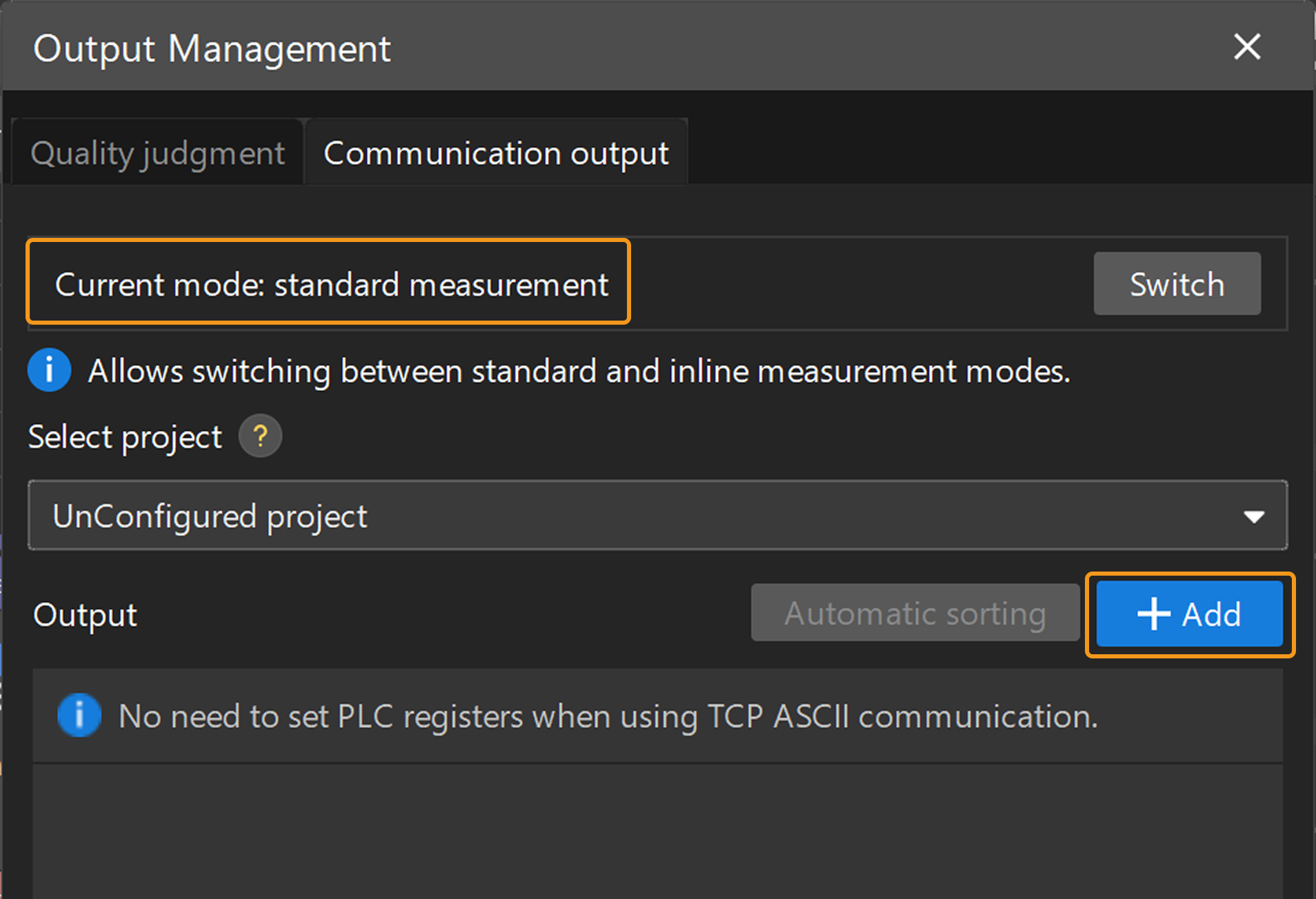
Communication output supports standard measurement and inline measurement modes. In the Communication output tab, you can view the current mode and switch modes by clicking the Switch button.
|
The communication output settings in standard measurement mode and inline measurement mode can be saved separately, but actual communication output uses only the saved settings in the current mode. When Mech-MSR communicates with an external device, make sure that the current mode in Communication output matches the mode actually in use. |
Configure Communication Output in Standard Measurement Mode
In standard measurement mode, you can add specific measurement items to the project output. After the 3D measurement system establishes communication with an external device through standard communication mode, the external device can obtain the measurement results and corresponding judgment results of these measurement items.
To add measurement items to the project output, follow these steps:
-
On the toolbar of Mech-MSR, select .
-
In the Communication output tab, select the desired project from the Select project drop-down list, and then click the Add button in the Output area.
-
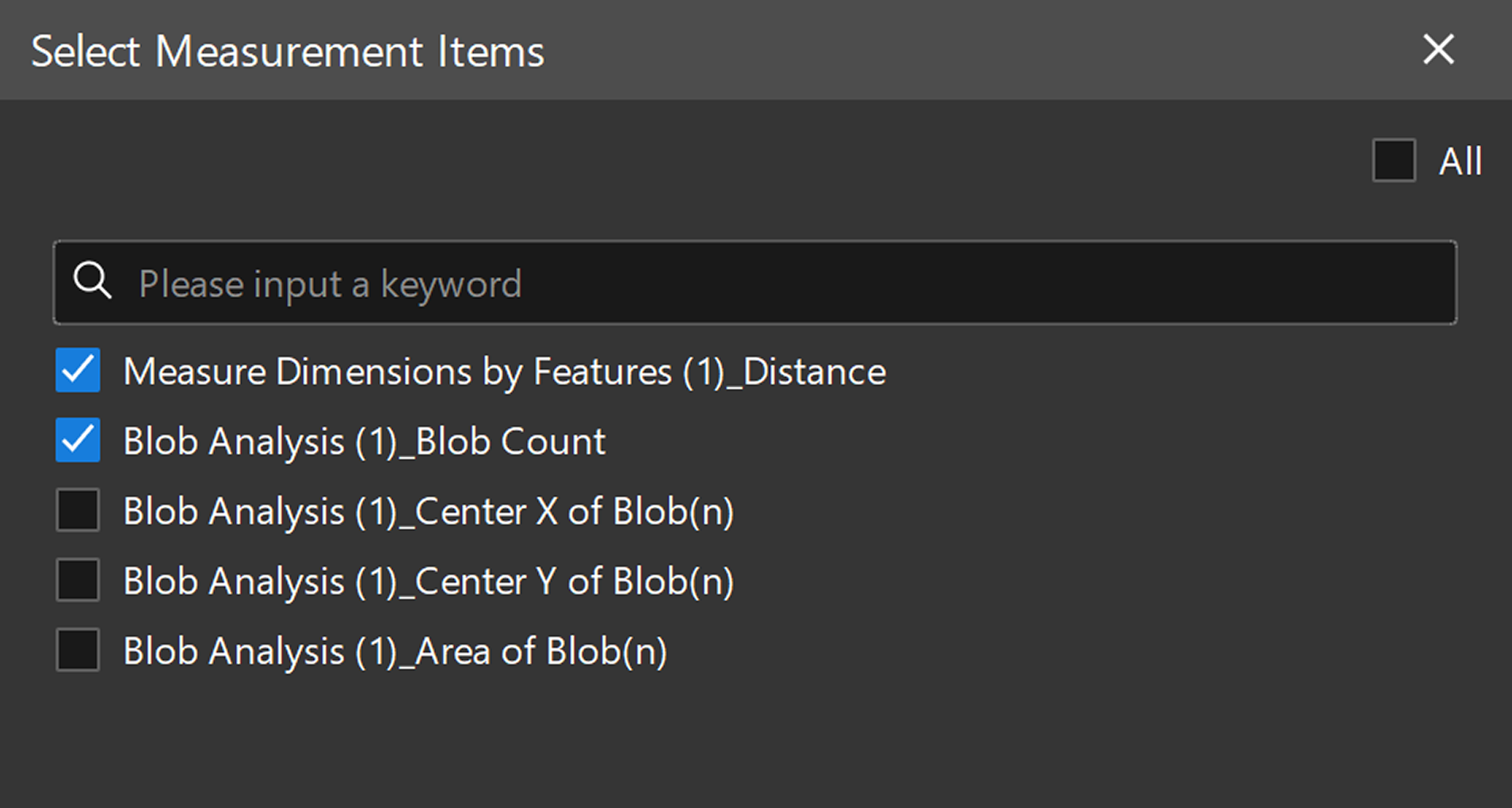
In the pop-up Select Measurement Items dialog box, select the measurement items you need, and then click the OK button.
-
In Output area, set the Corrective compensation parameter for the measurement item according to the actual needs.
-
In the Output area, the ID before the measurement item name is the order of the measurement items in the output of the current project.
-
After Corrective compensation is set for a measurement item, the Output Results panel of the relevant Step will display the measured values before and after correction of the measurement item.
-
-
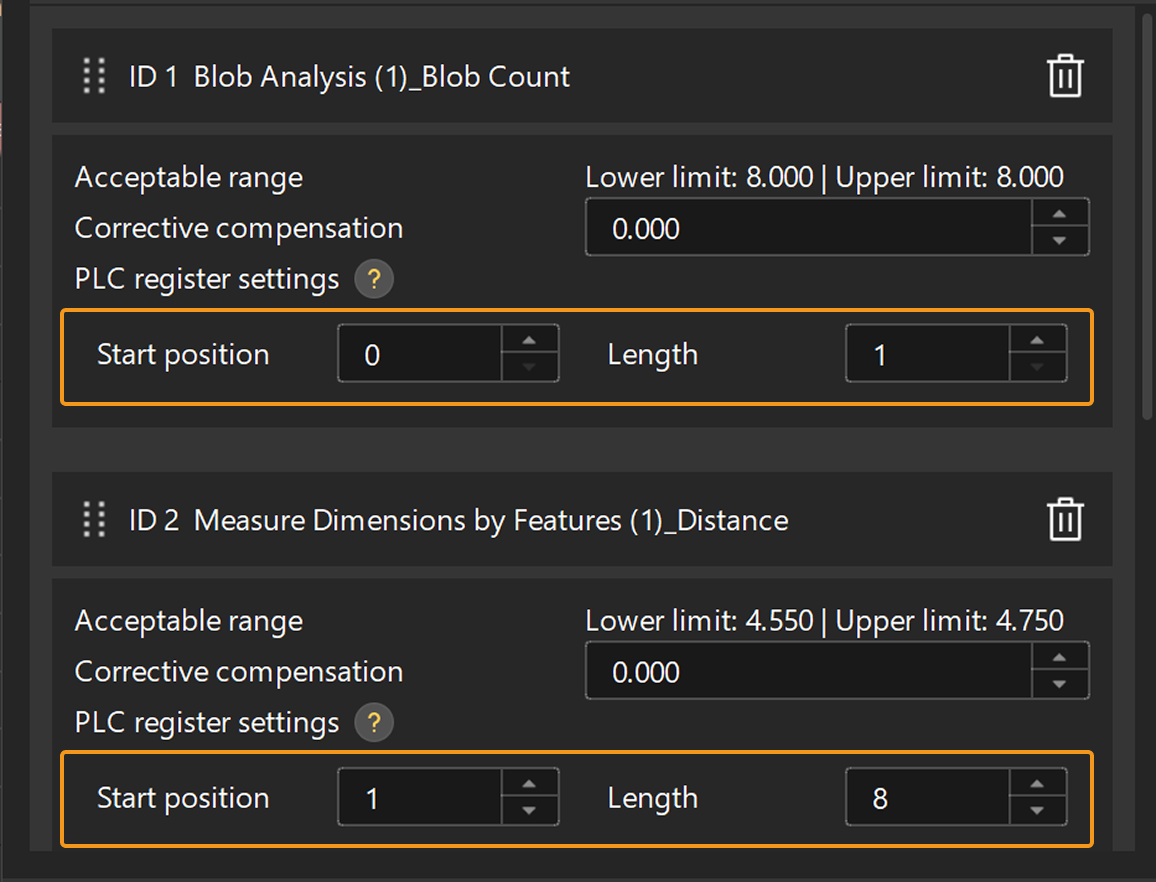
Perform PLC register settings. For a measurement item, the output measured values occupy space starting from the Starting position according to the set Length.
-
Start position: Represents the offset of the first register to be occupied by the measurement result, relative to the address of the first register for the VALUE module. For more information on the VALUE module, refer to Communication Modes and check the output signal table of the corresponding protocol.
-
Length: Represents the number of values in the measurement result, which equals the number of registers to be occupied by the result.
-
For communication based on the TCP ASCII protocol, there is no need to conduct PLC register settings.
-
For each measurement item, the sum of the start position and length values must not exceed 64; otherwise, the output result may be incomplete.
-
-
Click the Save button to save the changes.
To delete a measurement item from the output of the project, in the Output area, click the delete icon on the right side of the measurement item, and then click the Save button.
Configure Communication Output in Inline Measurement Mode
In inline measurement mode, you can assign a unique Communication key to each output measurement item. The inline measurement system will use the keys to retrieve the corresponding measurement result.
To add measurement items to the project output, follow these steps:
-
On the toolbar of Mech-MSR, select .
-
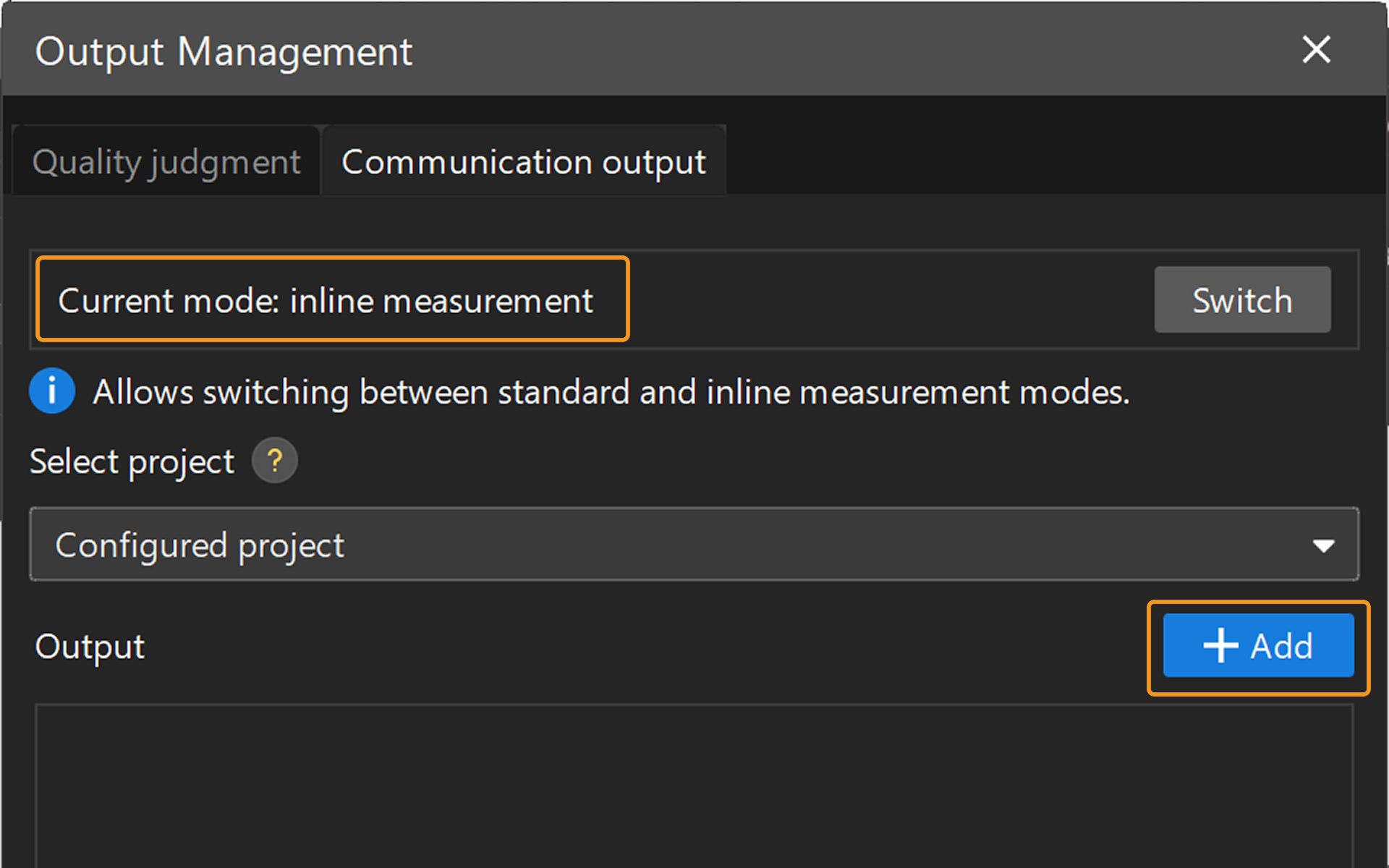
In the Communication output tab, check Current mode. If the current mode is not inline measurement, click the Switch button to switch to inline measurement mode.
-
Select the desired project from the Select project drop-down list, and then click the Add button in the Output area.
-
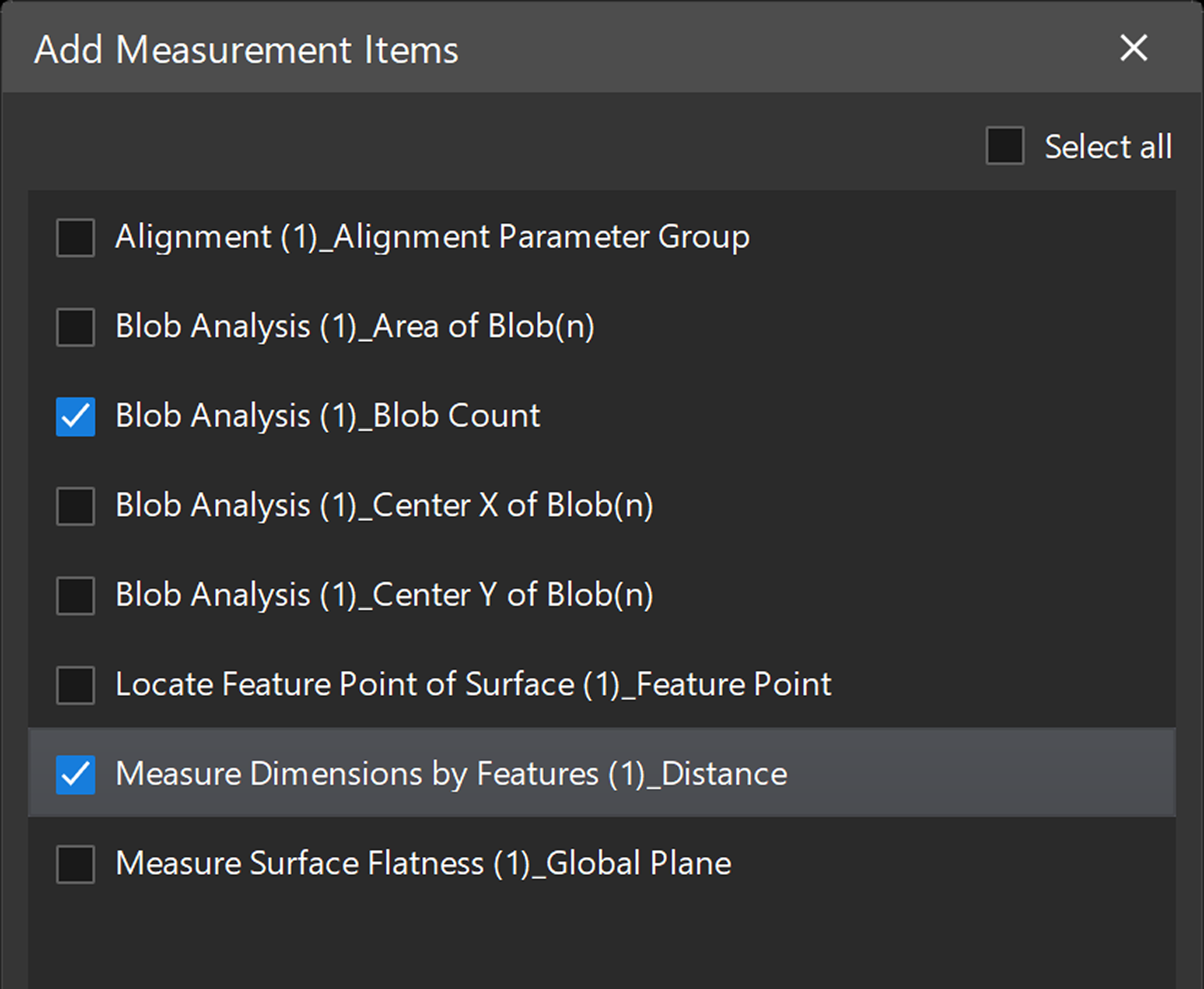
In the pop-up Add Measurement Items dialog box, select the required measurement items, and then click the OK button.
-
In the Output area, assign a unique communication key to each measurement item.
Assign a unique communication key to each measurement item. The inline measurement system will use the keys to retrieve the measurement result. 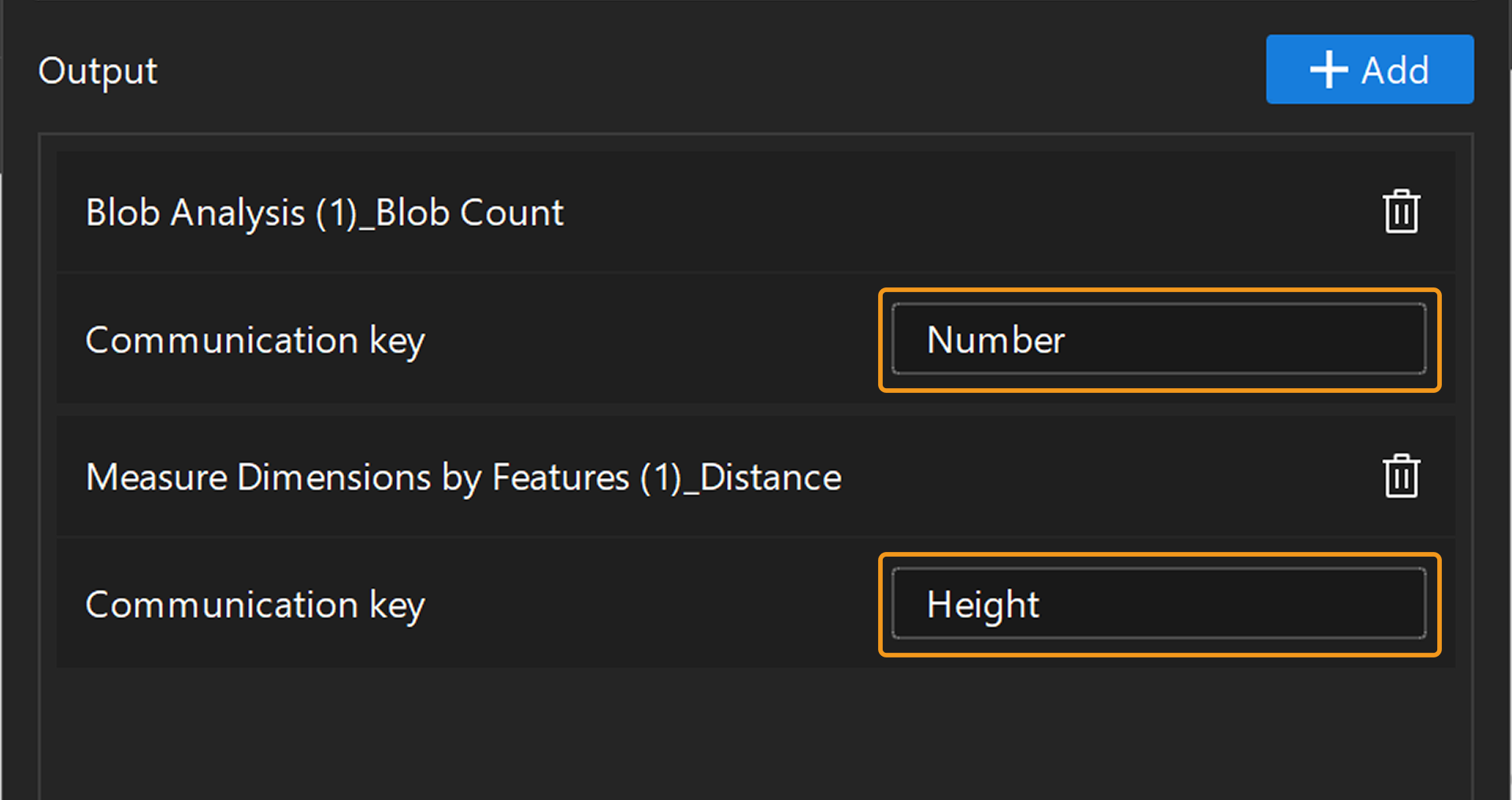
-
Click the Save button to save the changes.