Commands for TCP ASCII Communication
When TCP ASCII communication is used, the external device should use the following types of commands to trigger the Mech-MSR project to run and obtain the corresponding results.
-
trigger command: for triggering a project or projects to run.
-
return command: for obtaining the judgment result and measurement result of a specified project.
-
execute command: for triggering a project to run and obtaining the judgment result and measurement result of the project.
-
judge command: for obtaining the overall quality judgment result of a specified project or the quality judgment result of individual measurement items.
-
value command: mainly for obtaining the measured values of a specified project.
-
recipe command: for switching the parameter recipe of the specified project.
-
solution command: for switching the solution.
-
SetNumVar command: for setting the value of a numeric global variable.
-
SetStrVar command: for setting the value of a string global variable.
-
GetNumVar command: for reading the value of a numeric global variable.
-
GetStrVar command: for reading the value of a string global variable.
|
Trigger Command
The trigger command is used to trigger Mech-MSR projects to run. Multiple projects can be triggered to run at the same time.
Step 1: Determine Project ID
In the Project List area of Mech-MSR’s home interface, check the ID of the project to be triggered.
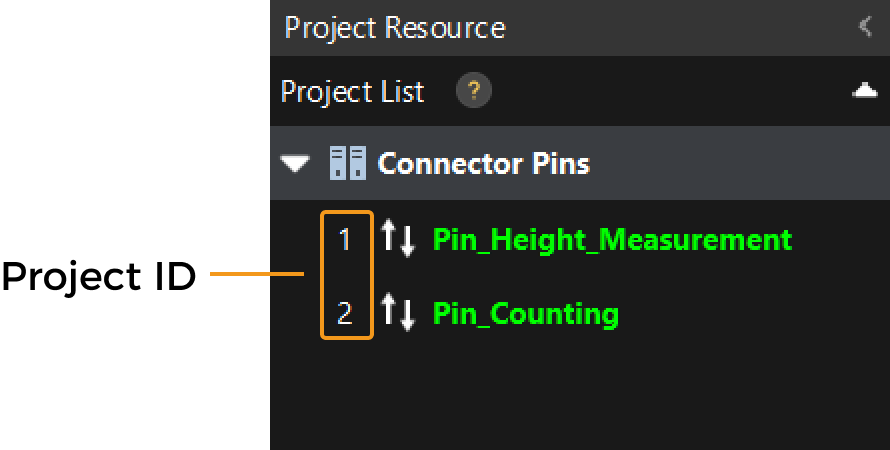
| Drag the projects to adjust the project order, and then click the solution name and select Reset Project IDs from the right-click menu to update the project IDs. |
Step 2: Send a Command
The sent trigger command should consist of trigger, project ID, and string delimiter.
-
trigger:The exact command name, case-sensitive.
-
Project ID: the ID of the project to be triggered in the Mech-MSR solution.
-
String delimiter: The symbol that separates “trigger” from the project ID. The default value is the English comma (,). You can change it in Mech-MSR’s Communication Configuration window under the Other data formats parameter.
The table below illustrates the format of trigger commands.
| Format | Description | Example |
|---|---|---|
|
Triggers a project to run. |
Triggers the project with an ID value of 1 to run:
|
|
Triggers multiple projects to run. |
Triggers projects with ID values of 1, 2, and 3 to run:
|
Step 3: Check the Returned Results
After a trigger command is sent, if the received status code is 1, the command has been executed successfully.
If command execution fails, an error code will be returned. See Error Codes for possible causes and solutions.
Return Command
After sending a trigger command to trigger the project to run, use the return command to obtain the running results of the project. You can use the return command to get the results of only one Mech-MSR project at a time.
Step 1: Determine the Format of Returned Results
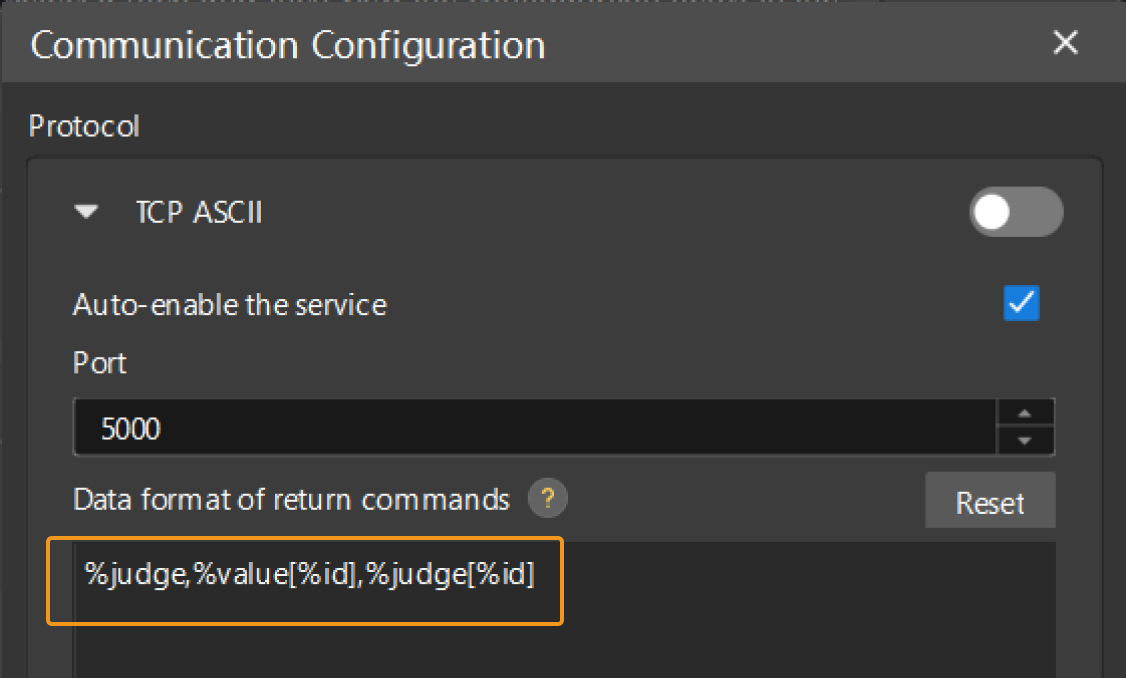
In Mech-MSR’s Communication Configuration window, set the Data format of return commands according to actual needs.
The default data format is %judge,%value[%id],%judge[%id].
Step 2: Send a Command
The sent return command should consist of return, project ID, and string delimiter.
-
return:The exact command name, case-sensitive.
-
Project ID: The ID of the project triggered by the trigger command in the Mech-MSR solution.
-
String delimiter: The symbol that separates “return” from the project ID. The default value is the English comma (,).
The table below illustrates the format of return commands.
| Format | Description | Example |
|---|---|---|
|
Used to obtain the running result of the project. |
Command to send for obtaining the running result of project 1:
|
Ensure that the specified project has been triggered to run by the trigger command, or else the result cannot be obtained normally after the return command is sent.
|
Step 3: Check the Returned Results
In the example of project 1, after the external device sends return, 1 command, Mech-MSR will return the results according to the Data format of return commands set in the Communication Configuration window.
If command execution fails, an error code will be returned. See Error Codes for possible causes and solutions.
| Data format of return commands | Returned results (example) | Description |
|---|---|---|
|
|
It indicates that the overall quality judgment result of project 1 is OK. |
|
|
It indicates that the overall quality judgment result of project 1 is NG. |
|
|
It indicates that the overall quality judgment result of project 1 is OK, and in this project, only two measurement items are specified to be output. The first measurement item in sequence has a value of 0.0224 and is judged as OK, and the second measurement item has a value of 54.0000 and is judged as NG. |
|
It indicates that the overall quality judgment result of project 1 is NG. In this project, only one measurement item is specified to be output. The measurement item has no measurement result, and thus invalid is returned, and the value of the measurement item is judged as NG. |
|
|
|
It indicates that the overall quality judgment result of project 1 is OK, and both the value of measurement item 2 and the corresponding judgment result are invalid. Possible cause:
Solutions:
|
|
See Measured values and judgment results to learn the basic conditions for Mech-MSR returning results to an external device. |
Execute Command
The execute command combines the functionality of the trigger and return commands. It can be used to trigger a project to run and obtain both the judgment results and measurement results of the project.
Step 1: Send a Command
The sent execute command should consist of execute, project ID, and string delimiter.
-
execute:The exact command name, case-sensitive.
-
Project ID: the ID of the project to be triggered in the Mech-MSR solution.
-
String delimiter: The symbol that separates “execute” from the project ID. The default value is the English comma (,).
The table below illustrates the format of execute commands.
| Format | Description | Example |
|---|---|---|
|
Triggers a project to run and obtains the judgment results and measurement results of the project. |
Triggers the project with an ID of 1 to run and obtains the judgment results and measurement results of the project:
|
| The execute command (command code 1) can only be used for triggering one project to run and obtaining the judgment result and measurement result of the project. |
Step 2: Check the Returned Results
In the example of project 1, after the external device sends execute, 1 command, Mech-MSR will return the results according to the Data format of return commands set in the Communication Configuration window. See Returned Results of Return Command for details.
If command execution fails, an error code will be returned. See Error Codes for possible causes and solutions.
Judge Command
After sending a trigger command to trigger the project to run, use the judge command to obtain the judgment results of the specified Mech-MSR project or individual measurement items.
Step 1: Send a Command
The sent judge command should consist of judge, project ID, and string delimiter.
-
judge:The exact command name, case-sensitive.
-
Project ID: The ID of the project triggered by the trigger command in the Mech-MSR solution.
-
String delimiter: The symbol that separates “judge” from the project ID. The default value is the English comma (,).
The table below illustrates the format of judge commands.
| Format | Description | Example |
|---|---|---|
|
Used to obtain the overall quality judgment result of the specified project and the judgment results of individual measurement items. |
Command to send for obtaining the overall judgment result of project 1 and the judgment results of individual measurement items:
|
Step 2: Check the Returned Results
In the example of project 1, after an external device sends judge, 1, Mech-MSR will return the overall quality judgment result of the project and the quality judgment results of individual measurement items according to the set quality judgment rule and communication output in the Output Management window.
If command execution fails, an error code will be returned. See Error Codes for possible causes and solutions.
| Returned result | Description |
|---|---|
(example) |
The first 1 indicates that the overall judgment result of project 1 is OK, and the next two 1s indicate that 2 measurement items have been set to be output for the project, and the judgment result of both is OK. |
(example) |
The first 0 indicates that the overall judgment result of project 1 is NG, and the next two 0s indicate that 2 measurement items have been set to be output for the project, and the judgment result of both is NG. |
|
See Judgment results to learn about the basic conditions for Mech-MSRreturning results to an external device. |
Value Command
After sending a trigger command to trigger the project to run, use the value command to obtain the measured values of the specified project.
Step 1: Send a Command
The sent value command should consist of value, project ID, and string delimiter.
-
value:The exact command name, case-sensitive.
-
Project ID: The ID of the project triggered by the trigger command in the Mech-MSR solution.
-
String delimiter: The symbol that separates “value” from the project ID. The default value is the English comma (,).
The table below illustrates the format of value commands.
| Format | Description | Example |
|---|---|---|
|
Used to obtain the measured values of a specified project. |
Command to send for obtaining the measured values of project 1:
|
Step 2: Check the Returned Results
In the example of project 1, after an external device sends value, 1, Mech-MSR will return the overall quality judgment result of the project and the values of each measurement item according to the set quality judgment rule and communication output in the Output Management window.
If command execution fails, an error code will be returned. See Error Codes for possible causes and solutions.
| Returned result | Description |
|---|---|
(example) |
1 indicates that the overall judgment result of project 1 is OK, and the value of measurement item 1 is 54.000. This project only specifies the output of one measurement item. |
(example) |
0 indicates that the overall judgment result of project 1 is NG, and the value of measurement item 1 is 54.0000. This project only specifies the output of one measurement item. |
(example) |
0 indicates that the overall judgment result of project 1 is NG. This project only specifies the output of one measurement item, but the measurement item does not have a corresponding value. Thus, the returned value is invalid. Possible cause: There are no measurement results for this measurement item. Solution: Check the measurement item and ensure that the project can output valid results. |
|
See Measured values and judgment results to learn the basic conditions for Mech-MSR returning results to an external device. |
Recipe Command
The recipe command is used to switch the parameter recipe used by a project. See Parameter Recipe to learn how to configure parameter recipes for projects and view recipe IDs.
After using the recipe command to switch the parameter recipe, you need to send the trigger command or execute command to trigger the corresponding project to run.
|
Step 1: Send a Command
The recipe command consists of recipe, project ID, parameter recipe ID, and string delimiter.
-
recipe:The exact command name, case-sensitive.
-
Project ID: The ID of the project whose parameter recipe needs to be switched in the Mech-MSR solution.
-
Parameter recipe ID: The parameter recipe ID to be switched.
-
String delimiter: The symbol that separates “recipe”, “project ID” and “parameter recipe ID”. The default value is the English comma (,).
The following table shows the format and example of the recipe command.
| Format | Description | Example |
|---|---|---|
|
Used to switch the parameter recipe used by the specified project. |
Switches project 1 to parameter recipe 2:
|
Step 2: Check the Returned Results
After a recipe command is sent, if the received status code is 1, the command has been executed successfully.
If command execution fails, an error code will be returned. See Error Codes for possible causes and solutions.
Solution Command
The solution command is used to switch solutions.
Step 1: Send a Command
The solution command consists of solution, solution ID, and string delimiter.
-
solution:The exact command name, case-sensitive.
-
Solution ID: The solution ID to be switched. See Adjust Solution IDs to learn how to view and adjust the solution IDs.
-
String delimiter: The symbol that separates “solution” and “solution ID.” The default value is the English comma (,).
The following table shows the format and example of the solution command.
| Format | Description | Example |
|---|---|---|
|
Used to switch solutions. |
Switches to the solution with ID 1:
|
Step 2: Check the Returned Results
After a solution command is sent, if the received status code is 1, the command has been executed successfully.
If command execution fails, an error code will be returned. See Error Codes for possible causes and solutions.
SetNumVar Command
The SetNumVar command is used to set the value of a numeric global variable.
Global variables are variables that can be shared across projects in the current solution. See Global Variable Manager to learn how to configure global variables and view their IDs.
Step 1: Send a Command
The sent SetNumVar command consists of SetNumVar, global variable ID, global variable value, and string delimiter.
-
SetNumVar:The exact command name, case-sensitive.
-
Global variable ID: The ID of the numeric global variable whose value is to be set.
-
Global variable value: The value to set for the global variable.
-
String delimiter: The symbol that separates “SetNumVar,” the global variable ID, and the global variable value. The default value is the English comma (,).
The following table shows the format and example of the SetNumVar command.
| Format | Description | Example |
|---|---|---|
|
Used to set the value of a specified numeric global variable. |
Sets numeric global variable 1 to 10:
|
Step 2: Check the Returned Results
After a SetNumVar command is sent, if the received status code is 1, the command has been executed successfully.
If command execution fails, an error code will be returned. See Error Codes for possible causes and solutions.
SetStrVar Command
The SetStrVar command is used to set the value of a string global variable.
Global variables are variables that can be shared across projects in the current solution. See Global Variable Manager to learn how to configure global variables and view their IDs.
Step 1: Send a Command
The sent SetStrVar command consists of SetStrVar, global variable ID, global variable value, and string delimiter.
-
SetStrVar:The exact command name, case-sensitive.
-
Global variable ID: The ID of the string global variable whose value is to be set.
-
Global variable value: The value to set for the global variable.
-
String delimiter: The symbol that separates “SetStrVar,” the global variable ID, and the global variable value. The default value is the English comma (,).
The following table shows the format and example of the SetStrVar command.
| Format | Description | Example |
|---|---|---|
|
Used to set the value of a specified string global variable. |
Sets string global variable 1 to
|
Step 2: Check the Returned Results
After a SetStrVar command is sent, if the received status code is 1, the command has been executed successfully.
If command execution fails, an error code will be returned. See Error Codes for possible causes and solutions.
GetNumVar Command
The GetNumVar command is used to read the value of a numeric global variable.
Global variables are variables that can be shared across projects in the current solution. See Global Variable Manager to learn how to configure global variables and view their IDs.
Step 1: Send a Command
The sent GetNumVar command consists of GetNumVar, global variable ID, and string delimiter.
-
GetNumVar:The exact command name, case-sensitive.
-
Global variable ID: The ID of the numeric global variable whose value is to be read.
-
String delimiter: The symbol that separates “GetNumVar” and the global variable ID. The default value is the English comma (,).
The following table shows the format and example of the GetNumVar command.
| Format | Description | Example |
|---|---|---|
|
Used to read the value of a specified numeric global variable. |
Reads the value of numeric global variable 1:
|
Step 2: Check the Returned Results
After sending the GetNumVar command, if the command is read successfully, the value of the global variable corresponding to the numeric type will be returned.
If command execution fails, an error code will be returned. See Error Codes for possible causes and solutions.
GetStrVar Command
The GetStrVar command is used to read the value of a string global variable.
Global variables are variables that can be shared across projects in the current solution. See Global Variable Manager to learn how to configure global variables and view their IDs.
Step 1: Send a Command
The sent GetStrVar command consists of GetStrVar, global variable ID, and string delimiter.
-
GetStrVar:The exact command name, case-sensitive.
-
Global variable ID: The ID of the string global variable whose value is to be read.
-
String delimiter: The symbol that separates “GetStrVar” and the global variable ID. The default value is the English comma (,).
The following table shows the format and example of the GetStrVar command.
| Format | Description | Example |
|---|---|---|
|
Used to read the value of a specified string global variable. |
Reads the value of string global variable 1:
|
Step 2: Check the Returned Results
After the GetStrVar command is sent, if the read operation succeeds, the corresponding string global variable value is returned.
If command execution fails, an error code will be returned. See Error Codes for possible causes and solutions.