Robot Thermal Drift Compensation
Description
Use this Step to collect the poses of the calibration sphere(s) and generate a robot thermal drift compensation model based on the changes in the calibration sphere poses to compensate for accuracy errors caused by robot thermal drift.
Usage Scenario
This Step is applicable to high-precision inline measurement scenarios. When a robot operates for an extended period, temperature changes can cause thermal drift, which reduces the absolute accuracy of the robot and further affects the accuracy of measurement results. You can generate a robot thermal drift compensation model with this Step to compensate for accuracy errors caused by thermal drift.
Workflow
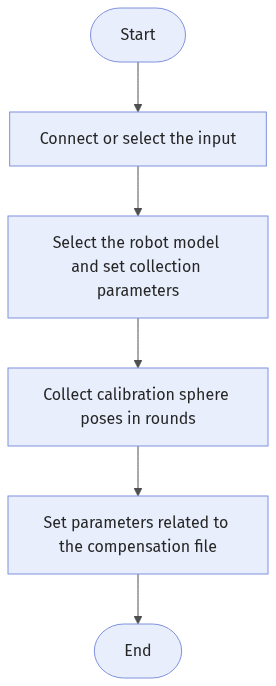
The workflow of this Step is as follows:
-
Select the input data. Connect the corresponding step port in the project editing area, or select the corresponding input data under the Input section in the parameter configuration panel.
-
Click Select robot model to select the robot model, and set collection parameters such as the number of calibration spheres and the number of collected poses per calibration sphere.
-
Collect calibration sphere poses in rounds: the data collected in the first round serves as the reference group, and the data collected in subsequent rounds serves as the observation group. If the collection fails, you can clear the poses collected in the current round or in all rounds and then collect again.
-
Set parameters such as the save path of the compensation file.
-
Run the Step and view the output. After the Step runs successfully, the robot thermal drift compensation file is generated in the specified path.
Input Description
| Input | Description |
|---|---|
Pose |
The pose of the calibration sphere in the camera coordinate system. |
Parameter Description
| Parameter | Description |
|---|---|
Number of Calibration Spheres |
Specifies the number of calibration spheres used for data collection. The default value is 6. |
Number of Collected Poses per Calibration Sphere |
Specifies the number of poses to collect for each calibration sphere. The default value is 4. |
Current Data Group |
Specifies the group type of the data collected in the current round.
The default value is Reference group. Set this parameter to Reference group for the first run. After the first round is complete, the software automatically switches to Observation group. |
Robot Model |
Specifies the robot model used in the current Step. You need to select a robot model before you can load or generate the thermal drift compensation file. |
Save Path for Compensation File |
Specifies the save path of the generated robot thermal drift compensation file. By default, it is set to the "robot_compensation_data" folder under the project file directory. |
Clear Collected Poses of Current Round |
Clears the calibration sphere pose data collected in the current round. This option is selected by default, and the software automatically deselects it after the Step starts to run. |
Recollect Poses for All Rounds |
Clears the calibration sphere pose data collected in all rounds and restarts the collection. This option is selected by default, and the software automatically deselects it after the Step starts to run. |
|
In subsequent runs, if the collection of one round of calibration spheres (24 points) is unexpectedly interrupted, set Current Data Group to Observation group, select Clear Collected Poses of Current Round, deselect Recollect Poses for All Rounds, and then run the robot program again. |
Output Description
| Output | Description |
|---|---|
Compensated pose |
The pose of the calibration sphere in the robot coordinate system after compensation. |
Troubleshooting
|