Fit Plane to Surface
Description
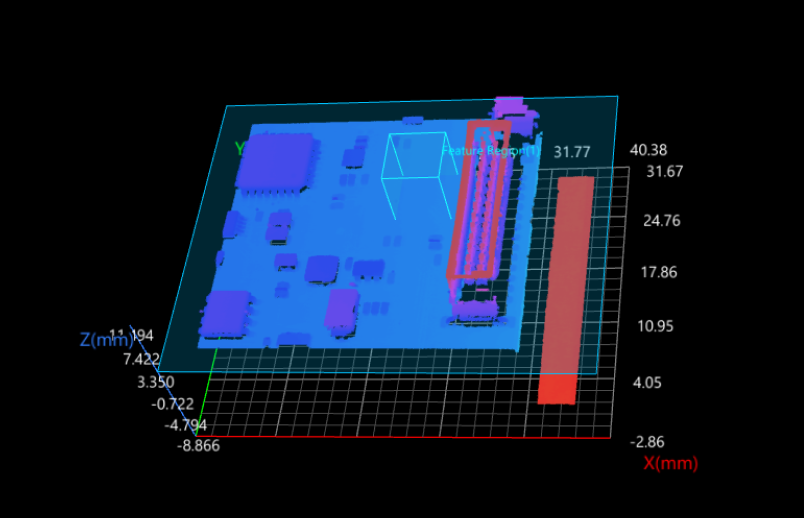
This Step is used to fit a plane based on a selected region or all data. The fitted plane often serves as the reference plane for other Steps.
|
Fits a plane to surface data in the feature region |
Workflow
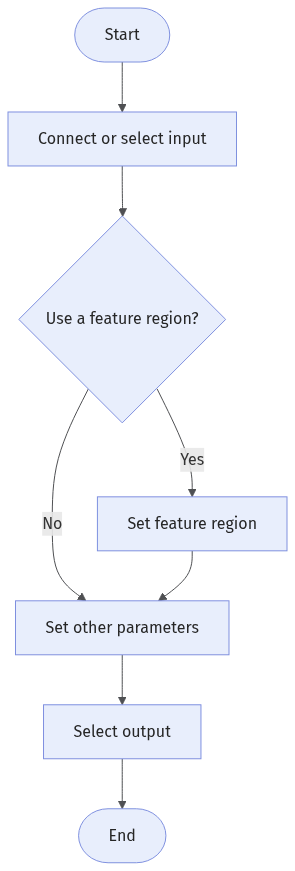
The process of configuring this Step is as follows:
-
Configure the input. Connect the ports manually or select the input(s) under Input in the parameter configuration panel.
-
Determine whether to use feature region.
-
Set other parameters under Parameters.
-
Select the desired output items under Output. For an expandable output item, click ▶ and configure the Lower Limit and Upper Limit values to set the acceptable range.
Parameter Description
| Parameter | Description |
|---|---|
Use Feature Region |
Feature regions define the target regions of algorithm processing. When this parameter is selected, you will need to set the Feature Region Mode. This parameter is unselected by default, and the Step will use the entire surface data to fit the plane. |
Feature Region Mode |
This parameter determines whether the data within the feature region or the data outside the feature region will be used for fitting a plane.
|
Feature Region |
For more information on how to set and adjust the feature region, see Feature Region. |
Use Feature Region Group |
For more information on how to set and adjust the feature region group, see Feature Region Group. |
Data Filtering Method |
Select how to filter data points before fitting the plane.
|
Low Percentile |
Set the lower limit for percentile filtering. Data points below this percentile are filtered out. This parameter is displayed only when Data Filtering Method is set to By fitted plane distance or By Z value. |
High Percentile |
Set the upper limit for percentile filtering. Data points above this percentile are filtered out. This parameter is displayed only when Data Filtering Method is set to By fitted plane distance or By Z value. |
Output Description
Select the output item(s) to add the output port(s) to the Step, and the corresponding data will be output after the Step is run. You can select the output according to the actual measurement requirements.
|
If you select an expandable output item, you must expand it by clicking ▶, and then set the Lower Limit and Upper Limit values to determine the acceptable range. If the output value falls within the acceptable range, the measurement item is judged as passing (OK), or else it is judged as failing (NG). |
| Output Item | Description |
|---|---|
Standard Deviation |
Standard deviation of the distance from the points used for plane fitting to the best fitted plane. |
Min Error |
Minimum error from points used for plane fitting to the best fitted plane. The distance is positive for points above the plane and negative for points below the plane. |
Max Error |
Maximum error from points used for plane fitting to the best fitted plane. The distance is positive for points above the plane and negative for points below the plane. |
Distance |
The distance from the origin to the best fitted plane. |
Fitted Plane |
The plane fitted to the selected surface data. |
Troubleshooting
|
CV-W4701
Error: The value of "Low Percentile" is outside the range [0, 1].
Possible cause: Low Percentile is less than 0 or greater than 1, so the lower bound of percentile filtering cannot be determined.
Solution: Set Low Percentile to a value within [0, 1], and ensure that it is not greater than High Percentile.
CV-W4702
Error: The value of "High Percentile" is outside the range [0, 1].
Possible cause: High Percentile is less than 0 or greater than 1, so the upper bound of percentile filtering cannot be determined.
Solution: Set High Percentile to a value within [0, 1], and ensure that it is not less than Low Percentile.
CV-W4703
Error: The value of "Data Filtering Method" is invalid.
Possible cause: The selected method is not a Data Filtering Method supported by the current Step.
Solution: Select a valid Data Filtering Method as needed, such as None, By fitted plane distance, or By Z value.
CV-W4704
Error: After filtering by Low Percentile and High Percentile, fewer than 3 valid data points remain.
Possible cause: The percentile range is too narrow and filters out too many data points, or the input data or feature region contains too few valid data points.
Solution: Decrease Low Percentile or increase High Percentile to widen the filtering range. If the issue persists, check the input data or adjust the feature region to ensure that at least three valid data points remain after filtering.