Translation Calibration
Translation calibration is used to establish the translation mapping between the image coordinate system and the machine coordinate system and output a transformation matrix.
Before performing translation calibration, complete the related configuration described in Preparation Before Calibration.
Enter Translation Calibration
-
From the menu bar, select to open the Calibration Tool window.
-
On the Select calibration method page, select Translation calibration.
-
Complete the pre-calibration checks, set the motion degrees of freedom according to the actual situation, and then enter the translation calibration workflow.
Connect to Camera
-
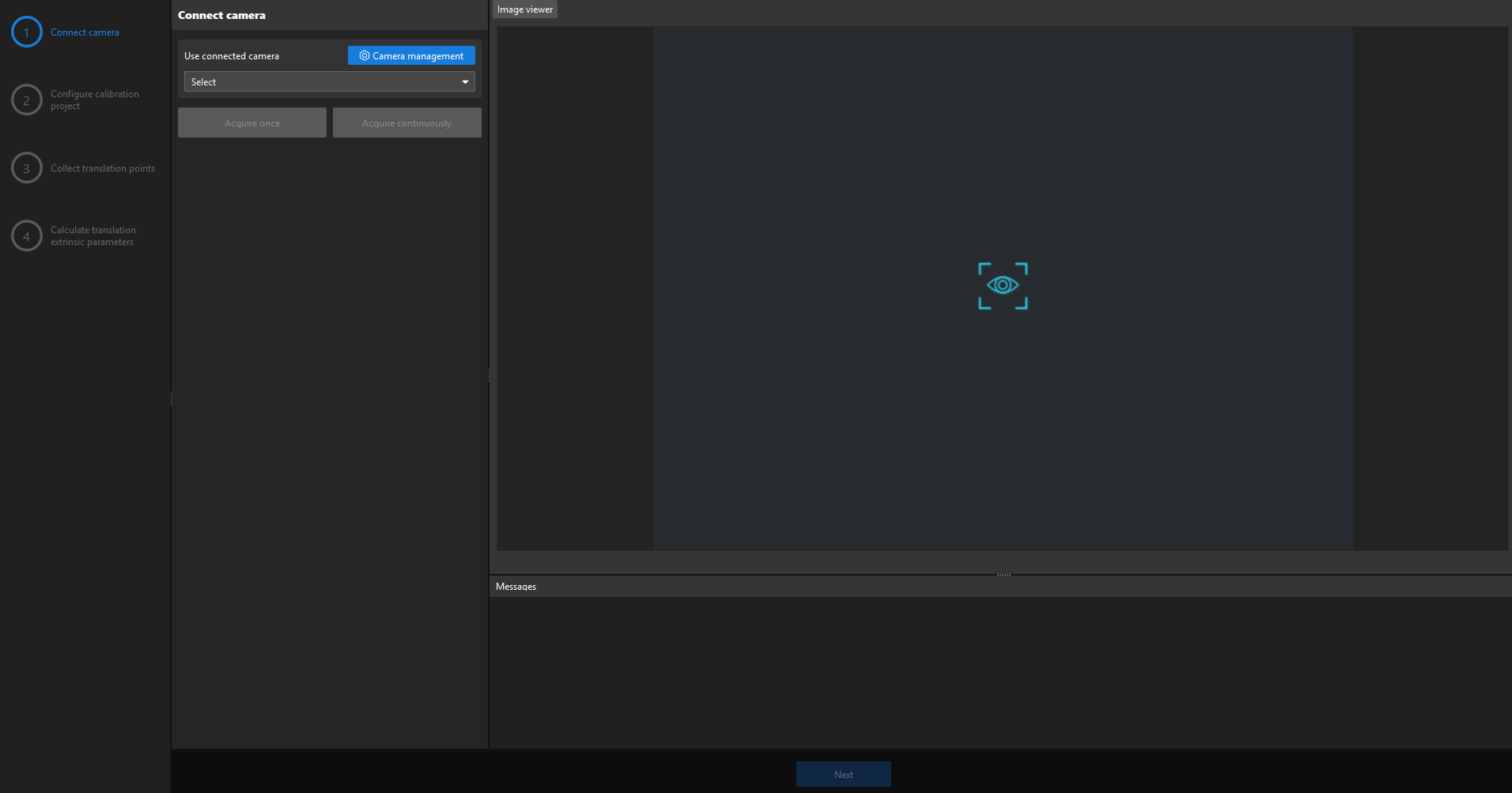
On the Connect to camera page, select a connected camera.
-
(Optional) Click Acquire once or Acquire continuously to confirm that the camera can acquire images properly.
-
Click Next.
Configure Calibration Project
-
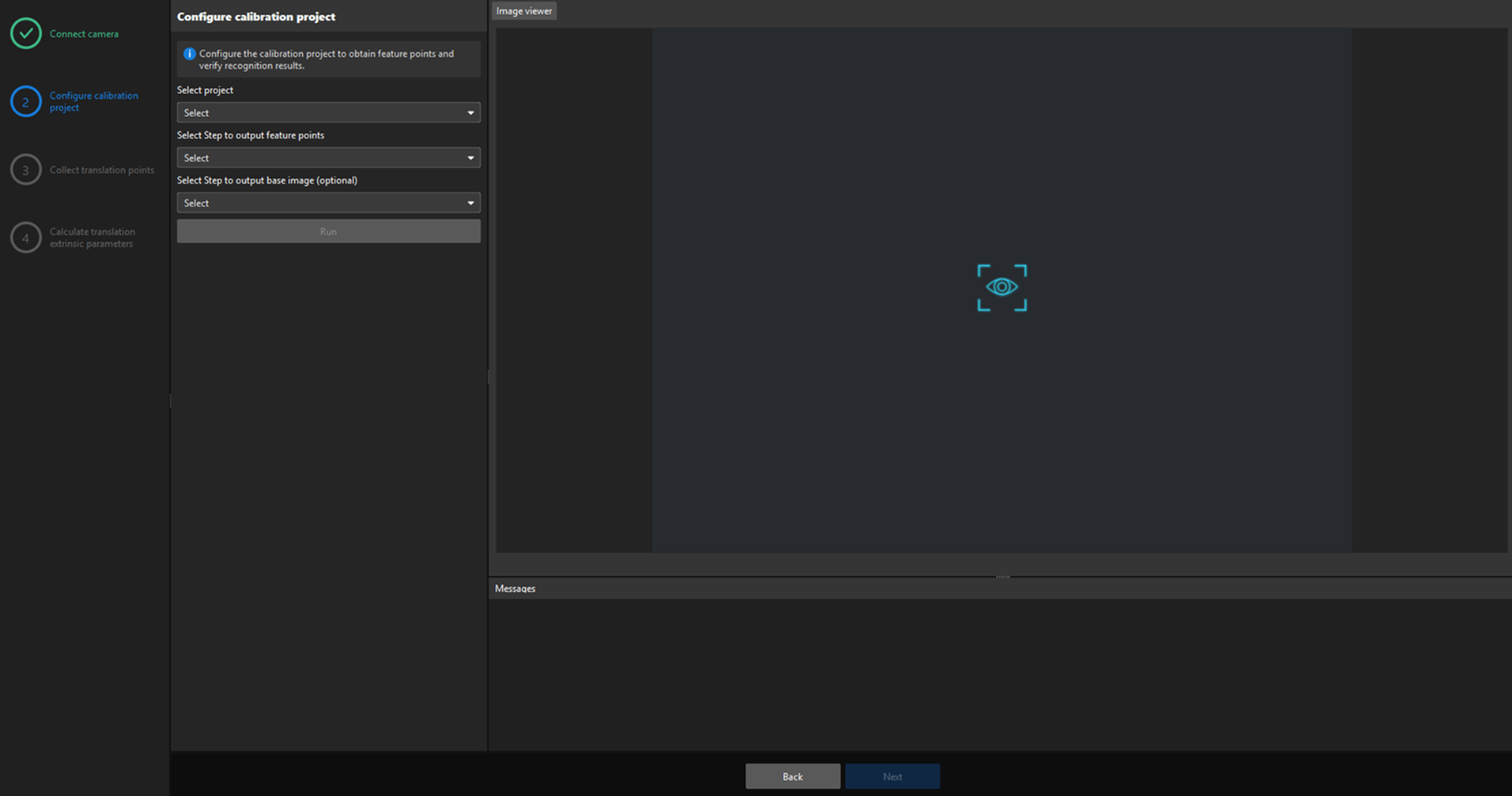
On the Configure calibration project page, select the project used for calibration.
-
Select the Step that outputs feature points.
-
(Optional) Select the Step that outputs the base image.
-
(Optional) Click Run to confirm that the project can stably recognize and output a single valid feature point.
-
Click Next.
Acquire Translation Points
You can use Automatic calibration or Manual calibration to acquire translation points.
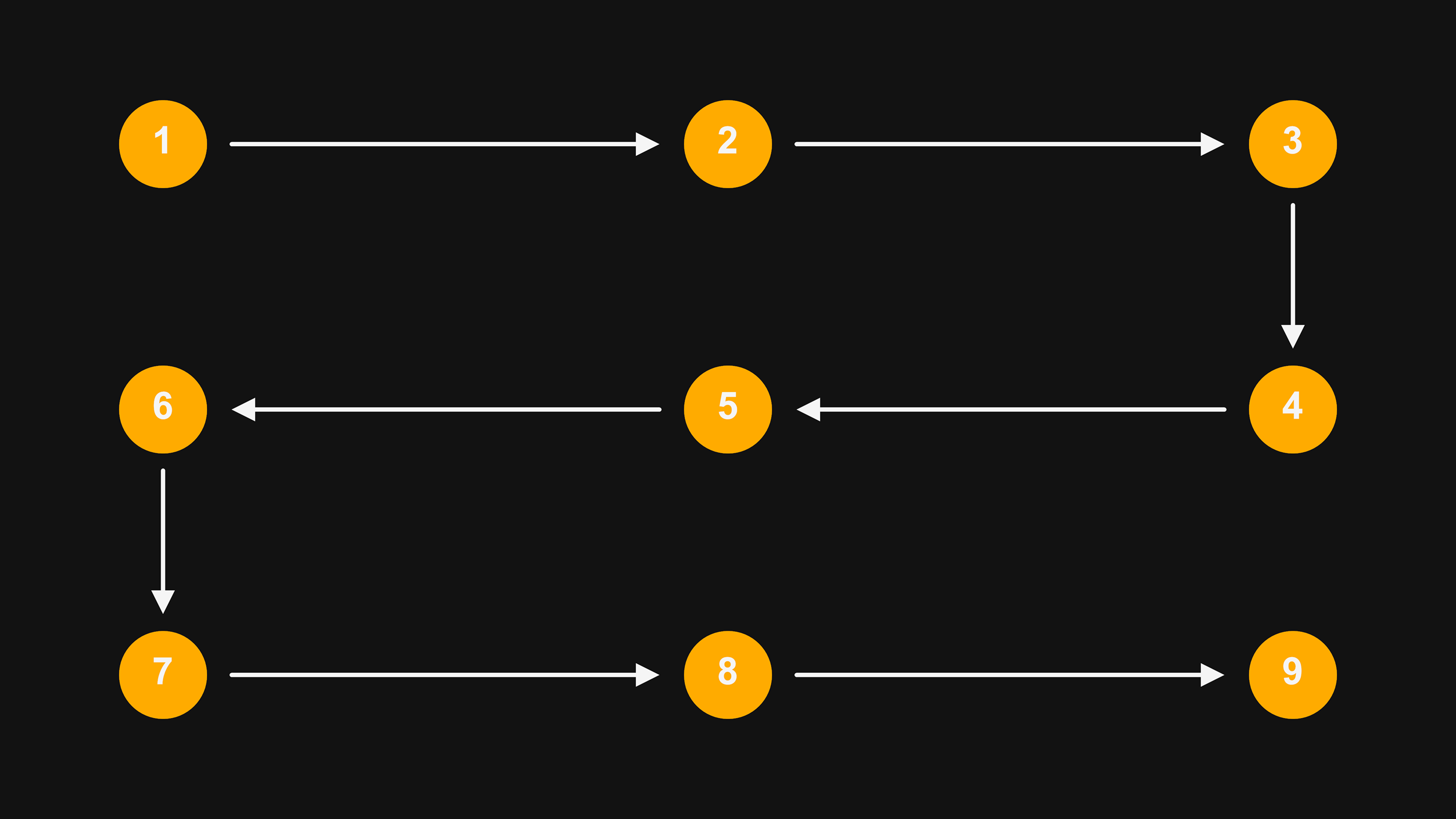
| Acquire at least 9 translation positions. The acquired positions should evenly cover the entire camera field of view, and all calibration points should not be collinear. |
The figure below shows an example of the translation positions and acquisition sequence. Adjust the actual acquisition positions and acquisition sequence based on site conditions.
-
Automatic Calibration
-
Manual Calibration
-
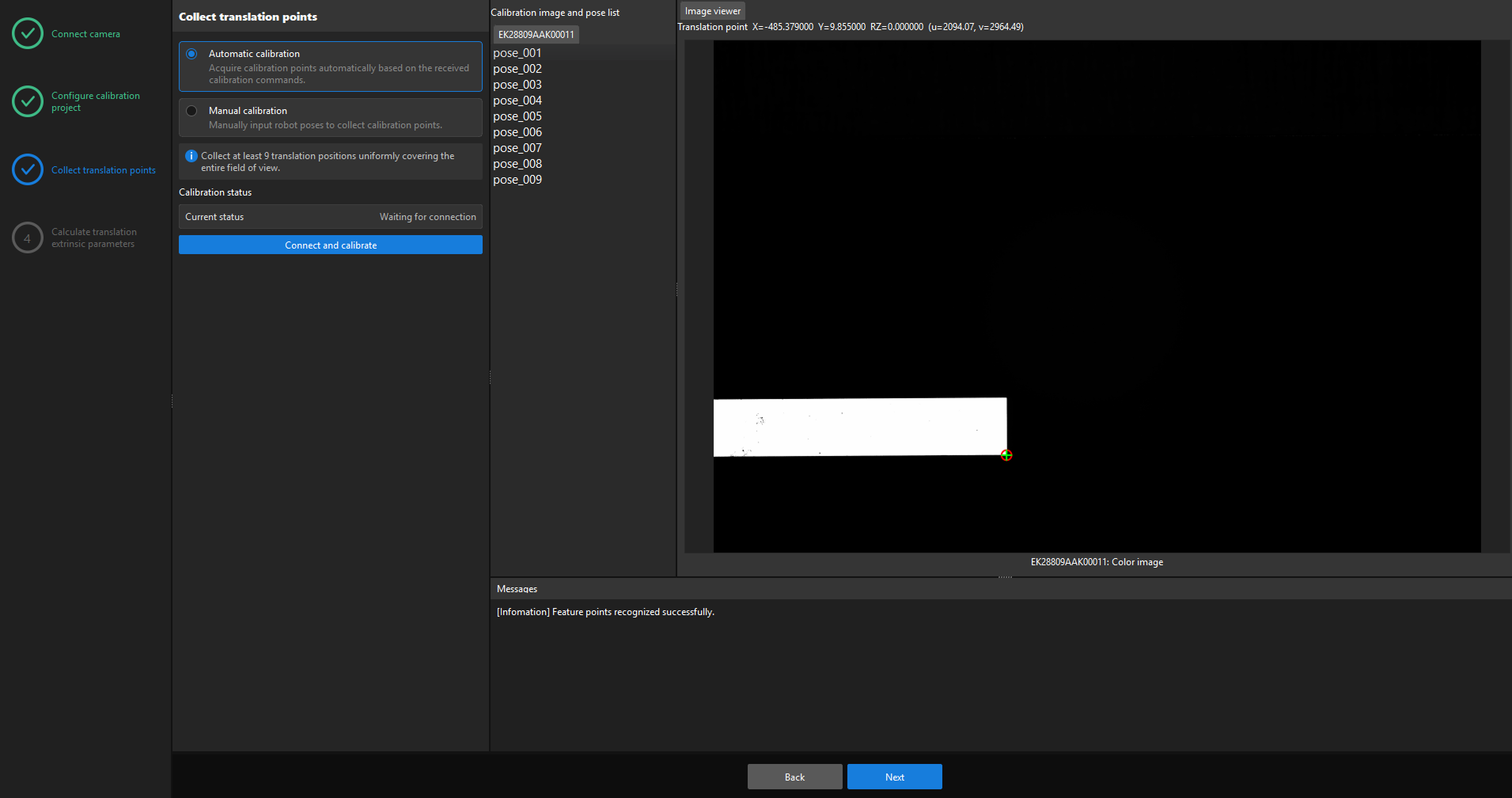
Select Automatic calibration.
-
Click Connect and calibrate, and wait for the software to establish a communication connection with the external device.
-
According to the command format defined in the Calibration communication configuration, move the machine to the first acquisition position through the external device and send the Start command. The software acquires the first calibration point according to the machine pose in the command.
-
Move the machine to the other acquisition positions in sequence, and send the Continue command at each position. The software acquires calibration points according to the machine pose in the command.
-
Move the machine to the last acquisition position and send the End command. The software acquires the last calibration point according to the machine pose in the command.
-
After the acquisition is completed, click Next.
-
Select Manual calibration.
-
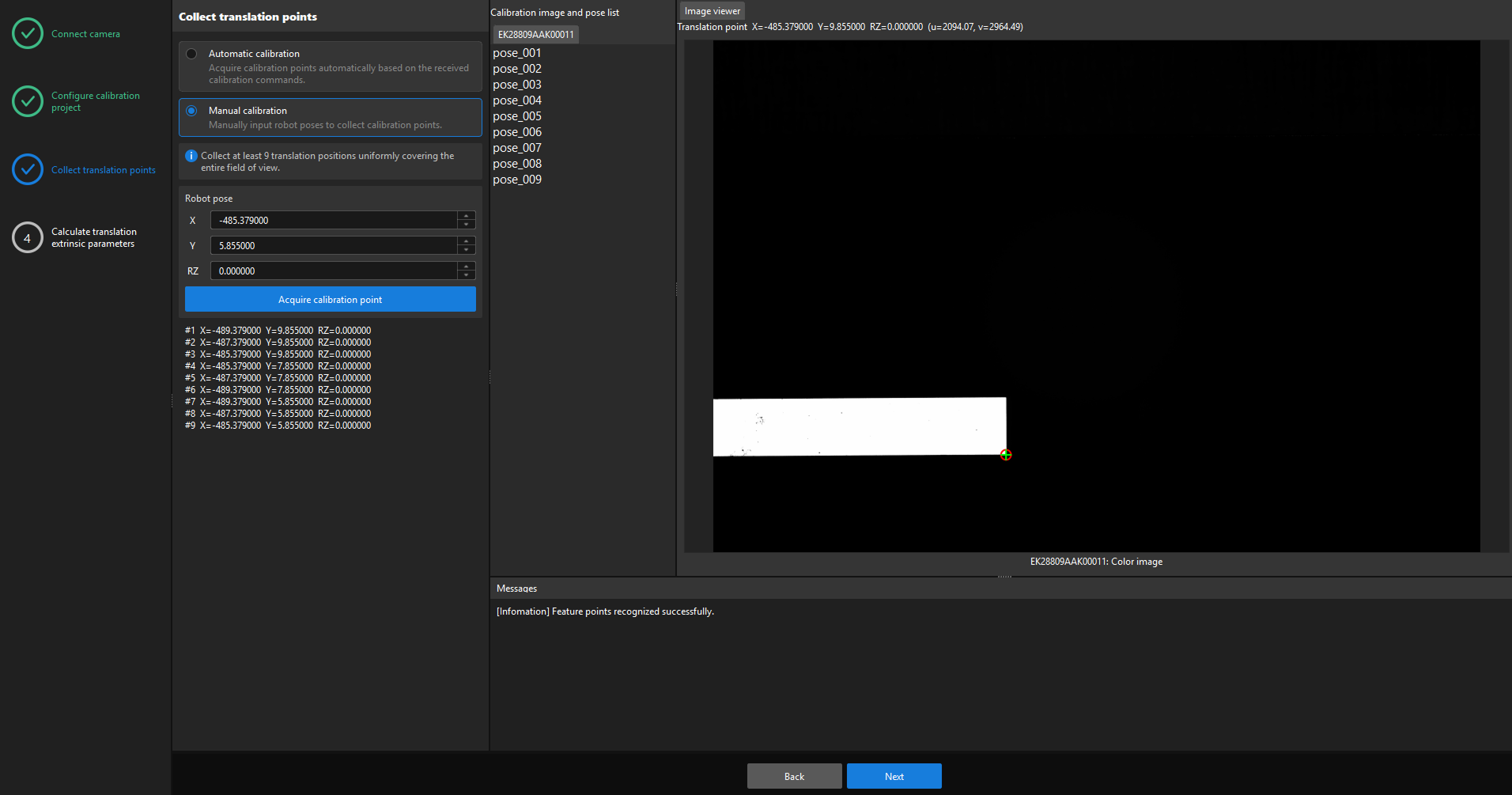
Move the robot to an acquisition position, and enter the corresponding X, Y, and RZ values for that position in the Robot pose area.
-
Click Acquire calibration point.
-
Repeat moving the robot, entering the pose, and acquiring calibration points until the acquired positions evenly cover the entire camera field of view and at least 9 points have been acquired.
-
After the acquisition is completed, click Next.
Calculate Translation Extrinsic Parameters
-
Click Calculate translation extrinsic parameters.
-
View Translation calibration error, Pixel equivalent, and Error visualization, and confirm that the calibration result meets project requirements.
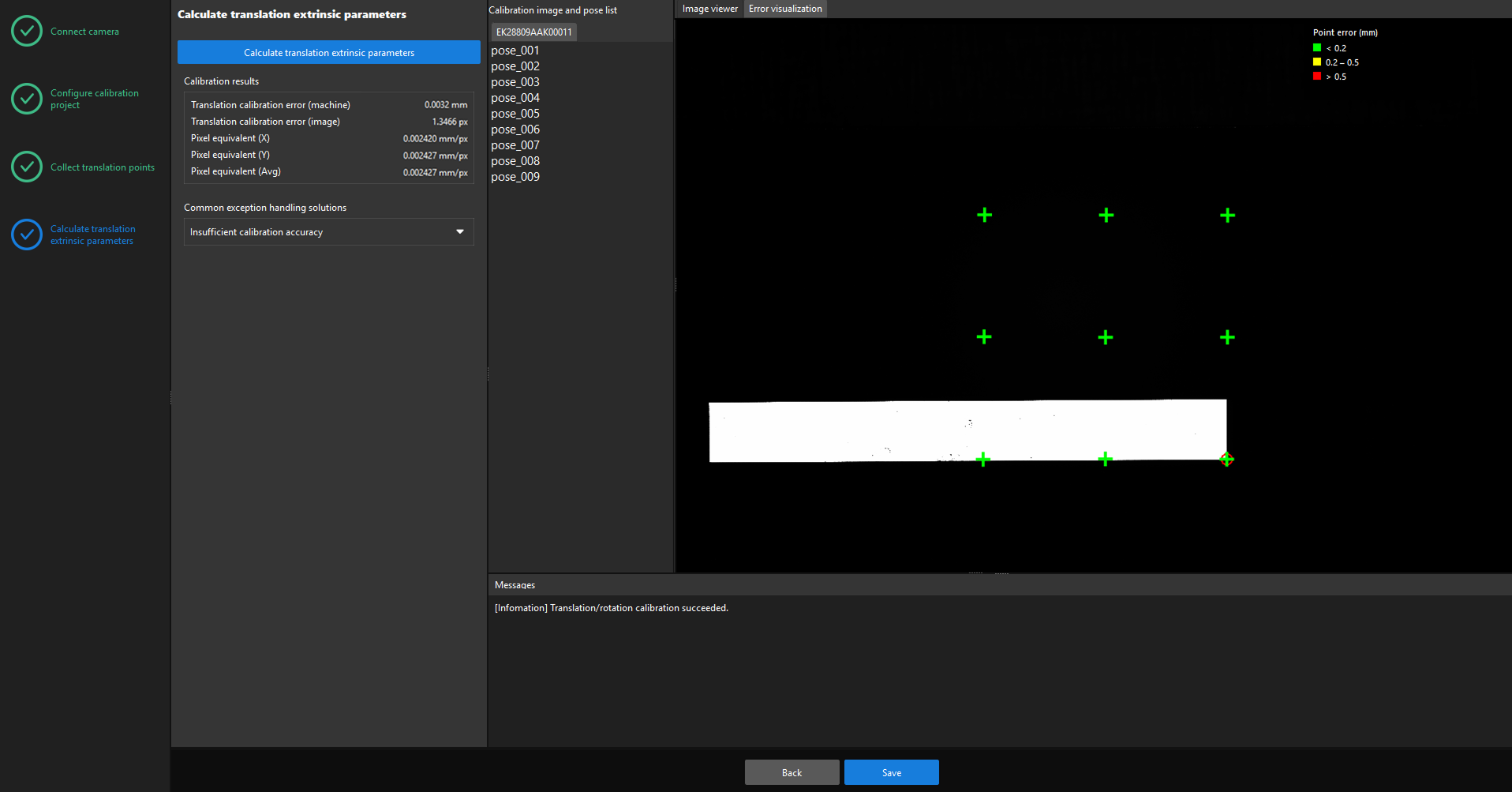
The calibration result parameters are described as follows:
Parameter Description Translation calibration error (machine)
Indicates the error between the points acquired for translation calibration and the calibration result, expressed in the machine coordinate system, in mm. A smaller value indicates a more accurate calibration result.
Translation calibration error (image)
Indicates the error between the points acquired for translation calibration and the calibration result, expressed in the image coordinate system, in px. A smaller value indicates a more accurate calibration result.
Pixel equivalent (X)
Indicates the actual distance in the machine coordinate system represented by one pixel in the X direction of the image coordinate system, in mm/px.
Pixel equivalent (Y)
Indicates the actual distance in the machine coordinate system represented by one pixel in the Y direction of the image coordinate system, in mm/px.
Pixel equivalent (Avg)
Indicates the average actual distance in the machine coordinate system represented by one pixel in the image coordinate system, in mm/px.
Point error (mm)
Indicates the deviation between the calibration point position converted by using the calibration result and the actual acquired position, in mm. Different colors indicate different error ranges. For the specific ranges, refer to the legend in the interface.
-
If the calibration accuracy does not meet the requirements, check the calibration point distribution, feature recognition stability, and the accuracy of the entered poses. Then add more poses and recalculate.
-
If the calculation fails, confirm that enough valid points have been acquired, and then recalculate.
-
Click Save, enter the file name, and then save the calibration result.
|
The file name supports only letters, numbers, and underscores, and must be fewer than 16 characters. |
This completes the translation calibration process.