View Parameters
During production debugging, use the Parameters window on the production interface to quickly adjust parameters. On the Parameter management tab, you can manage project Step parameters or global variables. On the Measurement range/compensation tab, you can view and set the measurement ranges and compensation values of measurement items and synchronize the changes to the current project on the home interface.
Click the parameter icon  in the operation bar to open the Parameters window.

Parameter Management
On the Parameter management tab, you can add project Step parameters and global variables to the production interface and manage them in groups. After adding them, you can view or adjust their values on the production interface without returning to the project on the home interface.
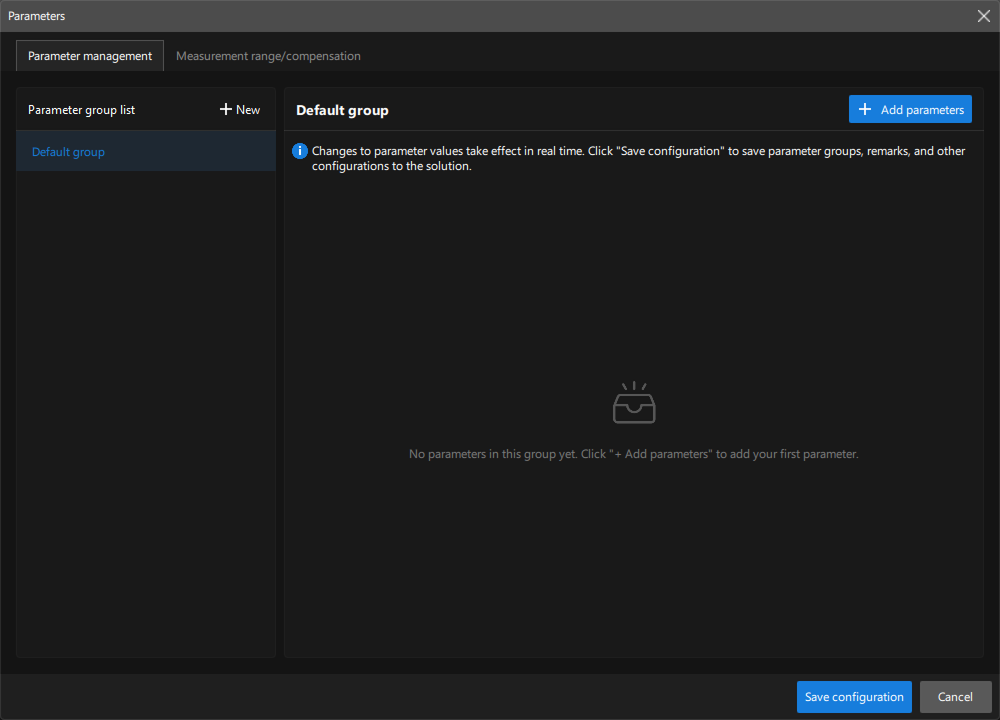
Add Parameters
-
Select the target group in the parameter group list on the left. To create a group, click New and enter a group name.
-
Click + Add parameters to open the Add Parameters window.
-
Select a parameter source on the left:
-
Select a Step to add its project parameters that can be adjusted on the production interface.
-
Select Global variables to add global variables that can be adjusted on the production interface.
-
-
In the parameter list on the right, click Add to add the corresponding parameter.
-
Click Manage selected items or Collapse selected items at the bottom of the window to view or collapse the selected parameters. Click the close icon to the right of a parameter to remove it, or click Clear all to clear all selected parameters.
-
Click OK to add the selected parameters to the current group.
After the parameters are added, they appear in the parameter list of the current group.
|
Manage Parameter Groups
Parameters can be grouped by purpose. You can perform the following operations in the Parameter group list on the left:
-
Create a group: Click New and enter a group name.
-
Rename a group: Right-click the target group, select Edit, and modify the group name.
-
Delete a group: Right-click the target group, select Delete, and confirm the deletion.
|
Edit and Delete Parameters
After selecting a group in the Parameter group list on the left, you can view and manage its parameters on the right.
-
Modify a parameter value: Set the value next to Current.
-
Edit parameter information: Click the edit icon
 to modify the parameter name and remarks.
 -
Delete a parameter: Click the delete icon
 to delete the parameter. After deletion, the parameter is removed from the production interface and cannot be restored.
|
Modified parameter values take effect in real time. After you click Save configuration, parameter groups, remarks, and other configurations are saved to the solution.
Measurement Range/Compensation
On the Measurement range/compensation tab, you can view and adjust measurement item parameters in the current project.
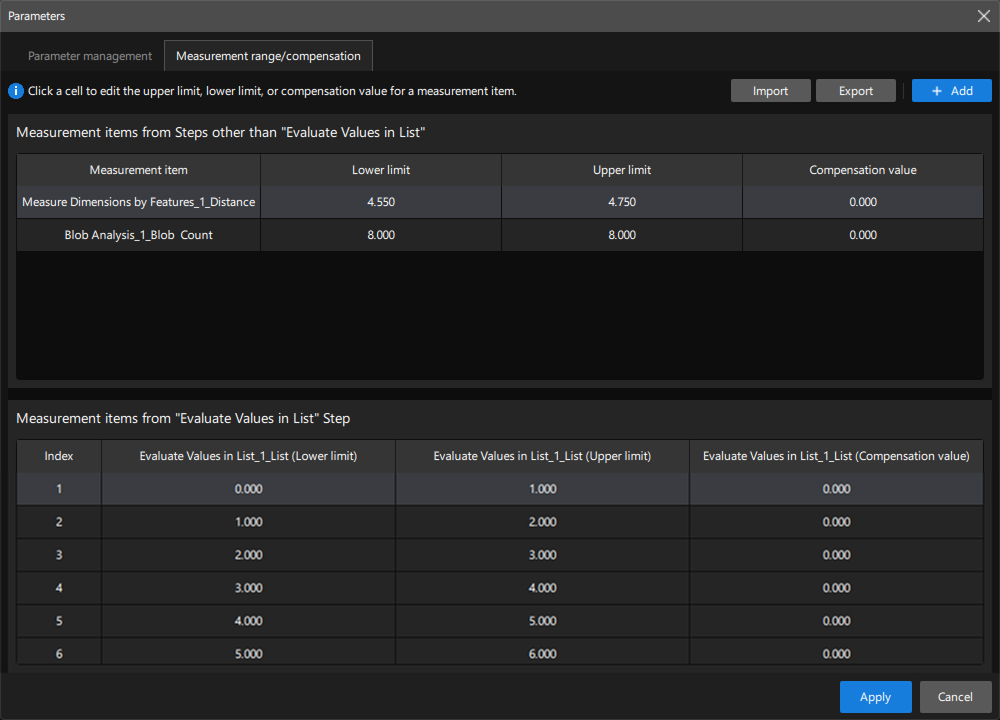
Click Add in the upper-right corner of the window to add measurement items from the associated project, and then view and set their upper limits, lower limits, and compensation values.
|
Depending on the type of measurement item, the Parameters window displays different content and configurable options:
-
For measurement items from Steps other than Evaluate Values in List, you can add measurement items in the current project and view or directly adjust their upper limits, lower limits, and compensation values.
-
For measurement items from the Evaluate Values in List Step, the Parameters window displays the parameters by index. You can set the upper limits, lower limits, and compensation values separately for each index. For more information,see Evaluate Values in List.
After completing the configuration, click Apply to apply the changes to the project on the home interface.