Introduction to Labeling Tools
You can use labeling tools to add labels and hence provide data for deep learning training.
OK/NG Labels
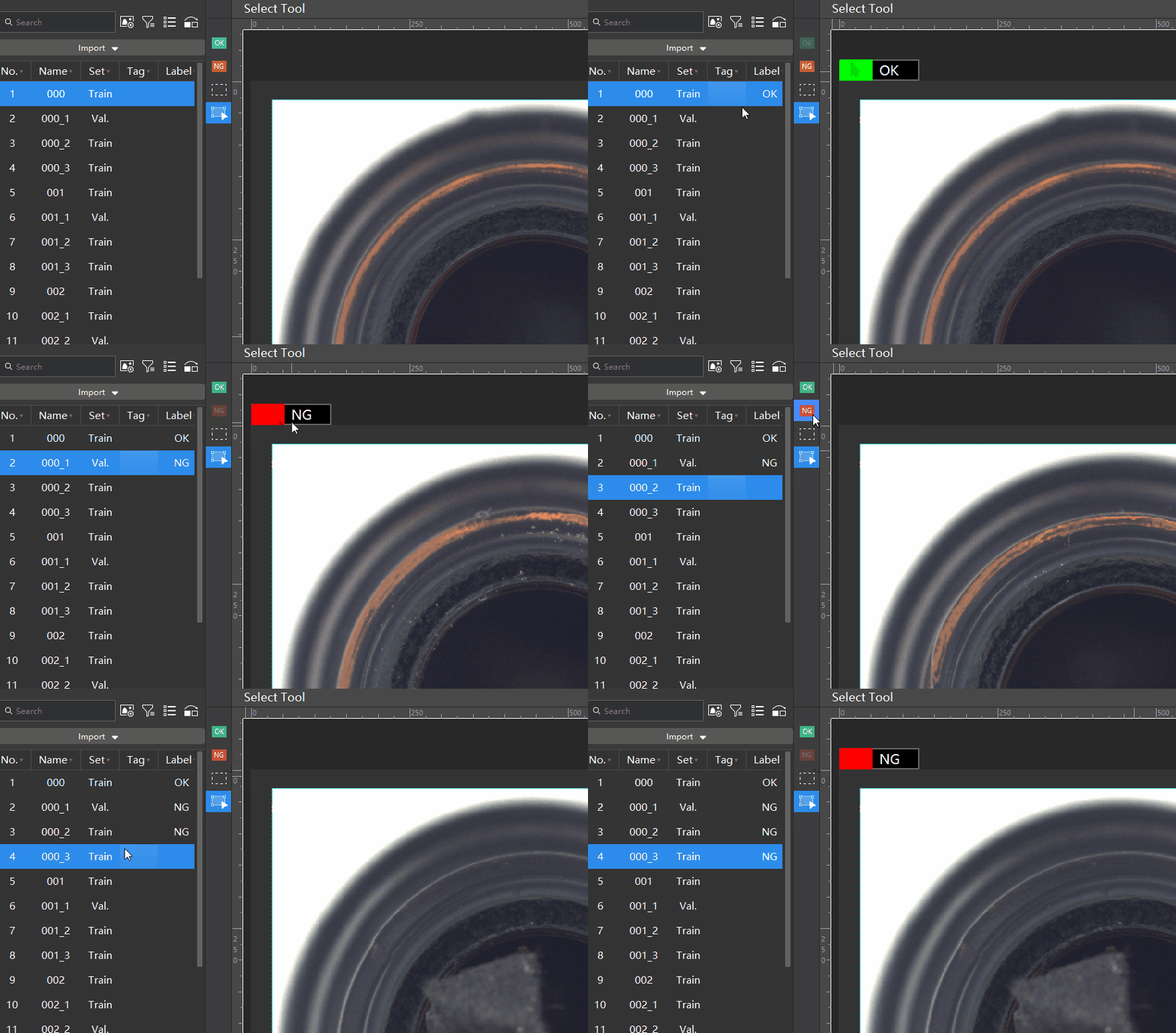
Use the OK Label  or the NG Label
  to label an image as OK or NG.
-
Select an image from the image list and then click the OK Label or the NG Label. The image will be labeled as OK or NG.
Mask Tool
If there are some irrelevant parts that may interfere with model training, you can use the Mask Tool to cover such parts. The masked parts will not be involved in training. It is recommended to set a distinct color for the mask.
You can choose among the following three mask tools built in the software according to actual needs.
Mask Polygon Tool
-
Click the Mask Polygon Tool icon
 (or press Shift + P on the keyboard).
 -
Set “Fill” for the mask.
-
Click the first position (vertex) in the selection area, then click the second one, third one, etc., to draw the labels, and right-click to finish.
Mask Brush Tool
-
Right-click the Mask Polygon Tool icon
, and then click the Mask Brush Tool icon  (or press Shift+B on the keyboard).
 -
Set the “Fill” of the mask and adjust the slider to determine the brush size.
-
Press and hold the left mouse button in the selection area, move in any direction, and then release the left mouse button to finish the drawing.

Eraser Tool
Mask Eraser Tool
The Mask Eraser Tool can be used to erase the masks.
Polygon Mask Eraser Tool
-
Click the Polygon Mask Eraser Tool icon
 (or press Ctrl+Alt+P on the keyboard).
 -
Click the first position (vertex) in the selection area, then click other positions, and finally right-click to complete the drawing to erase the masks within the polygon area.
Brush Mask Eraser Tool
-
Right-click the Polygon Mask Eraser Tool icon
, then select the Brush Mask Eraser Tool icon  (or press Ctrl+Alt+B on the keyboard).
 -
Press and hold the left mouse button in the selection area and drag in any direction to erase the masks along the drag path. You can set the Brush shape to Round or Square and adjust the brush size using the slider.
Lasso Mask Eraser Tool
-
Right-click the Polygon Mask Eraser Tool icon
, then select the Lasso Mask Eraser Tool icon  (or press Ctrl+Alt+N on the keyboard).
 -
Press and hold the left mouse button in the selection area and drag in any direction until the path forms a closed shape, then release the button to erase the masks within the enclosed area.
ROI Tool
You can use the ROI Tool to set the region of interest.
Setting the ROI can avoid interferences from the background.
-
Click the ROI Tool icon
 (or press O on the keyboard).
 -
Adjust the ROI frame in the selection region.
-
Click the application icon
 in the lower-right corner of the ROI to apply the current ROI or click the close icon
  to disable the ROI Tool.
 -
Click the Reset button in the upper left corner of the image to reset the ROI.
Select Tool
You can use Select Tool to scale images.
-
In the labeling toolbar, click the Select Tool icon
 (or press F on the keyboard).
 -
Place the cursor in the selection area of the image and use the mouse wheel to scroll forward to zoom in and scroll backward to zoom out.