Manage Algorithm Modules
This topic introduces how to manage algorithm modules in the Mech-DLK, including adding, renaming, copying, moving, importing or exporting algorithm modules, restricting their export, and deleting them.
Add Algorithm Modules
Add an Algorithm Module for a New Project
After creating a new blank project, an Input module will be automatically created in the Modules area in the upper-right corner of the interface. To add a new algorithm module under the Input module, follow these steps:
-
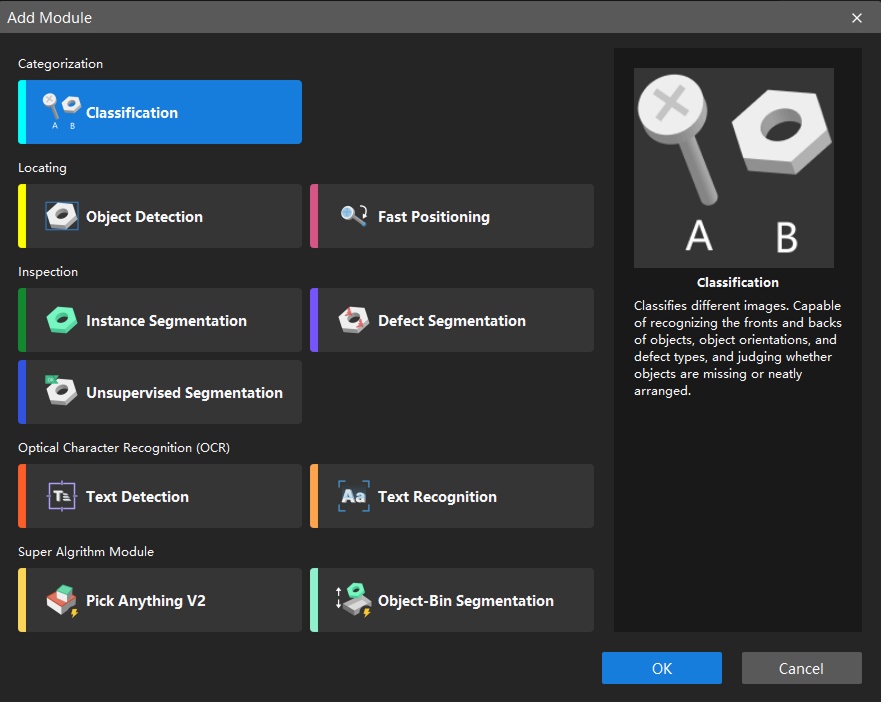
Select the Input module and click the + button.
-
In the Add Module window that appears, select the algorithm module that you need.
-
Click OK.
Add Tree-Structured Algorithm Modules
Tree-structured algorithm modules combine multiple algorithm modules in series and parallel within a single project to support complex application scenarios with diverse business requirements. For more details, see Introduction to Tree-Structured Algorithm Modules.
To combine modules, follow these steps:
-
In the Modules area at the top right corner of the interface, select the module to be combined:
-
To add a serial submodule to a module, select the module.
-
To add a parallel sibling module to a module, select its parent module.
-
-
Click the + button.
-
In the Add Module window that appears, select the algorithm module that you need.
-
Click OK.
Example description:
-
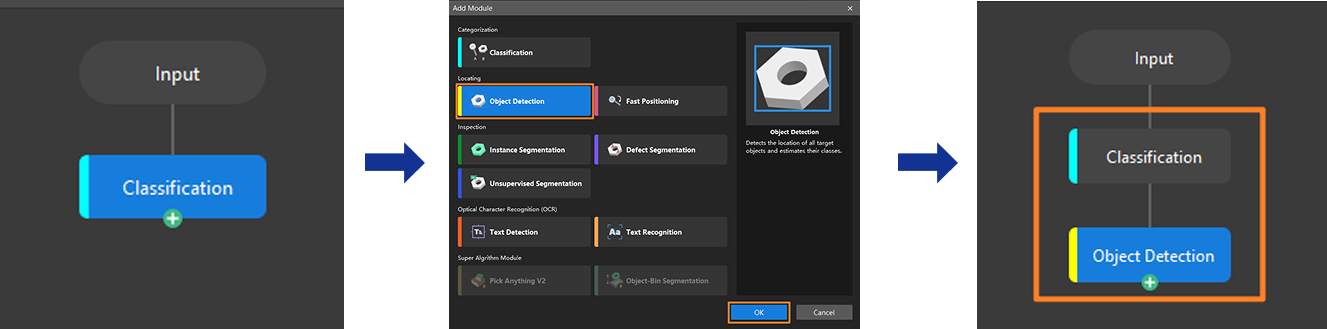
Add an Object Detection module after the Classification module in series:
-
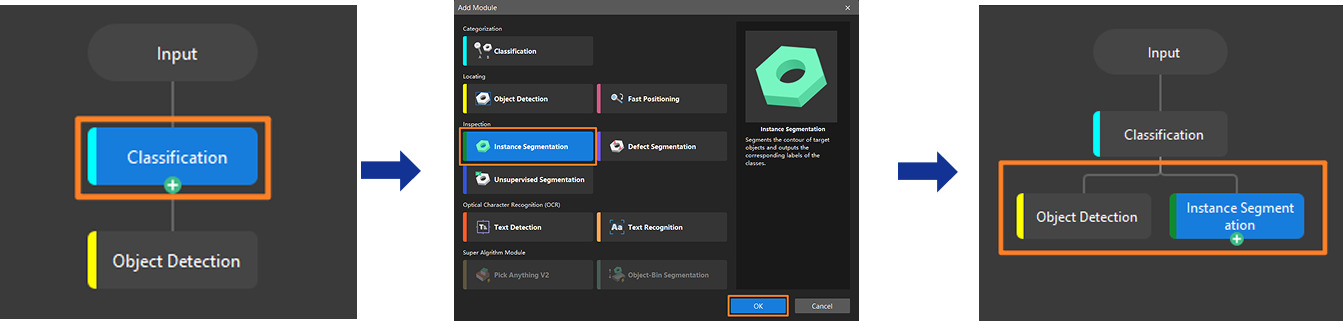
Add an Instance Segmentation module in parallel with the Object Detection module:
|
Within tree-structured algorithm modules, serial and parallel connections between modules are subject to the following restrictions:
|
Rename an Algorithm Module
To rename a module, follow these steps:
-
In the Modules area in the upper-right corner of the interface, select the module to rename and click Rename in the right-click menu.
-
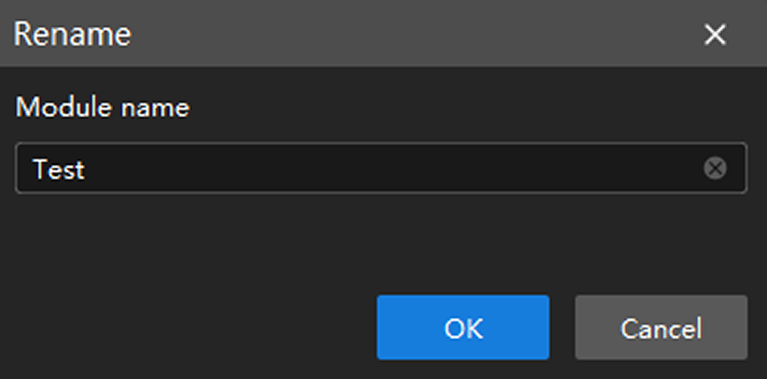
In the displayed Rename window, enter the modified module name and click OK.
|
The module name cannot exceed 32 characters, cannot contain special characters, and must not duplicate an existing name. |
Copy or Move an Algorithm Module
-
To quickly create multiple modules with the same function or similar configuration at the same level (in parallel), follow these steps to copy a module to the same level:
In the Modules area in the upper-right corner of the interface, select the target module and click Copy to the Same Level in the right-click menu.
-
To adjust the display order of parallel modules, follow these steps to move a module:
In the Modules area in the upper-right corner of the interface, select the target module and click Move in the right-click menu.
You can move the module left, right, to the far left, or to the far right based on its current position.
-
To adjust parent–sub relationships among non-input modules, follow these steps to move a module:
In the Modules area in the upper-right corner of the interface, select the target module, drag it to the parent module, and release it when the two modules overlap to establish the connection.
After the module is moved, the parameter settings set in the Import from Previous Module window will be cleared.
Import or Export an Algorithm Module
-
To import a module, follow these steps:
-
In the Modules area in the upper-right corner of the interface, select the target module and click Import Module in the right-click menu.
-
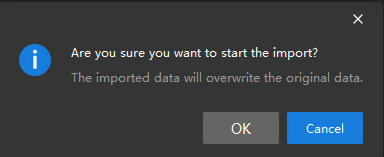
Click OK in the displayed dialog box.
-
Select the module file to import, and click Open.
-
-
To export a module, follow these steps:
-
In the Modules area in the upper-right corner of the interface, select the target module and click Export Module in the right-click menu.
-
Select an export path for the module, set a file name and click Save.
-
|
Restrict Export of an Algorithm Module
To exclude models of a module and its submodules when exporting all models, use the Restrict Export function. Once this function is enabled, models of related modules and their submodules are excluded when exporting all models. To export the models of these modules, export them separately.
-
To restrict module export, follow these steps:
-
In the Modules area in the upper-right corner of the interface, select the module to be restricted and click Restrict Export in the right-click menu.
-
When the lock icon
 shows on the module, the restriction has been applied successfully.
-
-
To cancel restriction, follow these steps:
-
In the Modules area in the upper-right corner of the interface, select the module to unrestrict and click Cancel Restriction in the right-click menu.
-
When the lock icon
is no longer shown on the module, the restriction has been canceled successfully.
-
|
Delete an Algorithm Module
To delete a module, follow these steps:
-
In the Modules area in the upper-right corner of the interface, select the module to delete and click Delete in the right-click menu.
-
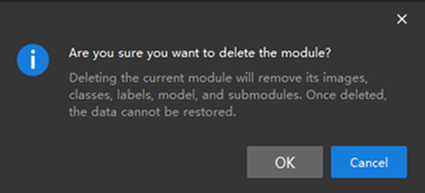
Click OK in the displayed dialog box.
|
Deleting a module also removes its images, classes, labels, model, and submodules. Once deleted, the data cannot be restored. Please exercise caution. |
View Module Details
To view module details, follow these steps:
-
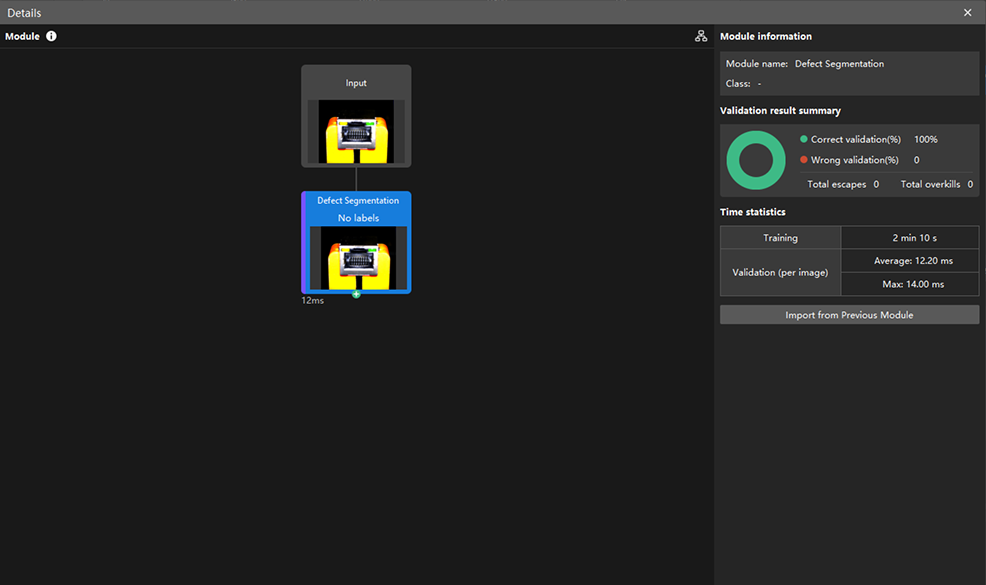
In the Modules area in the upper-right corner of the interface, click Details.
-
In the displayed Details window, you can view the module information, validation result summary, and time statistics. Once the validation is complete, the validation time will be displayed in the lower-left corner of the module.