Range XL-GL Parameters
This topic describes the parameters of Range XL-GL cameras by parameter group.
Overview
The Range XL-GL camera parameters are grouped as follows:
| Parameter Group | Description |
|---|---|
Displays camera information. |
|
Selects the data type to output and configures the corresponding acquisition parameters. |
|
Selects the signal source that triggers data acquisition and configures the related parameters. |
|
Sets the power of the emitted laser. |
|
Configures laser line detection and profile extraction. |
|
Processes the generated point cloud. |
|
Sets the depth range in the camera coordinate system. |
|
Sets the region of interest for the depth map and point cloud. |
|
Configures the input and output signals of the camera’s I/O ports. |
2. Data Output Type
Select the data type to output and configure the corresponding acquisition parameters in this group.
Parameter Description |
Selects the data type to output. |
|---|---|
Visibility |
Beginner, Expert, Guru |
Values |
|
Adjustment Notes |
The parameters available in this group vary depending on the selected data type. |
2.1. Enable Depth Map Output
Parameter Description |
When enabled, the point cloud is projected onto the 2D coordinate system based on camera calibration to generate a depth map. |
|---|---|
Visibility |
Beginner, Expert, Guru |
Adjustment Notes |
|
| Enable this option with care when a high point cloud density is required. |
2.2. 3D Exposure Time
Parameter Description |
Sets the exposure time per line during 3D scanning. This parameter affects the brightness of images acquired by the left and right cameras. |
|---|---|
Visibility |
Beginner, Expert, Guru |
Values |
10 μs–1000 μs (default: 100 μs) |
Adjustment Notes |
|
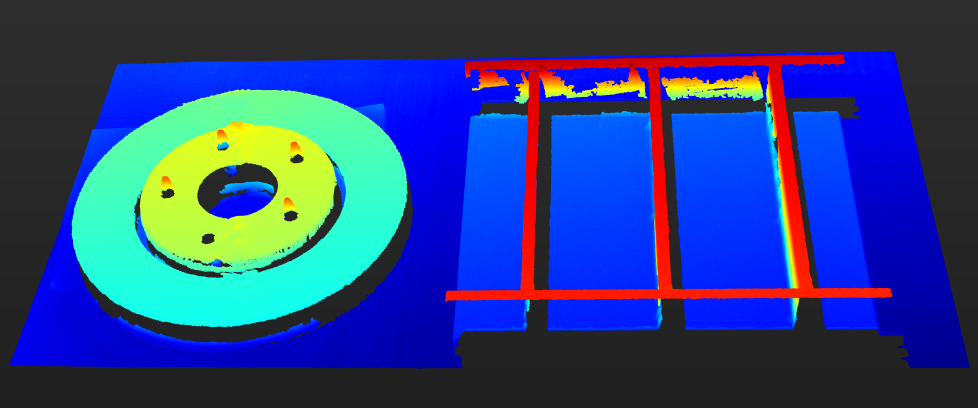
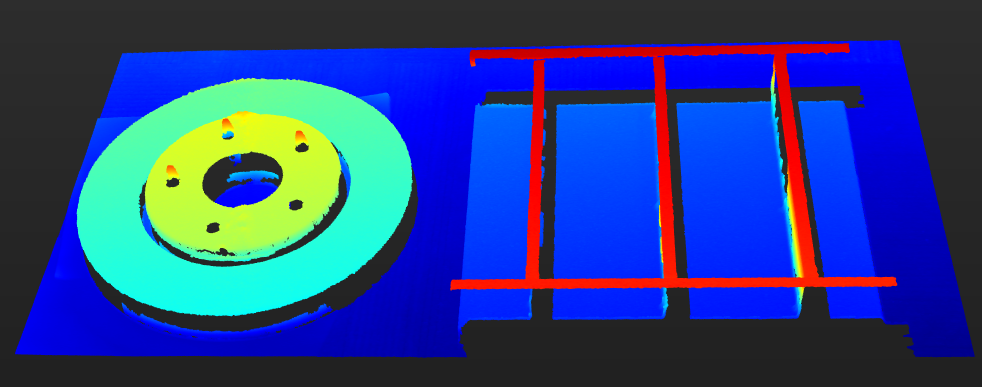
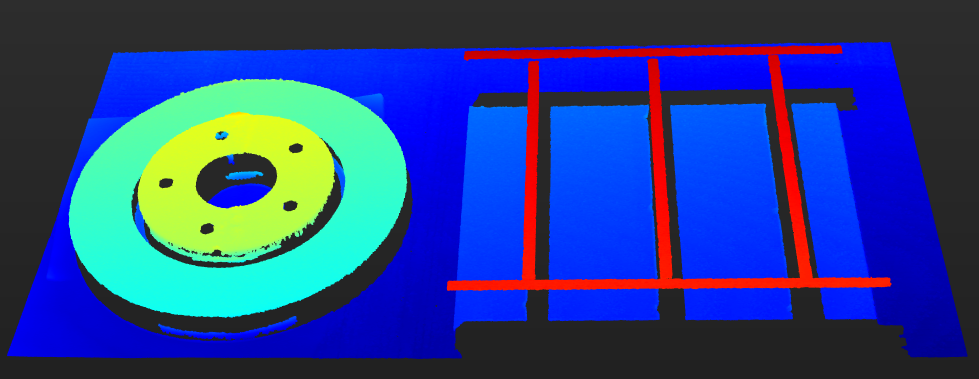
The following images show the effect of different 3D Exposure Time values under otherwise identical conditions:
| 20 μs | 50 μs | 100 μs | 500 μs |
|---|---|---|---|
|
|
|
|
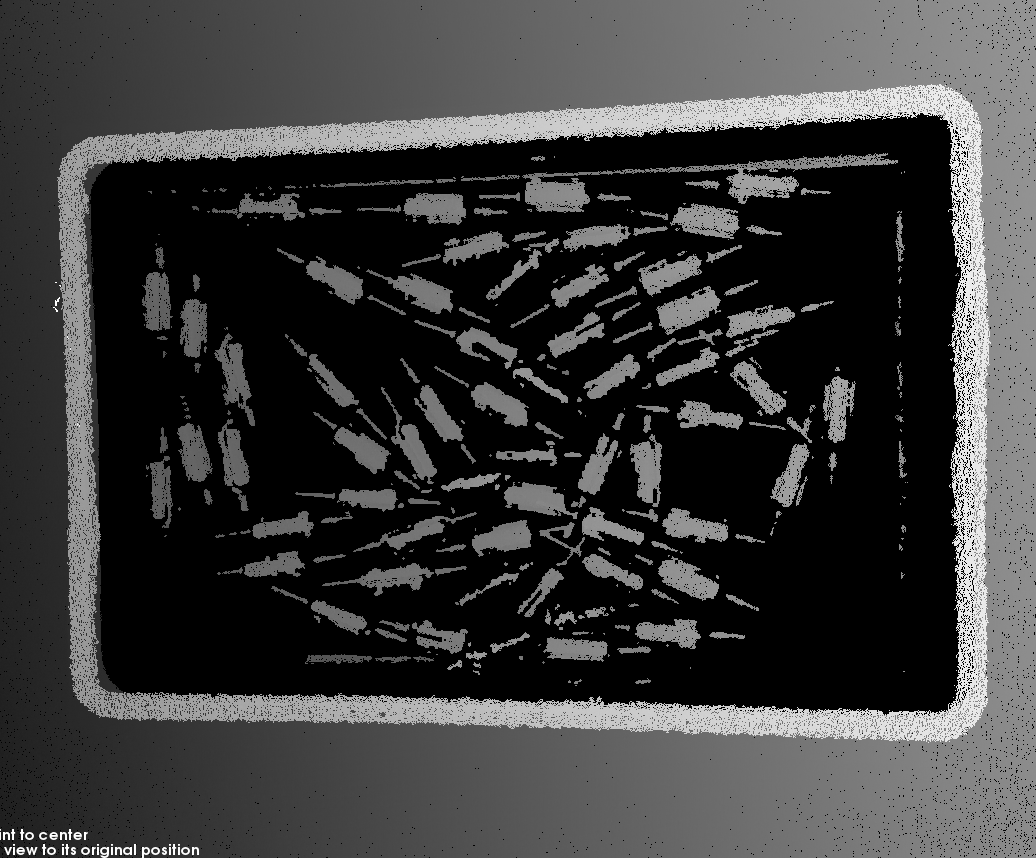
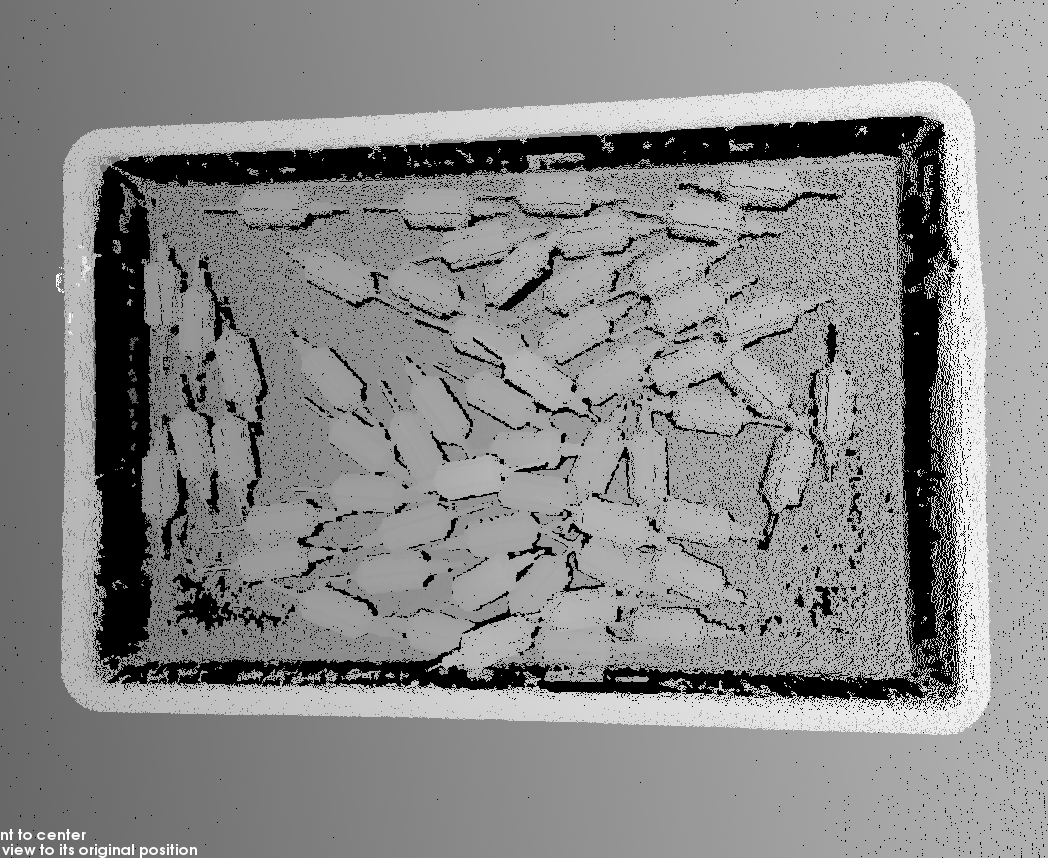
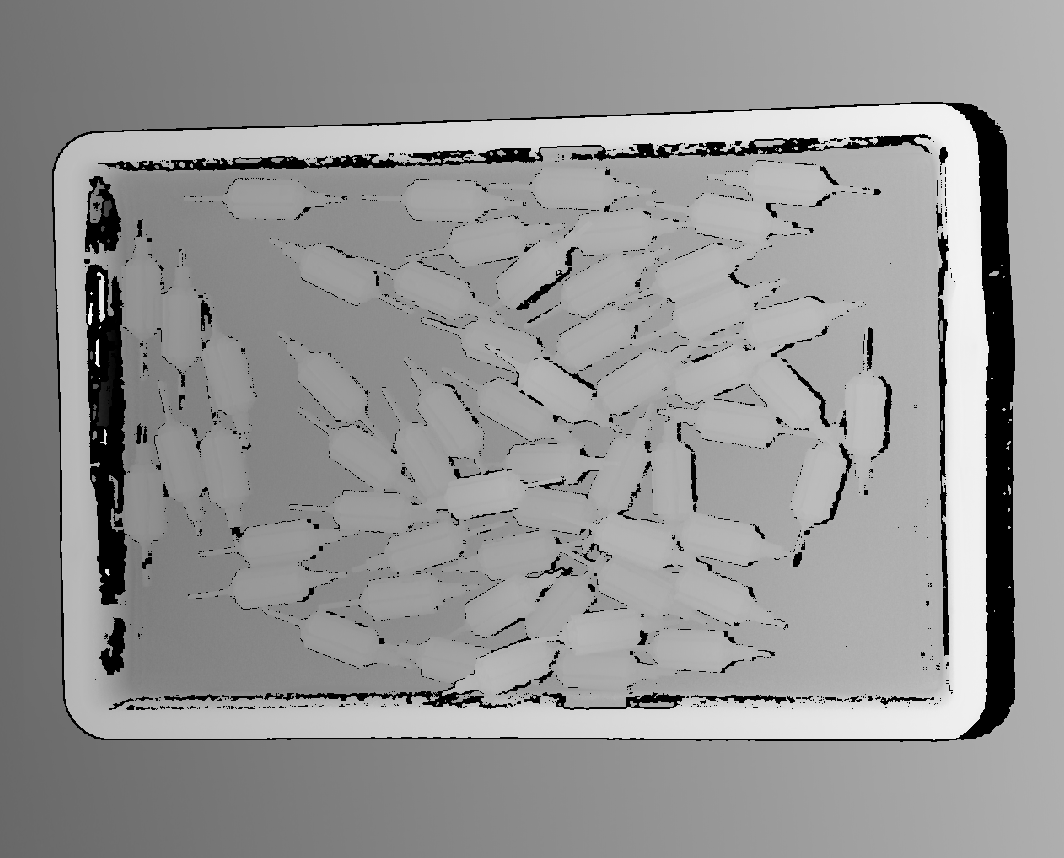
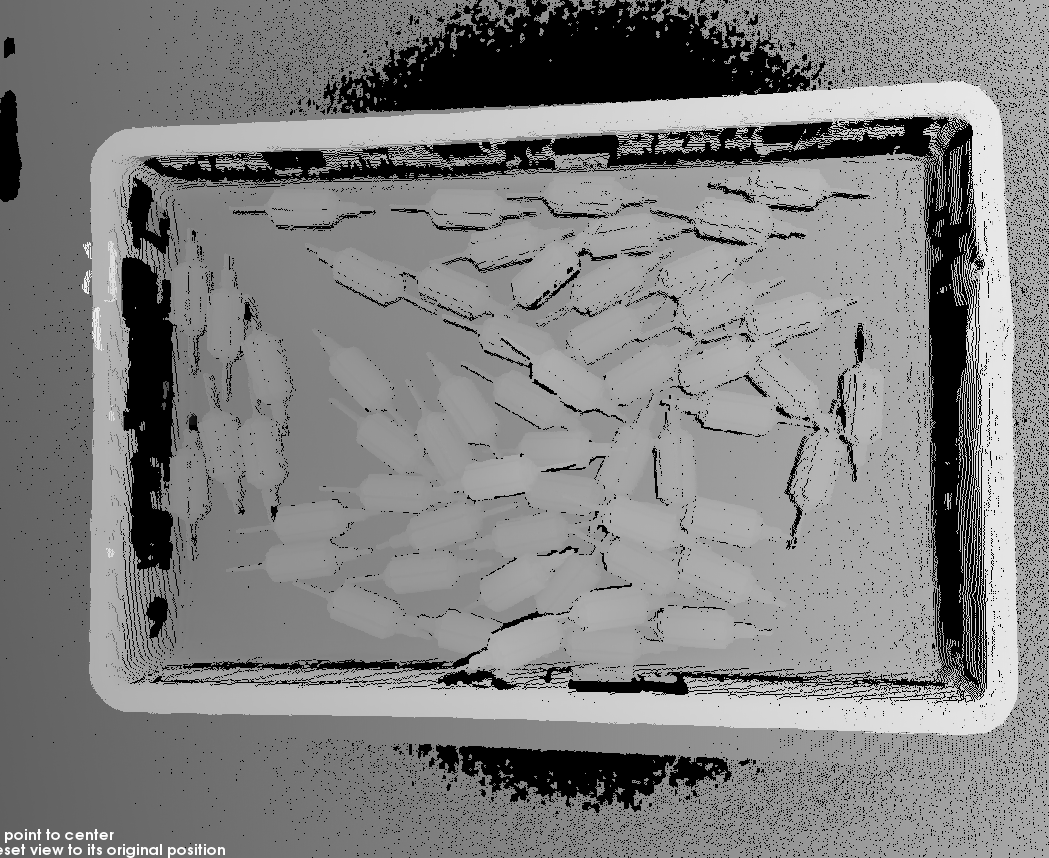
| The black areas contain no corresponding point cloud data for the object. |
2.3. 3D Gain
Parameter Description |
Increasing this parameter can enhance the image brightness during 3D scanning. However, noise will be introduced, lowering the signal-to-noise ratio. |
|---|---|
Visibility |
Expert, Guru |
Values |
0 dB–40 dB (default: 0 dB) |
Adjustment Notes |
|
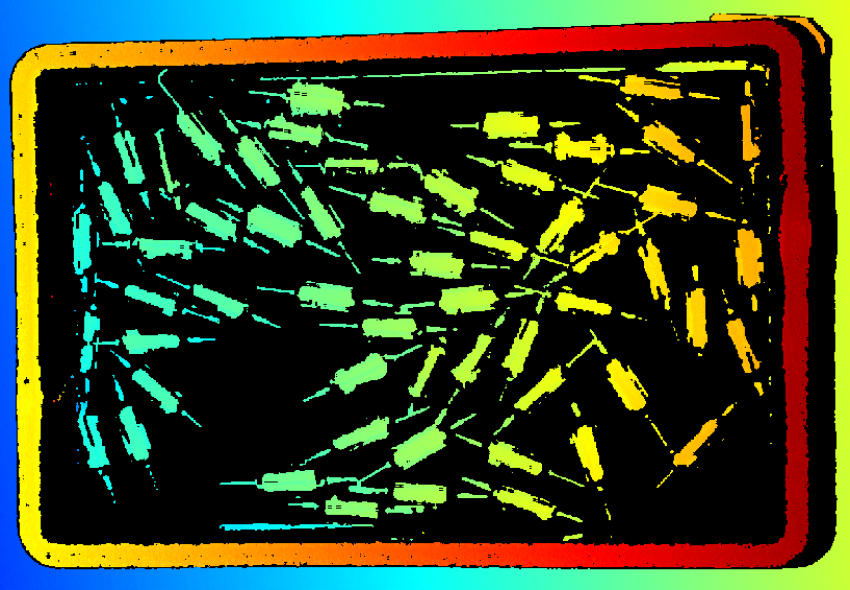
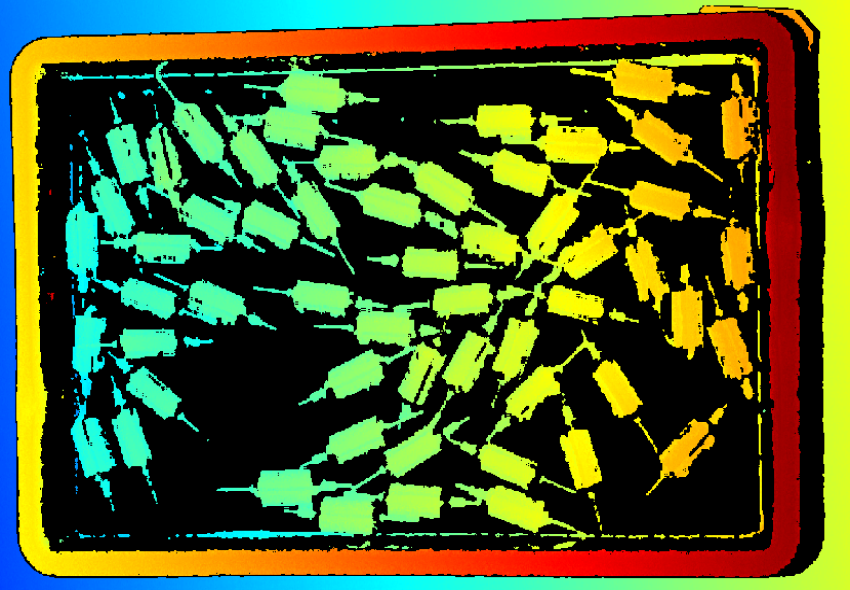
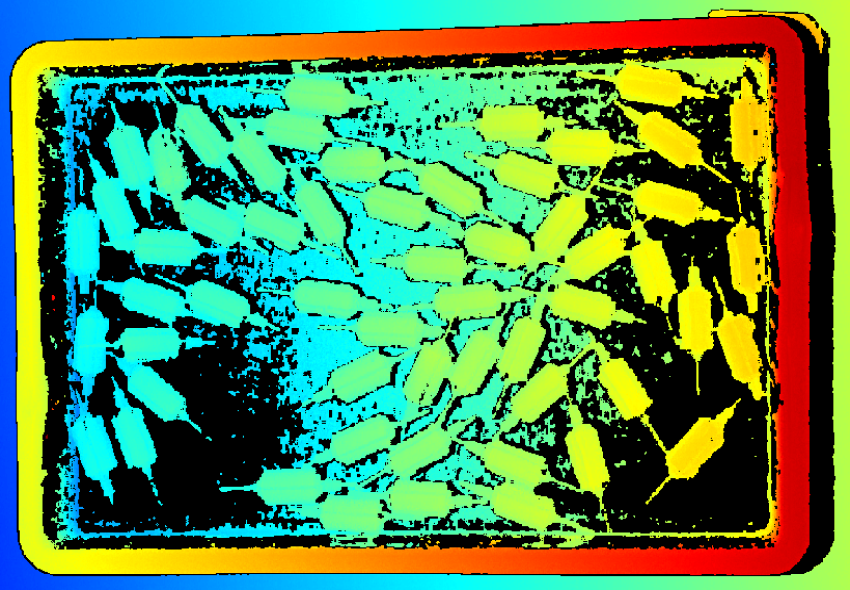
The following depth maps show the effect of different 3D Gain values under otherwise identical conditions:
| 0 dB | 5 dB | 10 dB | |
|---|---|---|---|
Depth Map |
|
|
|
2.4. 2D Exposure Time
Parameter Description |
Sets the exposure time for 2D image acquisition. |
|---|---|
Visibility |
Beginner, Expert, Guru |
Values |
0.1 ms–999 ms (default: 20 ms) |
Adjustment Notes |
|
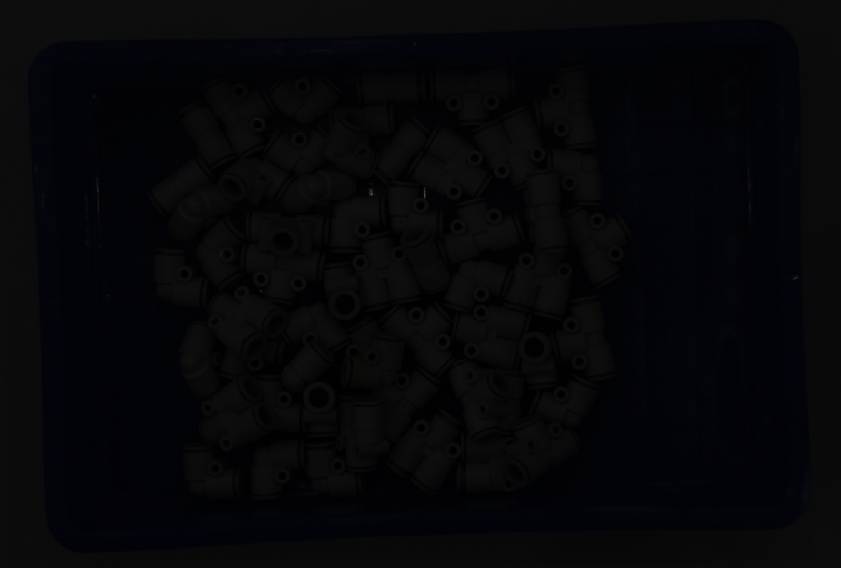
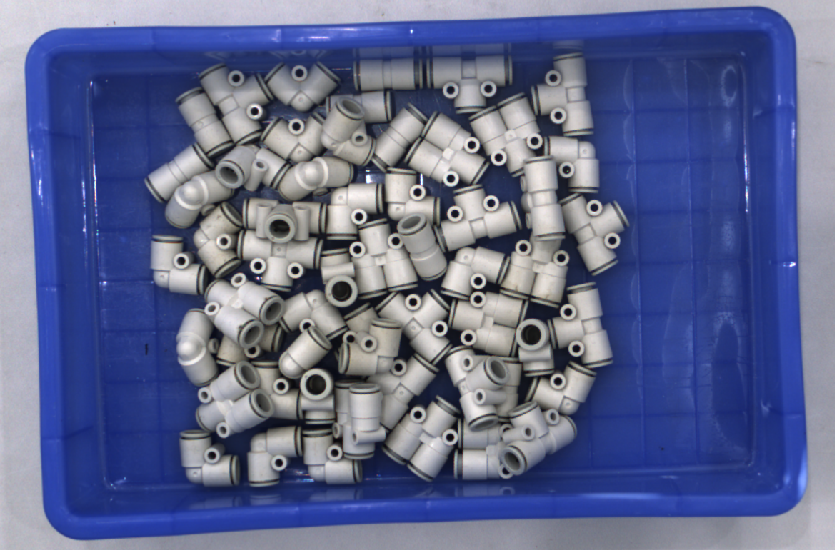
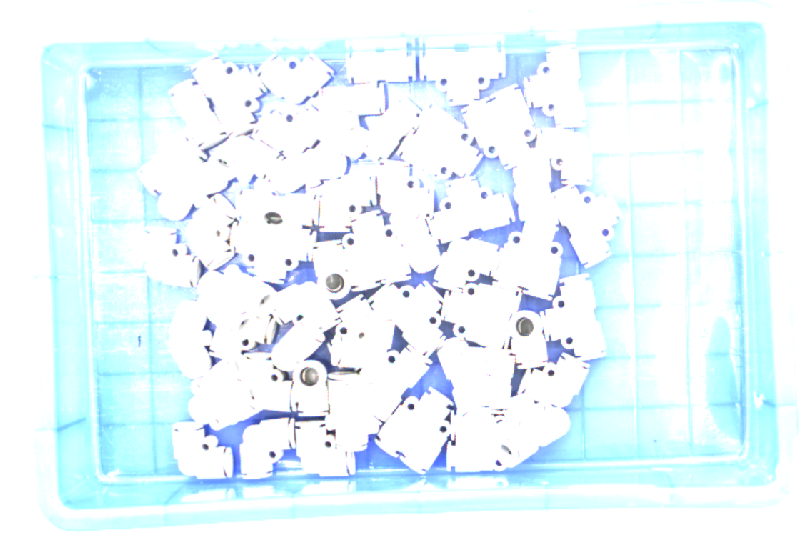
The following images show the effect of different 2D Exposure Time values under otherwise identical conditions:
| 5 ms | 90 ms | 500 ms |
|---|---|---|
|
|
|
2.5. 2D Gain
Parameter Description |
Increasing this parameter can enhance the brightness of the 2D image. However, noise will be introduced, lowering the signal-to-noise ratio. |
|---|---|
Visibility |
Expert, Guru |
Values |
0 dB–40 dB (default: 0 dB) |
Adjustment Notes |
This parameter is displayed when Data Output Type is set to 2D image or 2D image (texture). |
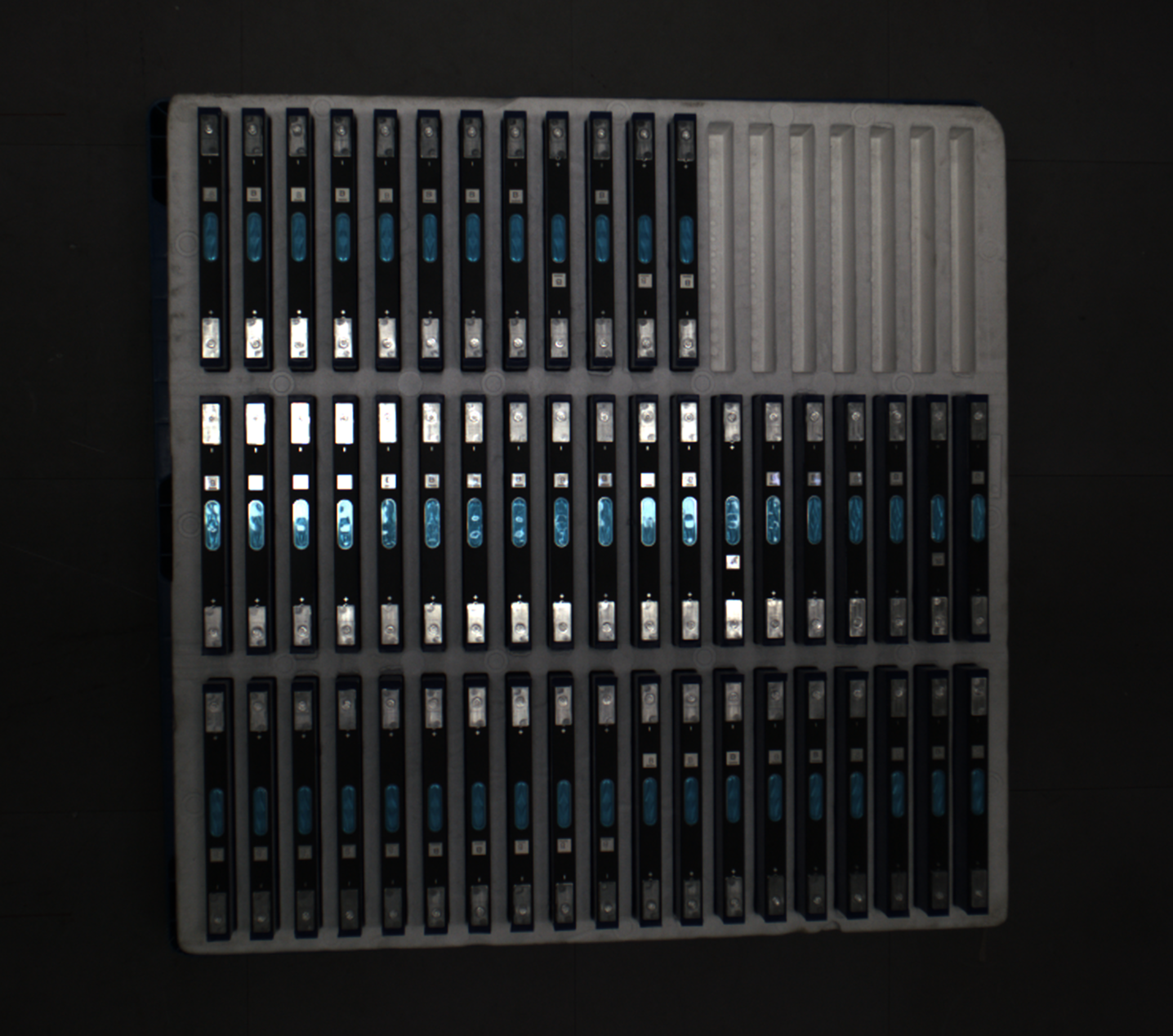
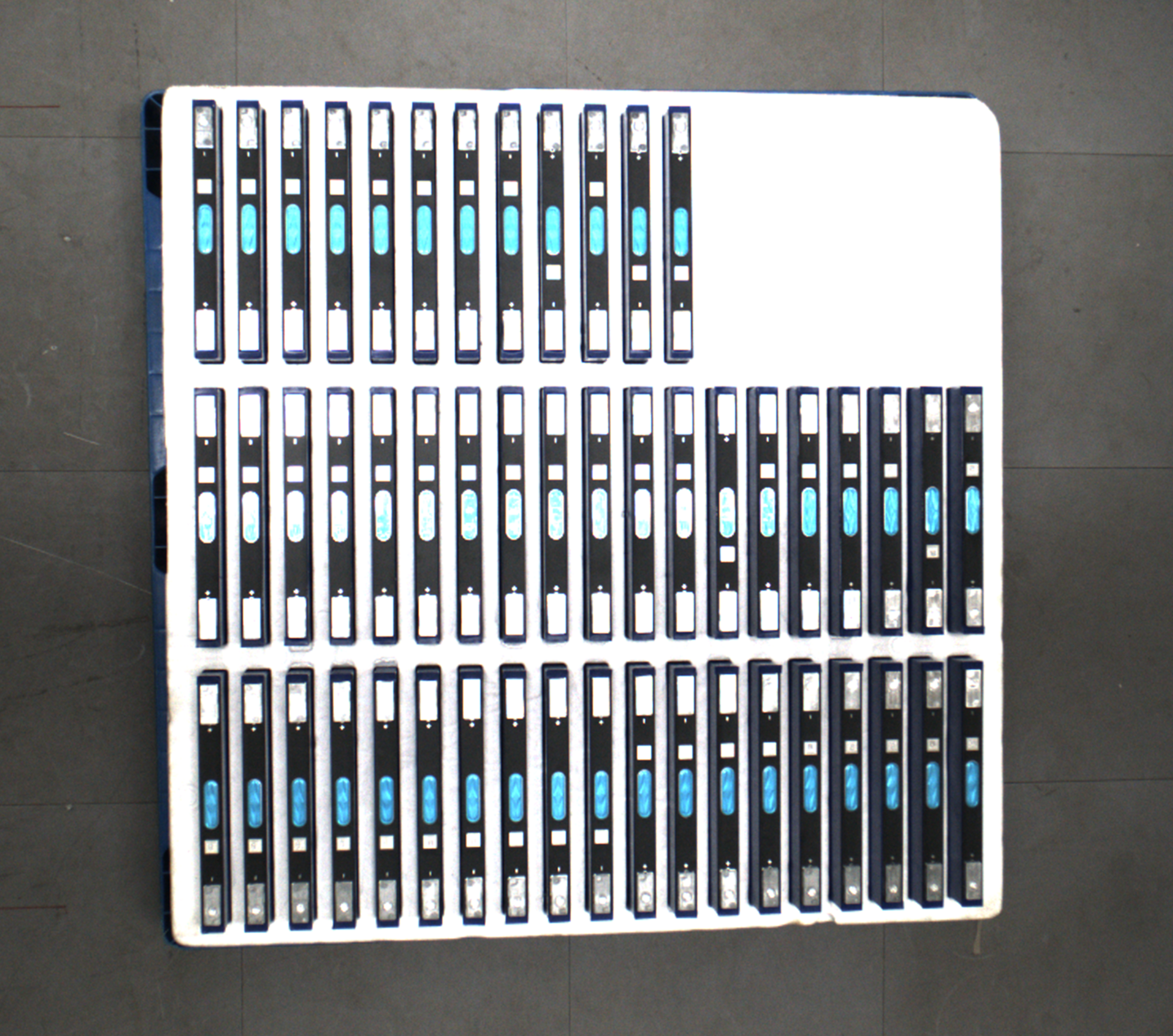
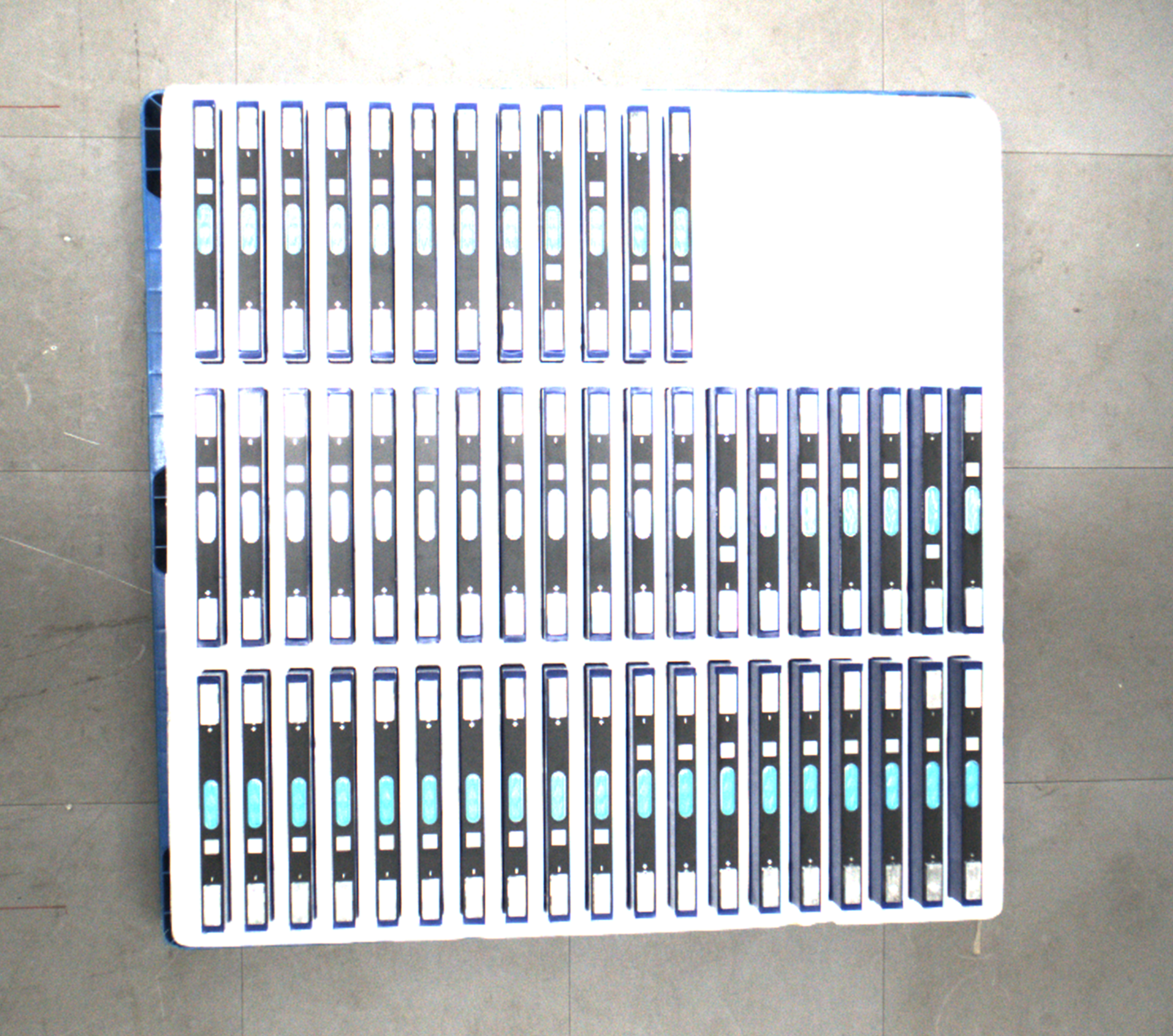
The following 2D images (texture) show the effect of different 2D Gain values under otherwise identical conditions:
| 0 dB | 5 dB | 10 dB |
|---|---|---|
|
|
|
2.6. Enable 2D Illumination
Parameter Description |
When enabled, supplemental light is used during 2D image acquisition to enhance image brightness. |
|---|---|
Visibility |
Expert, Guru |
Adjustment Notes |
|
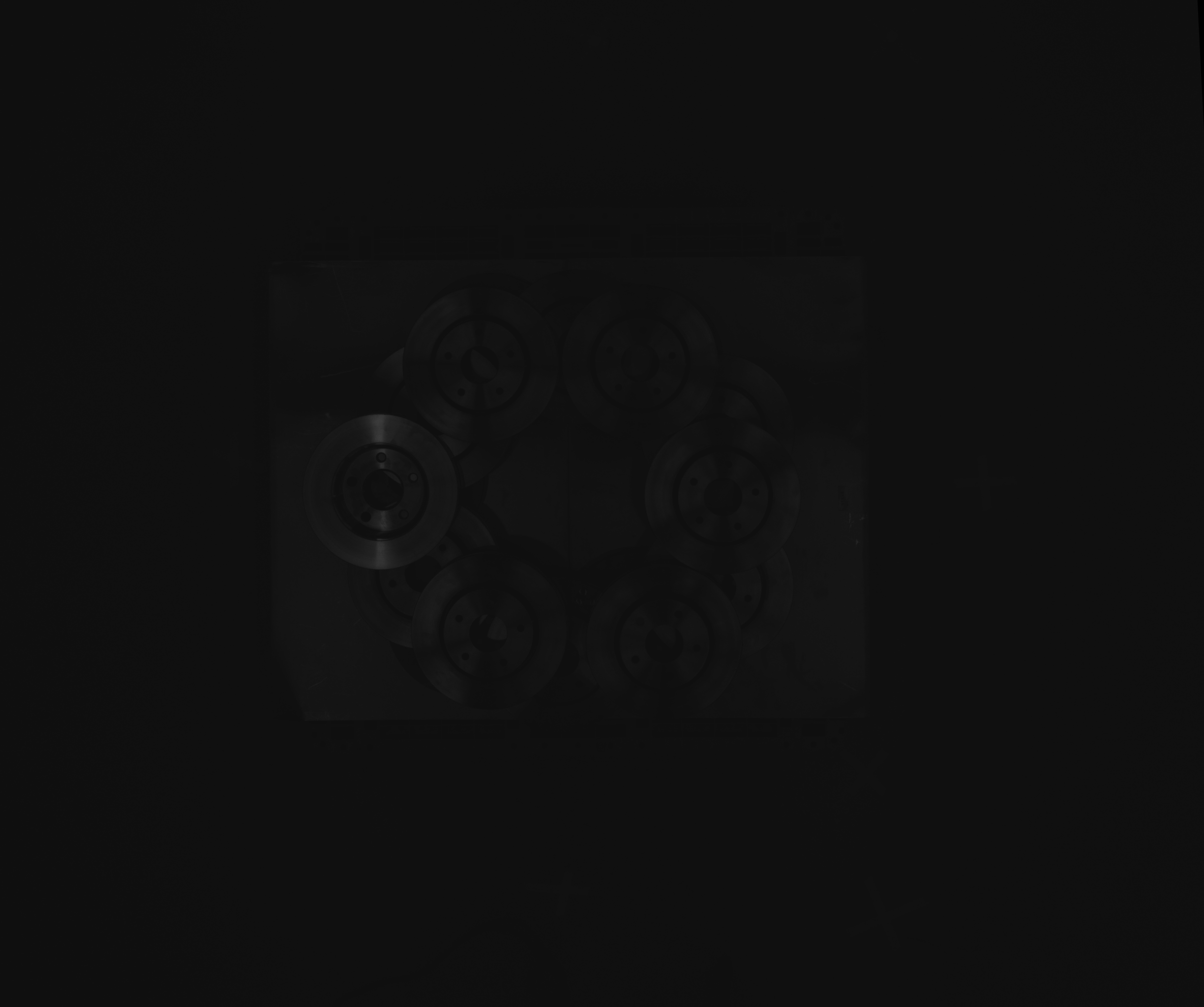
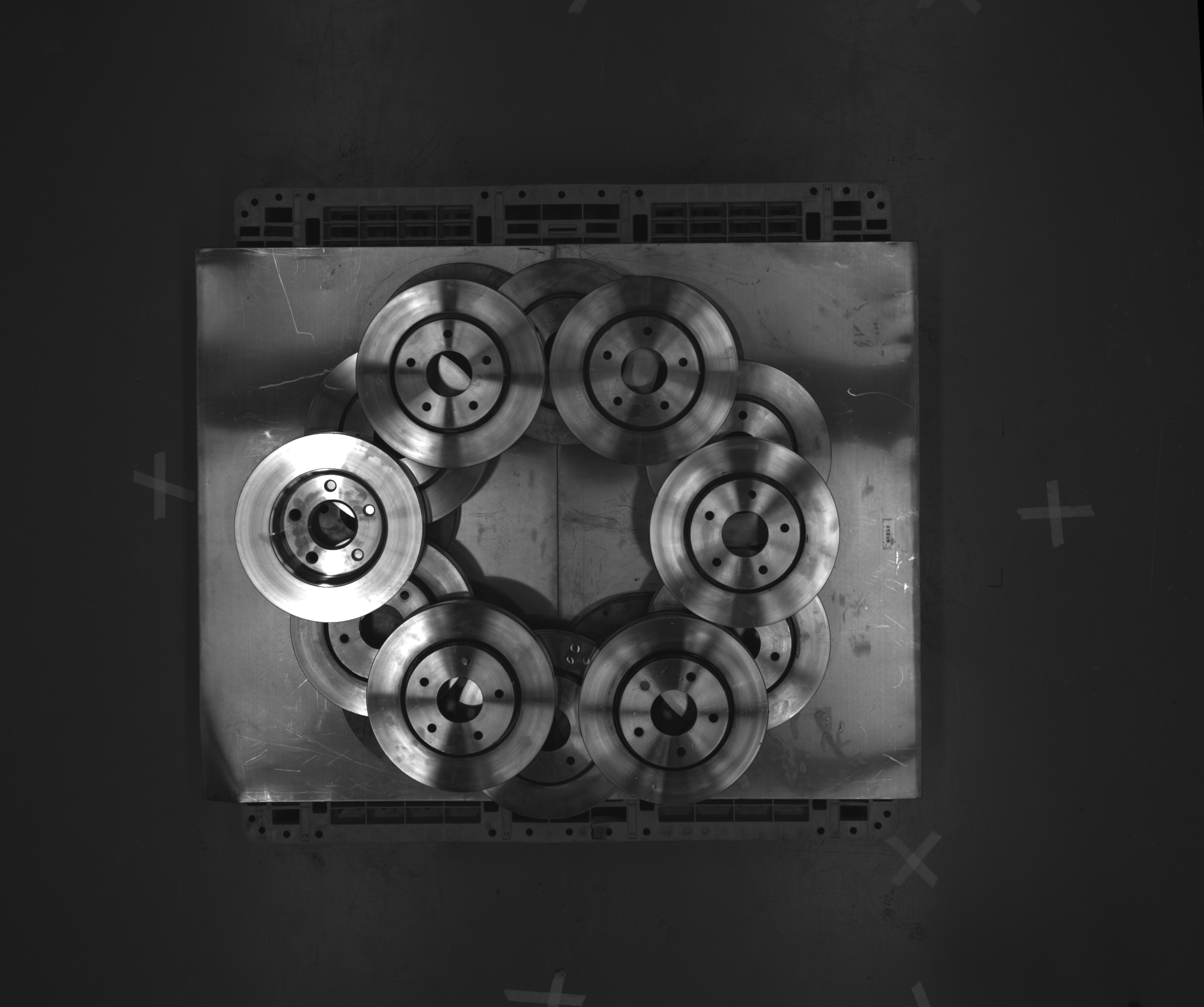
The following images show the effect of enabling 2D Illumination:
| Before Enabling | After Enabling |
|---|---|
|
|
3. Data Acquisition Trigger Source
Select the signal source that triggers data acquisition and configure the related parameters in this group.
Parameter Description |
Selects the signal source that triggers data acquisition. |
|---|---|
Visibility |
Expert, Guru |
Values |
|
Adjustment Notes |
Select External when an external input signal must trigger data acquisition. Otherwise, select Software. |
3.1. Acquisition Interval
Parameter Description |
Sets the time interval between consecutive point cloud acquisition triggers when Data Acquisition Method is set to Continuous Mode and Data Acquisition Trigger Source is set to Software Trigger. |
|---|---|
Values |
0 s–10 s (default: 0 s) |
Adjustment Notes |
This parameter is displayed when Data Acquisition Trigger Source is set to Software. |
4. Laser Control
Sets the power of the emitted laser light. Laser power affects the image brightness and point cloud quality during 3D acquisition.
| This group is displayed when Data Output Type is set to Point cloud or Point cloud + 2D image (texture). |
4.1. Laser Power
Parameter Description |
Sets the power of the emitted laser light. Laser power affects the image brightness and point cloud quality during 3D acquisition. |
|---|---|
Visibility |
Expert, Guru |
Values |
1%–100% (default: 100%) |
Adjustment Notes |
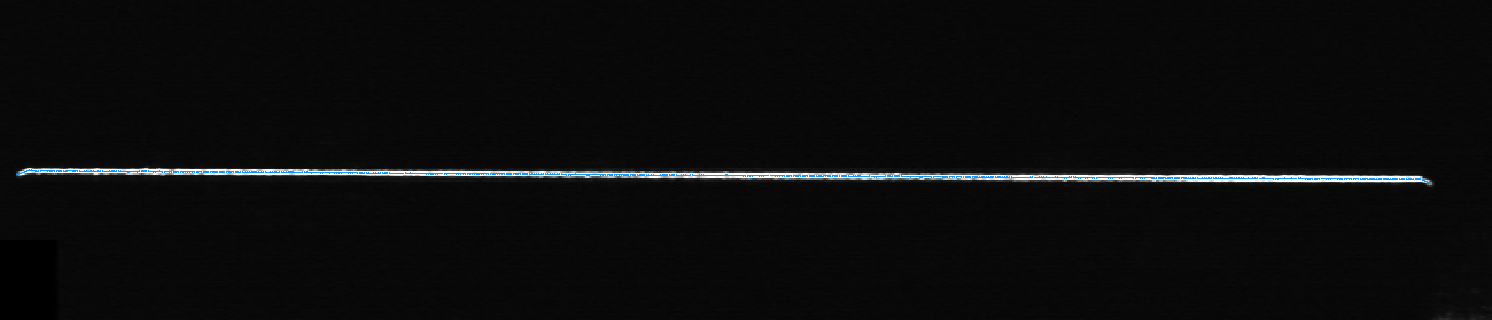
Decrease this parameter for light-colored objects and increase it for dark-colored objects. |
| Laser brightness varies between devices, even at the same power level. Adjust this parameter based on the actual conditions of each device. |
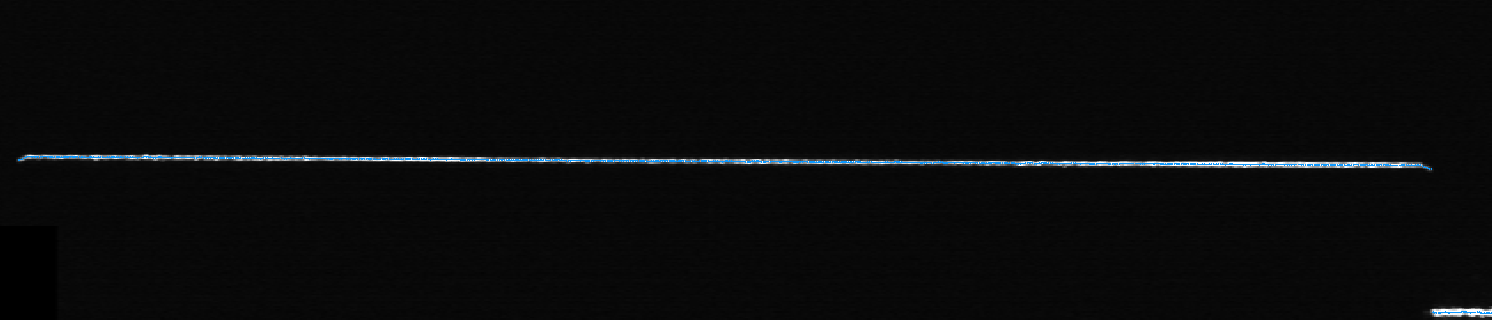
The following raw images show the effect of different Laser Power values under otherwise identical conditions:
Laser Power: 50% |
|
|---|---|
Laser Power: 100% |
|
4.2. Scan Time
Parameter Description |
Sets the scan time for a single acquisition. |
|---|---|
Visibility |
Beginner, Expert, Guru |
Values |
200 ms–10000 ms (default: 2100 ms) |
Adjustment Notes |
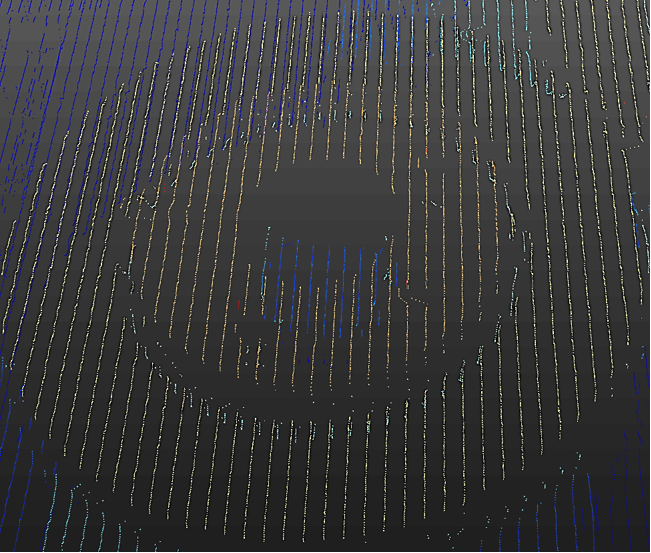
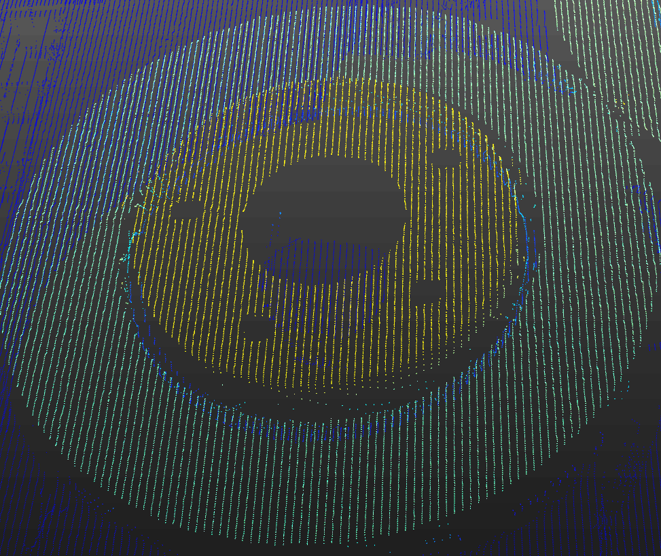
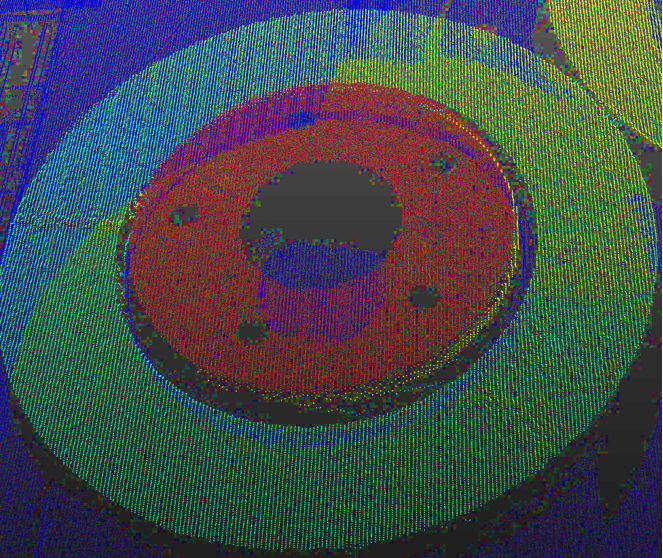
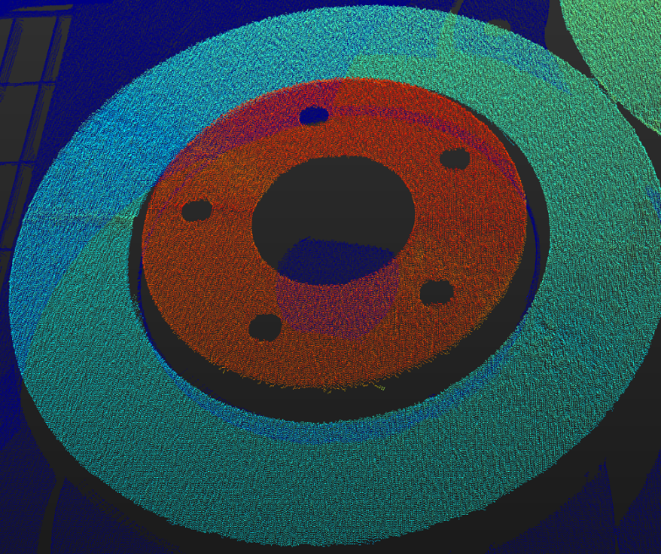
The longer the scan time, the denser the point cloud, but the longer the acquisition takes. |
The following images show the effect of different Scan Time values under otherwise identical conditions:
| 200 ms | 500 ms | 1200 ms | 4000 ms |
|---|---|---|---|
|
|
|
|
4.3. Scan Line Count
Parameter Description |
Displays the number of scan lines in a single acquisition. More scan lines produce a denser point cloud. |
|---|---|
Visibility |
Expert, Guru |
Adjustment Notes |
This value is calculated automatically based on Scan Time, Depth Range, and 3D Exposure Time. |
5. Profile Extraction
Configure laser line detection and profile extraction in this group.
| This group is displayed when Data Output Type is set to Point cloud or Point cloud + 2D image (texture) and Visibility is set to Expert or Guru. |
5.1. Enable Continuity Check
Parameter Description |
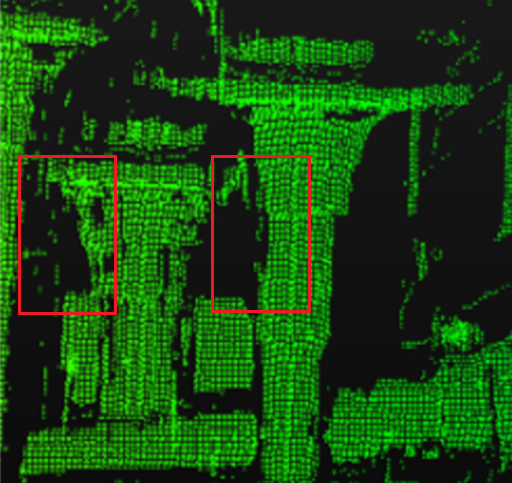
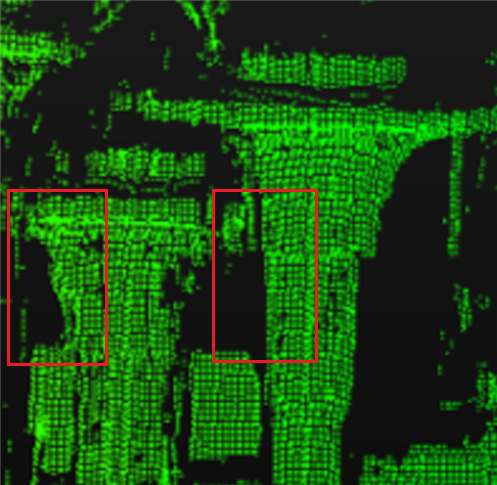
When enabled, this parameter makes laser line detection account for continuity between neighboring pixels. This reduces false detections caused by noise or reflections and improves point cloud quality and measurement reliability. |
|---|---|
Visibility |
Expert, Guru |
Adjustment Notes |
|
The following images show the effect of enabling Enable Continuity Check under otherwise identical conditions:
| Before Enabling | After Enabling |
|---|---|
|
|
5.2. Max Laser Line Width
Parameter Description |
Sets the maximum width for the laser lines. Laser line width is a property of each pixel column in a laser line. It is equal to the number of valid pixels in a pixel column. If the width of a pixel column in a laser line is greater than this value, this pixel column in this laser line does not participate in profile extraction. |
|---|---|
Visibility |
Guru |
Adjustment Notes |
Setting appropriate maximum and minimum widths can exclude the laser lines produced by stray light or interreflection, which are usually too wide or too narrow. |
| Adjust 3D Exposure Time and 3D Gain first. |
5.3. Min Laser Line Width
Parameter Description |
Sets the minimum width for the laser lines. Laser line width is a property of each pixel column in a laser line. It is equal to the number of valid pixels in a pixel column. If the width of a pixel column in a laser line is smaller than this value, this pixel column in this laser line does not participate in profile extraction. |
|---|---|
Visibility |
Guru |
Adjustment Notes |
If the laser line is thin due to a long measurement distance or special object material, a smaller value is recommended. |
| Adjust 3D Exposure Time and 3D Gain first. |
5.4. Min Sharpness
Parameter Description |
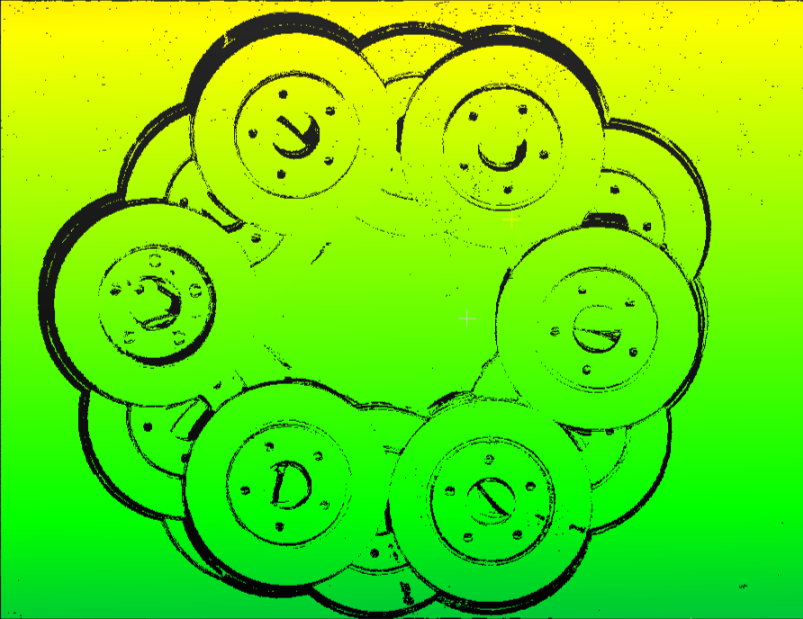
Sets the minimum sharpness of the laser lines. Sharpness is the clearness of the edges of a laser line. |
|---|---|
Visibility |
Expert, Guru |
Values |
0–255 (default: 2) |
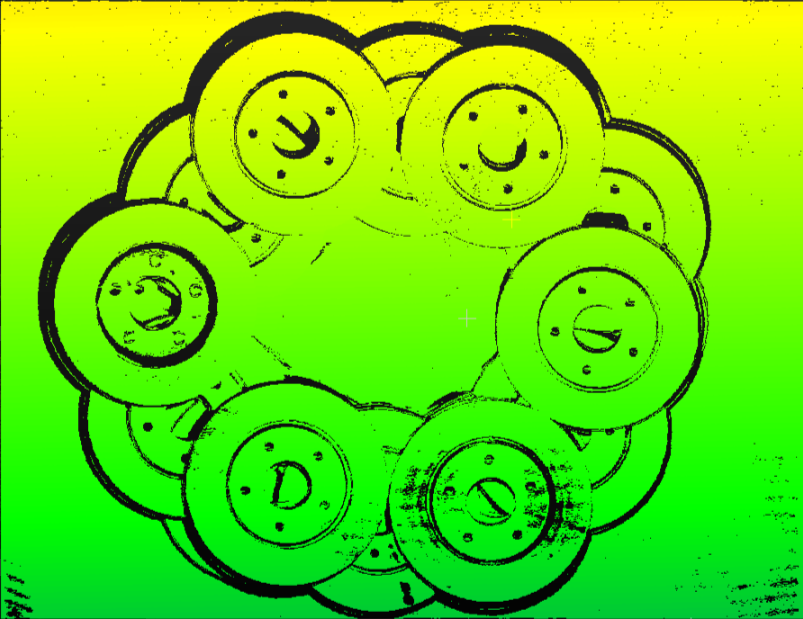
Adjustment Notes |
|
| Adjust 3D Exposure Time and 3D Gain first. |
The following images show the effect of different Min Sharpness values under otherwise identical conditions:
| 2 | 10 |
|---|---|
|
|
5.5. Detail Resolution Mode
Parameter Description |
Sets the ability to resolve changes in detail during laser line extraction. |
|---|---|
Visibility |
Guru |
Values |
|
Adjustment Notes |
|
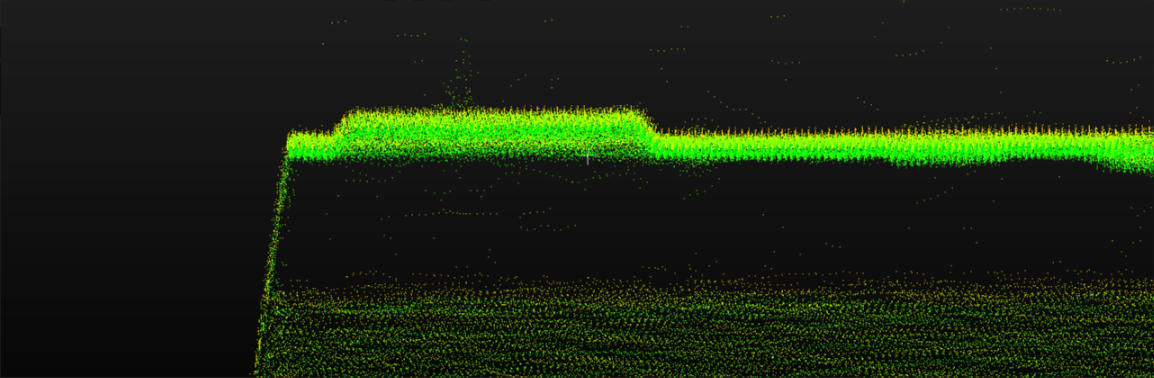
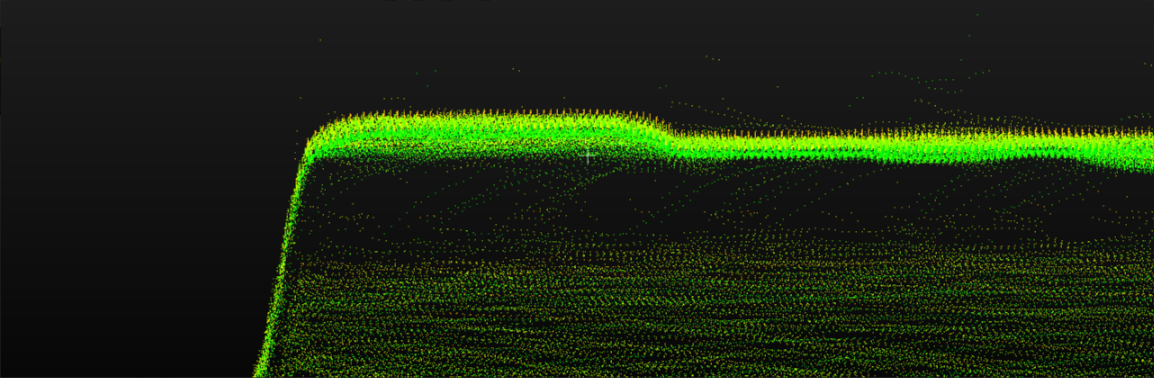
The following point clouds compare Sensitive and Stable under otherwise identical conditions:
| Sensitive | Stable |
|---|---|
|
|
Provides stronger smoothing and less point cloud fluctuation, but increases edge warping |
Provides weaker smoothing and more point cloud fluctuation, but represents edges more accurately |
5.6. Horizontal Convolution Window
Parameter Description |
Sets the convolution window size along the laser line direction. |
|---|---|
Visibility |
Guru |
Adjustment Notes |
|
5.7. Vertical Convolution Window
Parameter Description |
Sets the convolution window size perpendicular to the laser line direction. |
|---|---|
Visibility |
Guru |
Adjustment Notes |
|
6. Point Cloud Processing
Adjust the parameters in Point Cloud Processing to process the generated point cloud. After changing a parameter, click Apply on the right to view the effect without acquiring the point cloud again.
| This group is displayed when Data Output Type is set to Point cloud or Point cloud + 2D image (texture). |
6.1. Surface Smoothing
Reduces the depth fluctuation in the point cloud and improves its resemblance to the actual object surface.
| Surface smoothing causes loss of object surface details. The more intense the smoothing, the more details are lost. |
6.1.1. Surface Smoothing Intensity
Parameter Description |
Sets the surface smoothing intensity. |
|---|---|
Visibility |
Beginner, Expert, Guru |
Values |
Off, Weak, Normal, Strong, Custom (default: Normal) |
Adjustment Notes |
When Custom is selected, adjust the intensity of Denoising Smoothing and Edge-Preserving Smoothing separately. |
| To select Custom and adjust its subparameters, switch to the Administrator user and set Visibility to Guru first. |
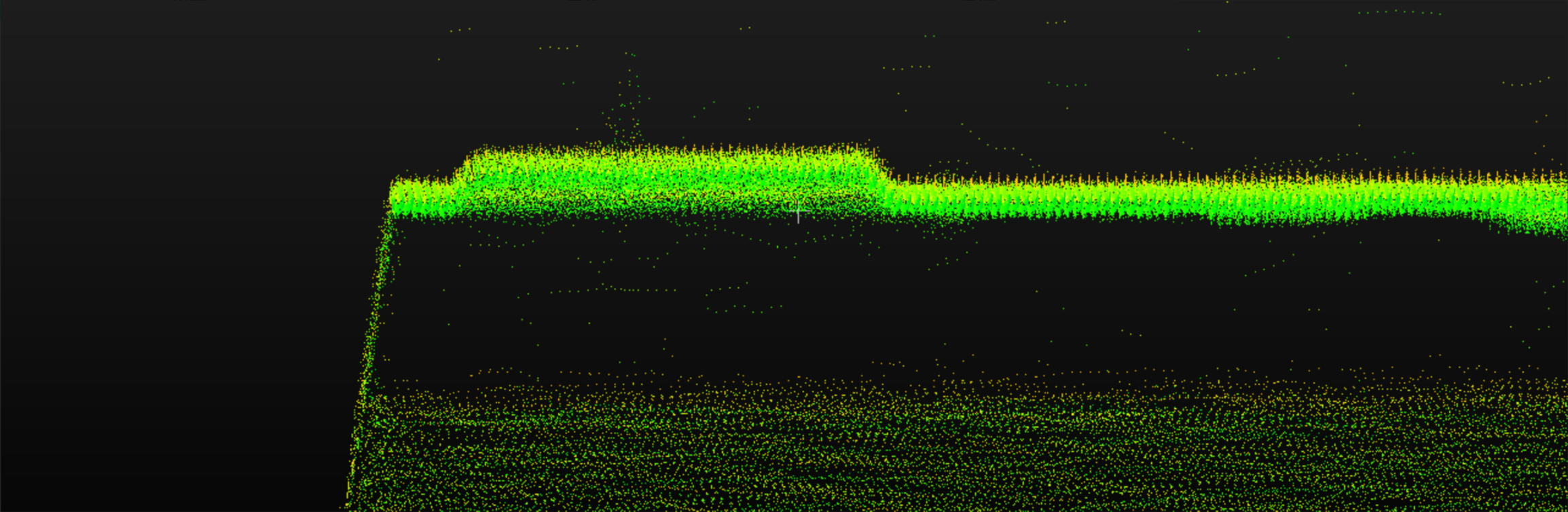
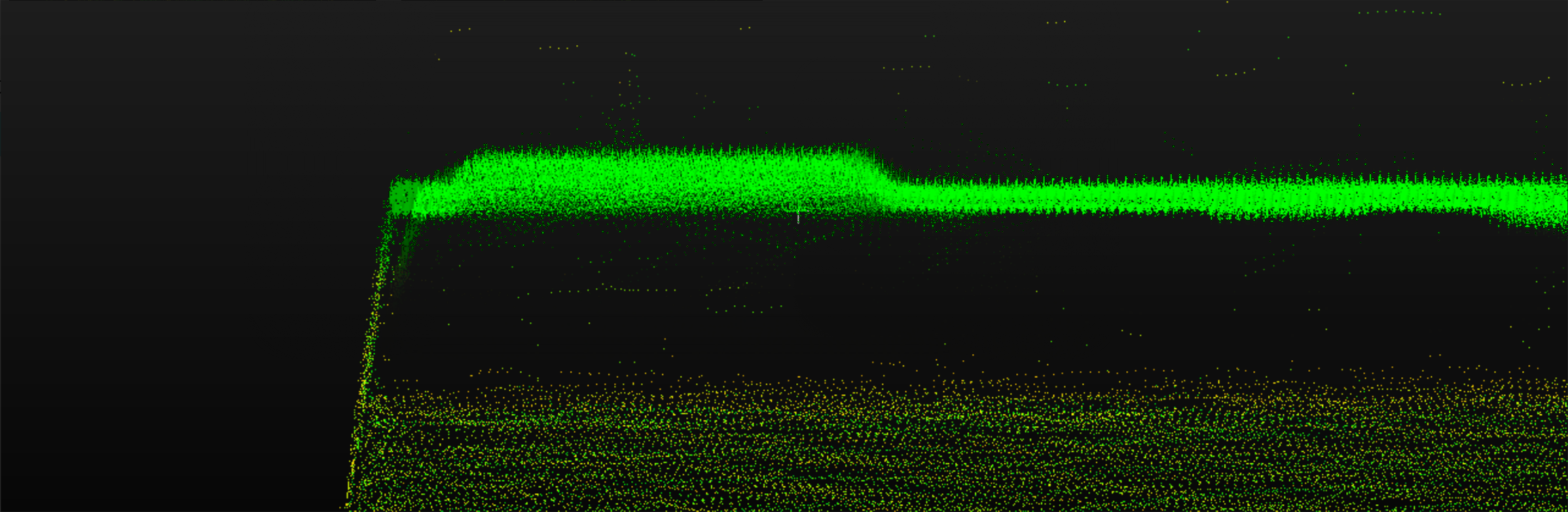
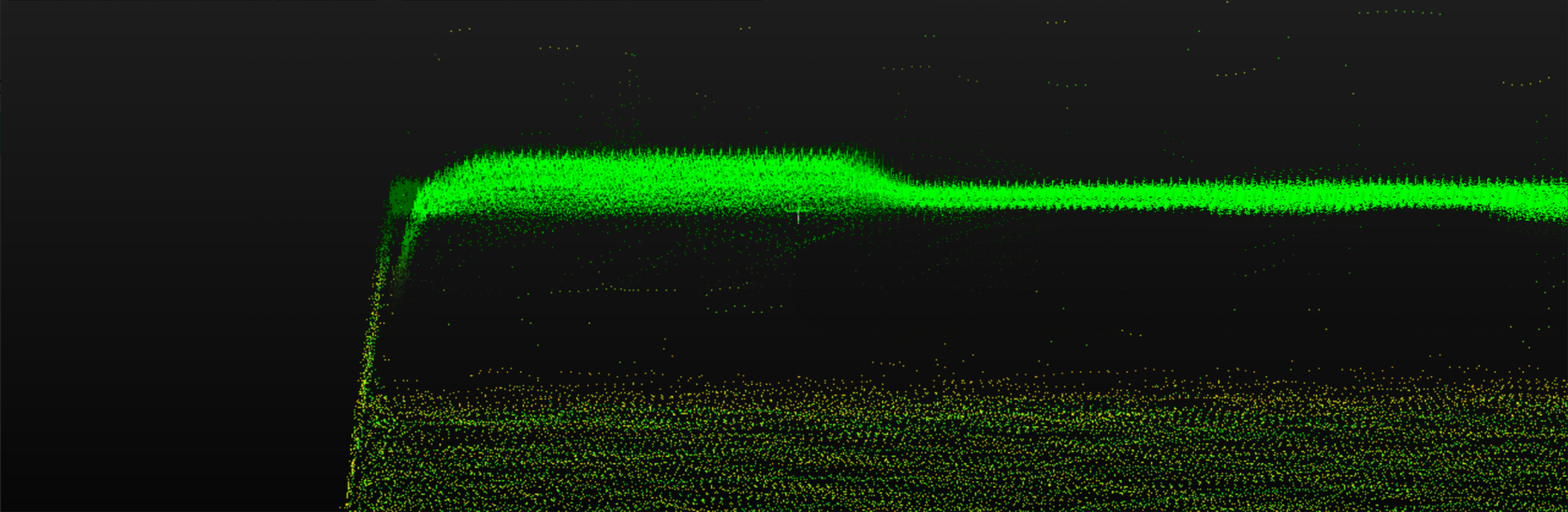
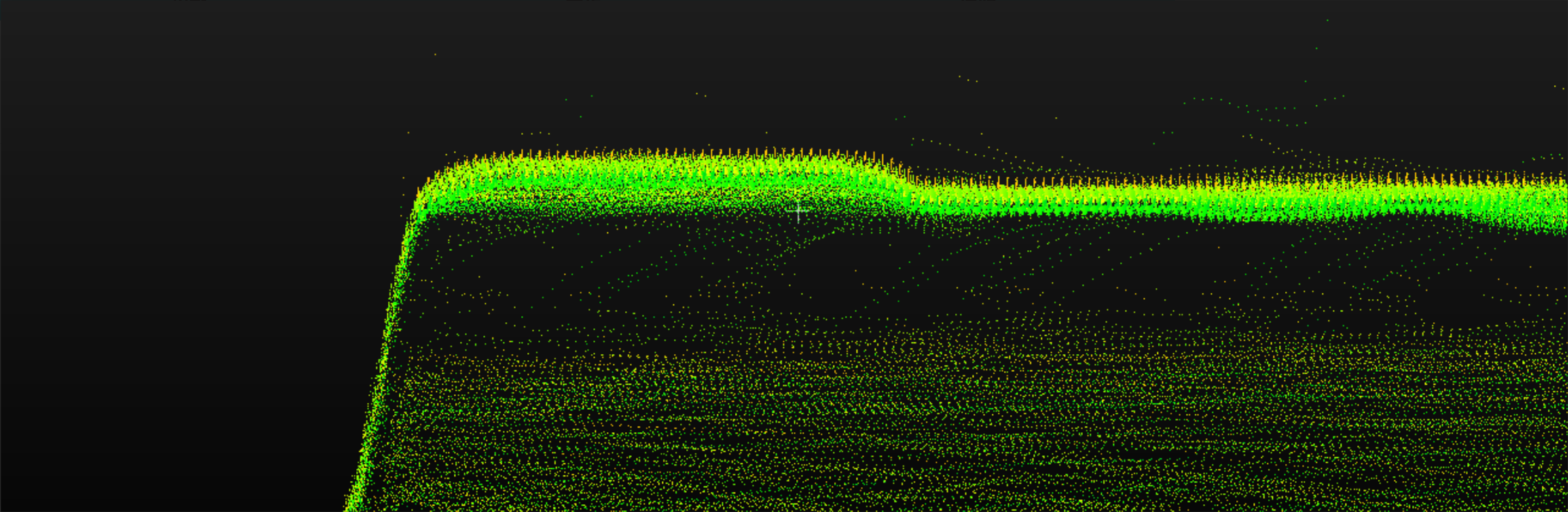
The following point clouds show the effect of different Surface Smoothing Intensity values under otherwise identical conditions:
| Off | Weak |
|---|---|
|
|
Normal |
Strong |
|
|
6.1.2. Denoising Smoothing
Suppresses spike noise in the point cloud while largely preserving the overall surface shape.
6.1.2.1. Denoising Smoothing Intensity
Parameter Description |
Sets the denoising smoothing intensity. |
|---|---|
Visibility |
Guru |
Values |
Off, Weakest, Weak, Normal, Strong, Strongest, Custom (default: Normal) |
Adjustment Notes |
Higher intensity suppresses spike noise more strongly but may cause more surface detail loss. |
| Custom is experimental. Its subparameters are unavailable in the current version. This mode uses several interdependent parameters and can be complex to configure. If standard parameter adjustments do not produce the expected result, contact Mech-Mind Technical Support for assistance. |
6.1.3. Edge-Preserving Smoothing
Reduces noise and depth fluctuations on the point cloud surface while preserving object edge details as much as possible.
6.1.3.1. Edge-Preserving Smoothing Intensity
Parameter Description |
Sets the intensity of edge preserving smoothing. Higher intensity provides stronger smoothing but may cause more surface detail loss. |
|---|---|
Visibility |
Guru |
Values |
0 level–100 level (default: 0 level) |
Adjustment Notes |
Higher intensity produces stronger smoothing but may remove more surface details. |
6.2. Outlier Removal
Removes outliers from the point cloud to improve point cloud quality.
6.2.1. Outlier Removal Intensity
Parameter Description |
Sets the outlier removal intensity. |
|---|---|
Visibility |
Beginner, Expert, Guru |
Values |
Off, Weak, Normal, Strong, Custom (default: Normal) |
Adjustment Notes |
When Custom is selected, adjust the intensity of Normal Outlier Removal and Connected Noise Removal separately. |
| To select Custom and adjust its subparameters, switch to the Administrator user and set Visibility to Guru first. |
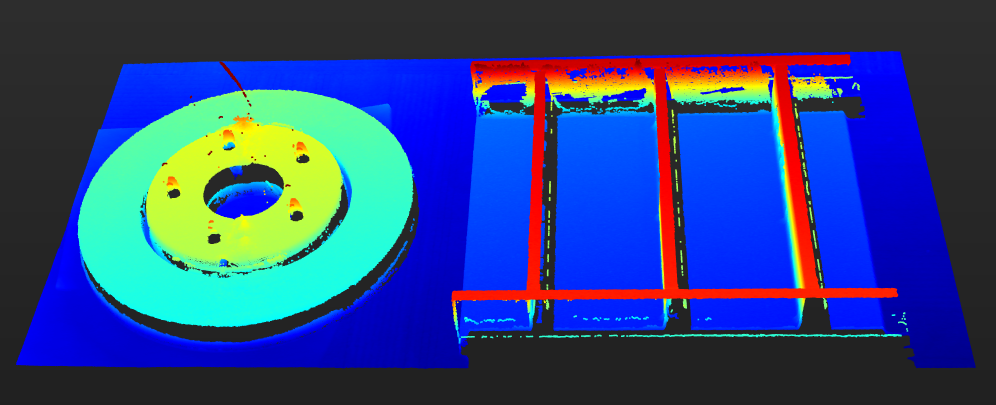
The following point clouds show the effect of different Outlier Removal Intensity values under otherwise identical conditions:
| Off | Weak |
|---|---|
|
|
Normal |
Strong |
|
|
6.2.2. Normal Outlier Removal
Removes points with abnormal normals in the point cloud, such as outliers generated near object edges or depth discontinuities.
6.2.3. Connected Noise Removal
Removes small noise regions separated from the main point cloud.
6.2.3.1. Connected Noise Removal Intensity
Parameter Description |
Sets the connected noise removal intensity. |
|---|---|
Visibility |
Guru |
Values |
Off, Weakest, Weak, Normal, Strong, Strongest, Custom (default: Normal) |
Adjustment Notes |
Higher intensity removes more noise but may remove more details. |
| Custom is experimental. Its subparameters are unavailable in the current version. This mode uses several interdependent parameters and can be complex to configure. If standard parameter adjustments do not produce the expected result, contact Mech-Mind Technical Support for assistance. |
6.3. Gap Filling
Fills the gaps in the point cloud to display a more complete surface of the target object.
6.3.1. Gap Filling Intensity
Parameter Description |
Sets the gap filling intensity. |
|---|---|
Visibility |
Beginner, Expert, Guru |
Values |
Off, Weakest, Weak, Normal, Strong, Strongest, Custom (default: Normal) |
Adjustment Notes |
Higher intensity fills more gaps but may cause distortion in areas with abrupt depth changes, such as object edges. |
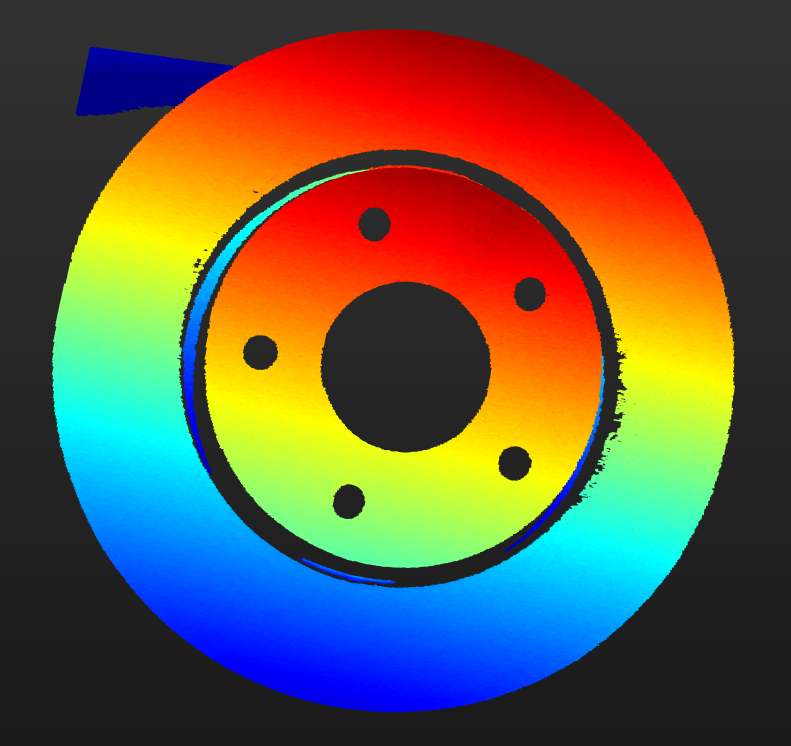
The following point clouds show the effect of different Gap Filling Intensity values under otherwise identical conditions:
| Off | Weak |
|---|---|
|
|
Normal |
Strong |
|
|
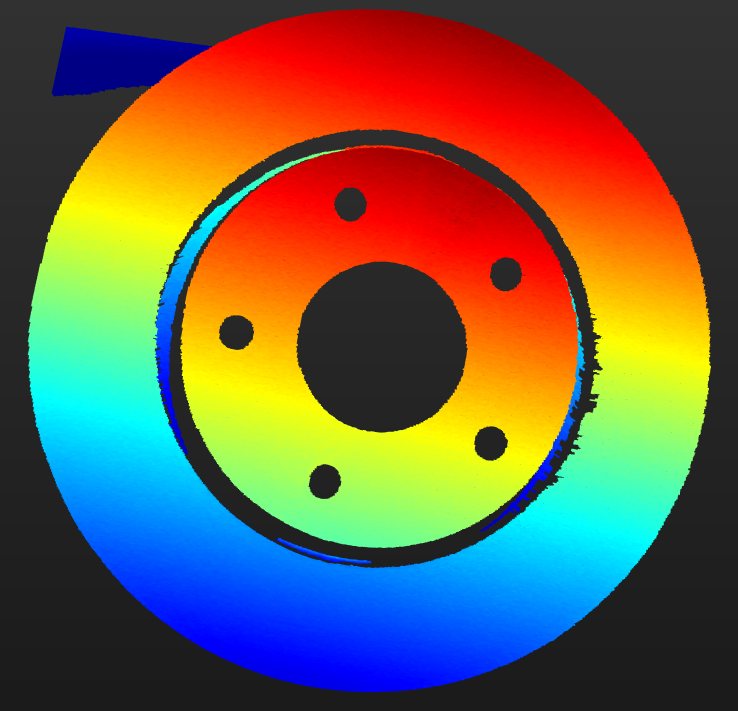
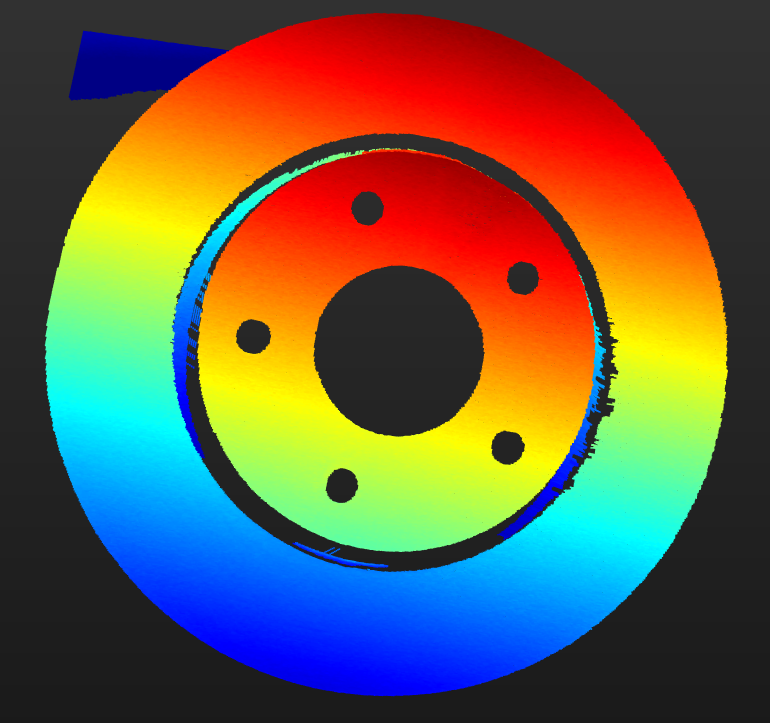
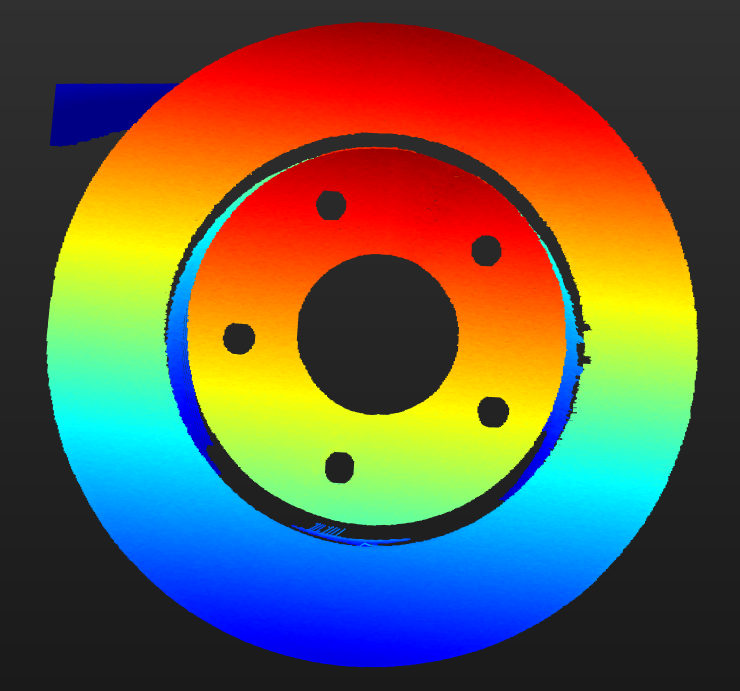
| Custom is experimental. Its subparameters are unavailable in the current version. This mode uses several interdependent parameters and can be complex to configure. If standard parameter adjustments do not produce the expected result, contact Mech-Mind Technical Support for assistance. |
A comparison image can be added.
7. Depth Range
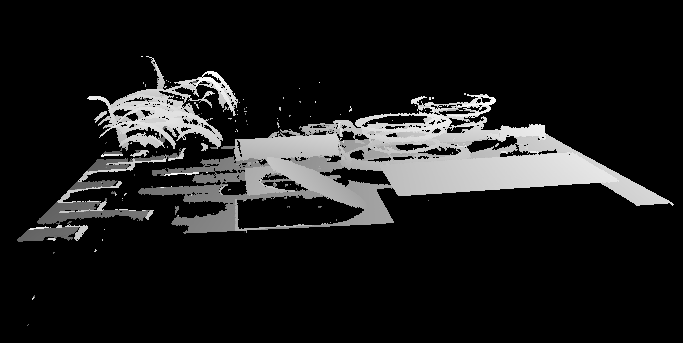
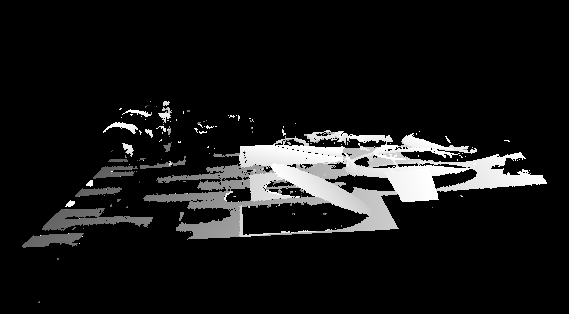
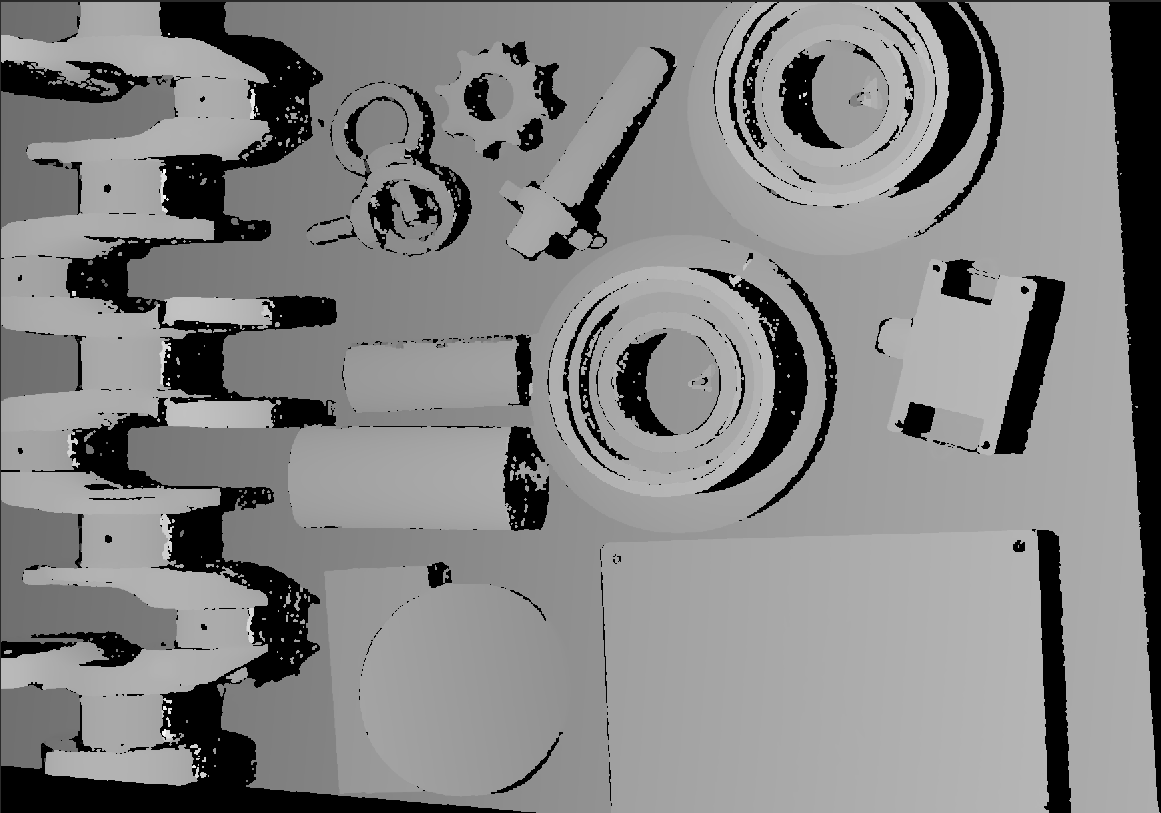
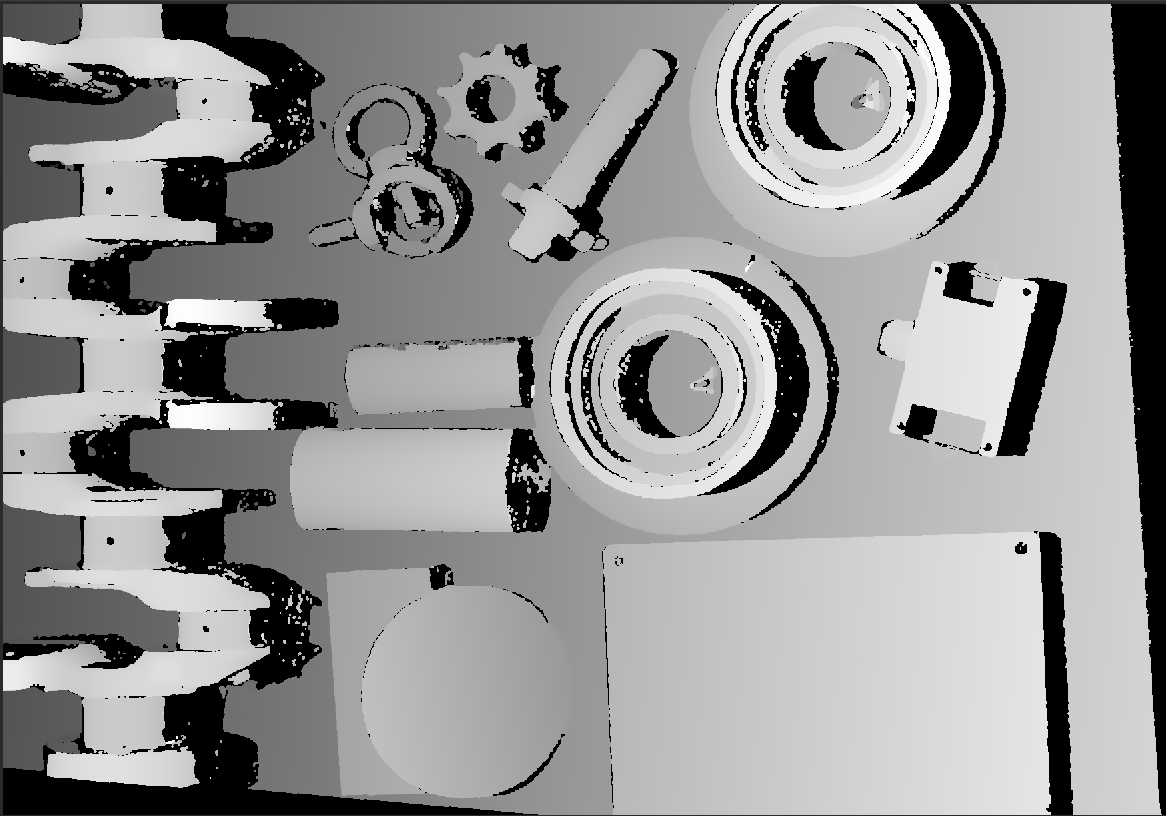
Set the depth range in the camera coordinate system. Points outside this range are removed during point cloud acquisition. Changing this parameter also changes the minimum and maximum values in the depth map and point cloud display. The depth range determines the point cloud imaging range, acquisition frame rate, and point cloud density. Adjust it to increase acquisition speed and point cloud density as needed.
|
| Parameter | Description | Visibility | Values |
|---|---|---|---|
Depth Lower Limit |
The lower depth limit (the side closer to the camera). |
Beginner, Expert, Guru |
2 mm–10000 mm (default: 2000 mm; must be less than the upper limit) |
Depth Upper Limit |
The upper depth limit (the side farther from the camera). |
Beginner, Expert, Guru |
1 mm–9999 mm (default: 3000 mm; must be greater than the lower limit) |
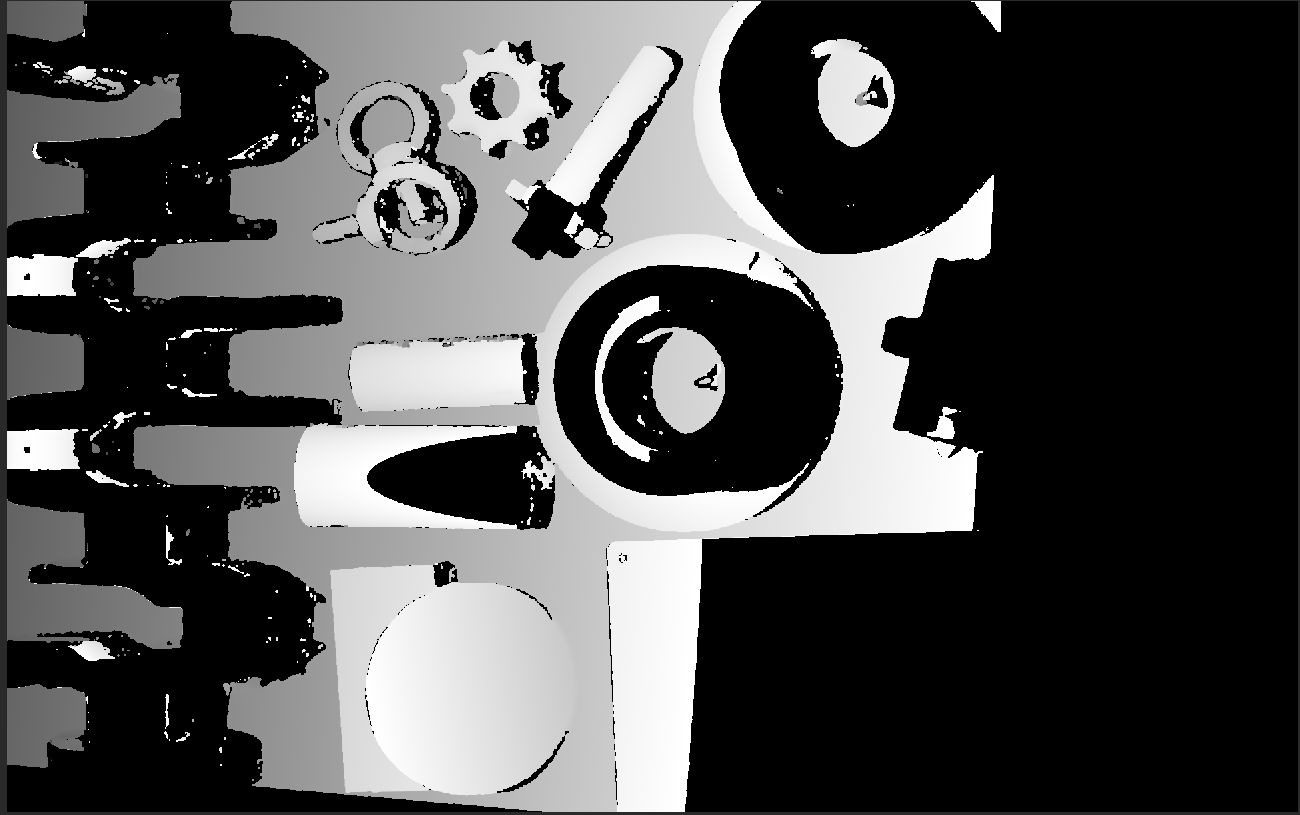
The following images compare different Depth Range settings:
| Too Wide | Appropriate | Too Narrow |
|---|---|---|
|
|
|
|
|
|
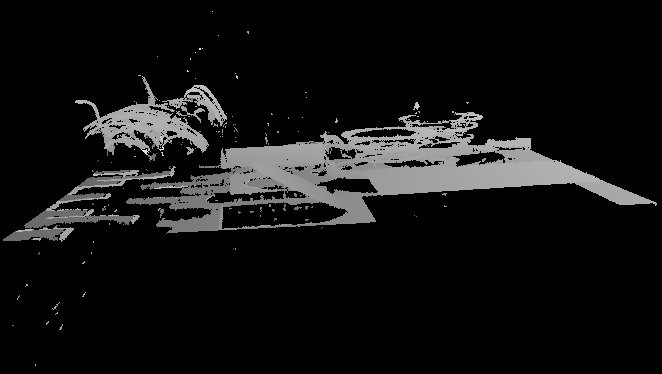
Set the Depth Range
Follow these steps to adjust Depth Range:
-
Click Edit to the right of Depth Range to open the Set Depth Range window.
-
Adjust the depth range by dragging the sliders on the right or entering values to move the two blue rectangles until the required object features are between them. First drag the sliders to approximate the range, then enter values for fine adjustment.
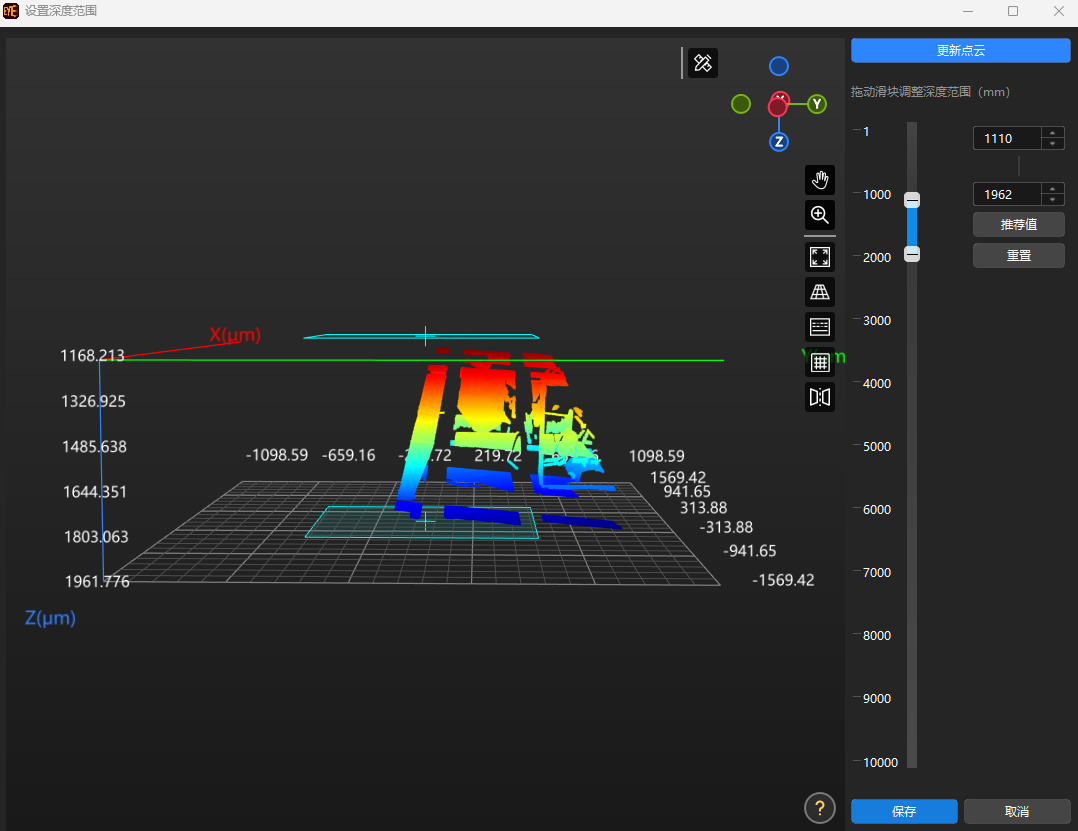
The depth range is appropriate when all required object features are between the two blue rectangles and most noise and outliers are outside them. -
When finished, click Save in the lower-right corner.
|
8. ROI
Set the ROI for the depth map and point cloud. Only this region is scanned to improve acquisition efficiency.
| This group is displayed when Data Output Type is set to Point cloud or Point cloud + 2D image (texture). |
| Parameter | Description | Visibility |
|---|---|---|
X |
Sets the X coordinate of the upper-left corner of the ROI. |
Expert, Guru |
Y |
Sets the Y coordinate of the upper-left corner of the ROI. |
Expert, Guru |
Width |
Sets the size of the ROI in the X direction. |
Expert, Guru |
Height |
Sets the size of the ROI in the Y direction. |
Expert, Guru |
Set the ROI
-
Click Edit to the right of ROI to open the Set ROI page.
-
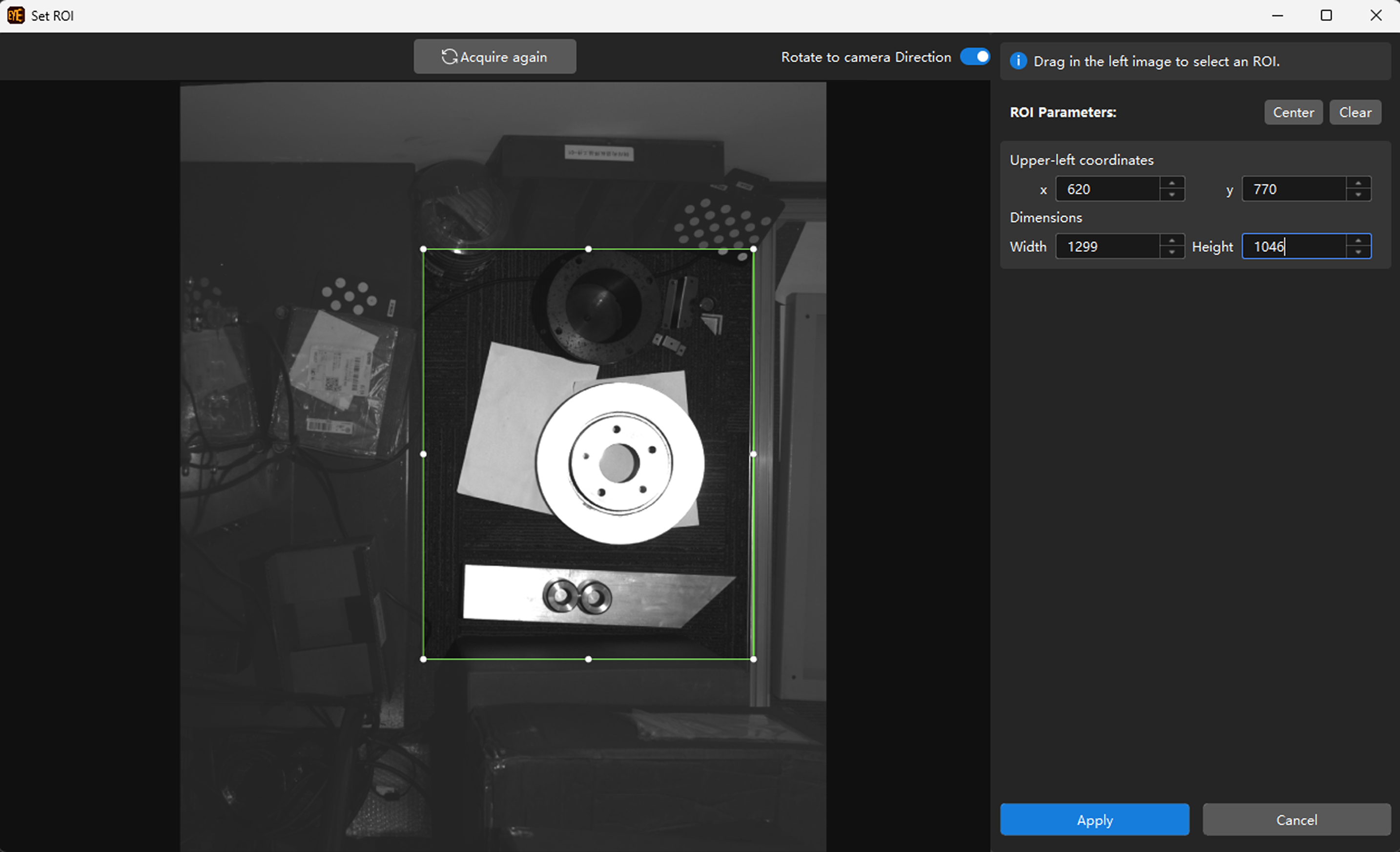
Select and adjust the ROI on the left. Drag the selection box to change its position, or drag the white handles to change its size.
-
Click Apply to apply the ROI settings.
|
9. I/O Port Configuration
Configure the input and output signals of the camera’s I/O ports in this group.
| I/O output is not supported in the current version. Do not rely on I/O output for production-line interlocking. |
9.1. I/O Port
Parameter Description |
Selects the I/O port to configure. |
|---|---|
Visibility |
Expert, Guru |
Values |
|
Adjustment Notes |
None |
9.2. Mode
Parameter Description |
Displays the direction of the current port. |
|---|---|
Visibility |
Expert, Guru |
Values |
|
Adjustment Notes |
None |
9.3. Polarity Inversion
Parameter Description |
Sets the active direction of the trigger signal. |
|---|---|
Visibility |
Expert, Guru |
Adjustment Notes |
Disabled by default, the parameter triggers on a rising edge. When enabled, it triggers on a falling edge. |
9.4. Debounce Time
Parameter Description |
Sets the minimum valid duration of the input signal to filter out signal jitter and glitches. When the duration is shorter than this value, the signal is considered invalid and will not trigger acquisition. |
|---|---|
Visibility |
Beginner, Expert, Guru |
Values |
0 μs–1000000 μs (default: 0 μs) |
Adjustment Notes |
Set this parameter based on the pulse width of the valid external input signal. |
| Setting the debounce time too high may block valid signals. |