Master-Control Communication Setup
This topic describes how to set up master-control communication between Mech-Mind Vision System and a CGXI robot.
Check Controller and Software Compatibility
|
The models and versions listed below are tested and can be used. For other models and versions, you may refer to this guide for operation. If any issues occur, please contact Mech-Mind Technical Support. |
-
Robot model: G6
-
Controller model: K20
-
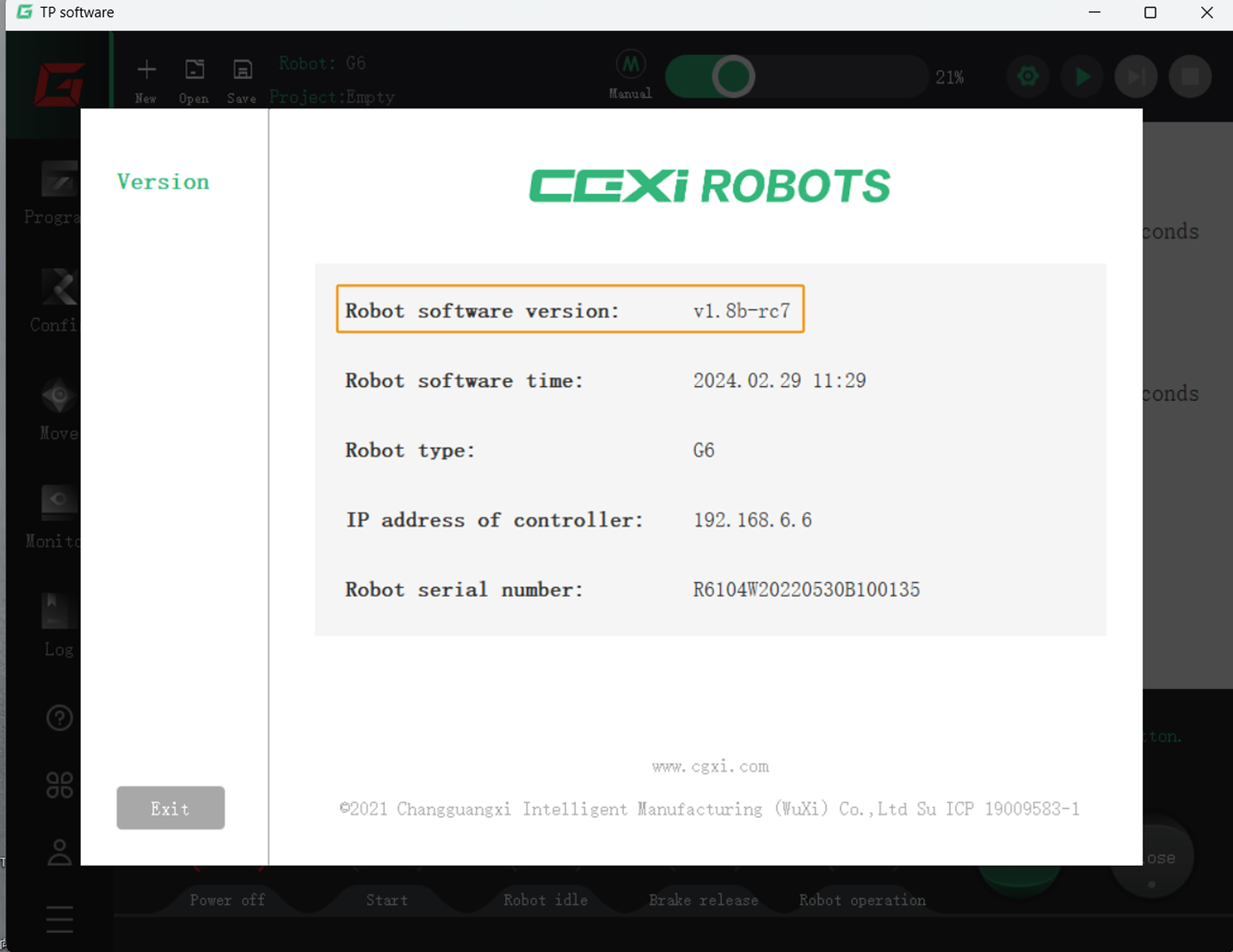
Robot software version: v1.8b-rc7
Click here for instructions
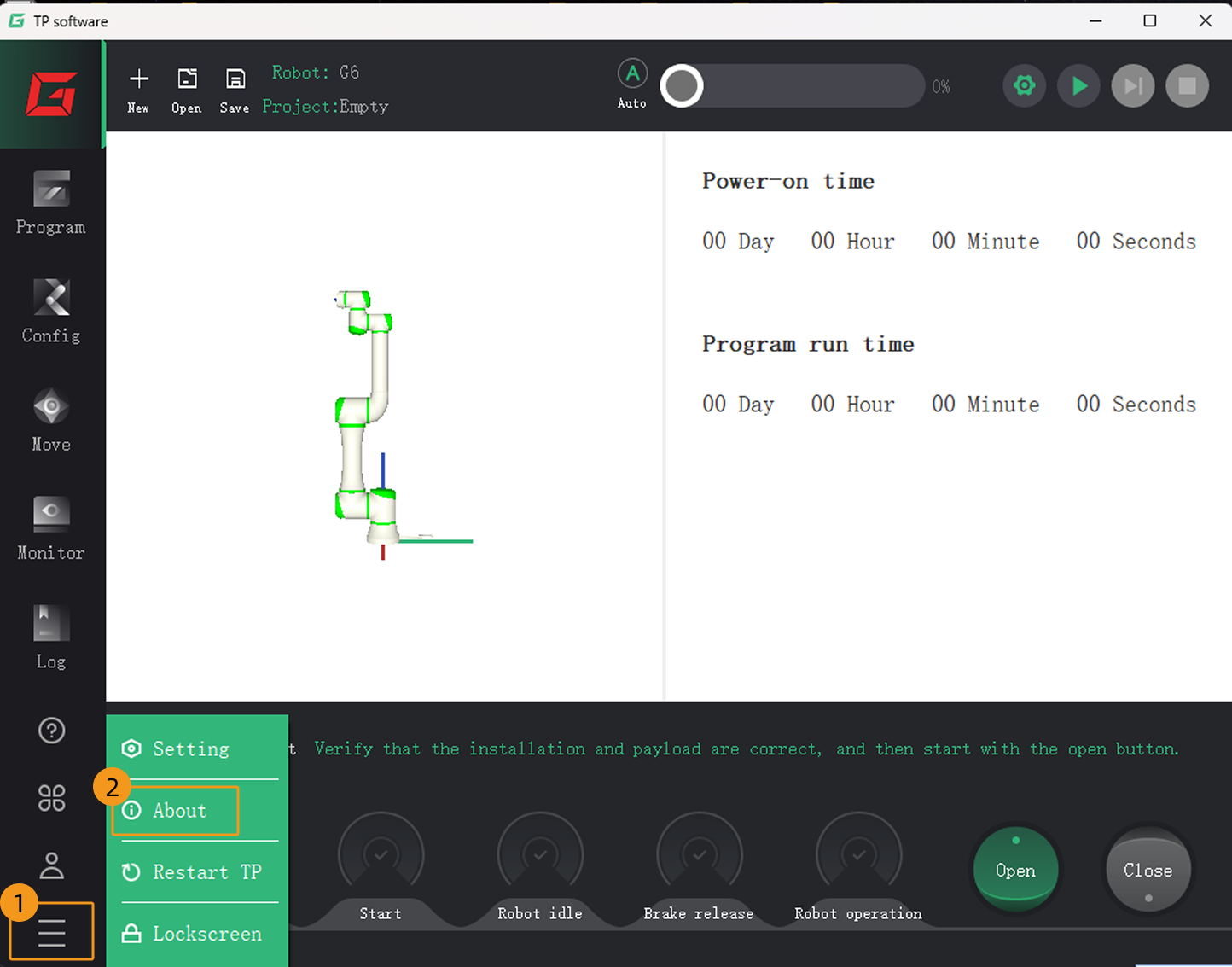
In the teach pendant interface, select to check the robot software version.
User Login
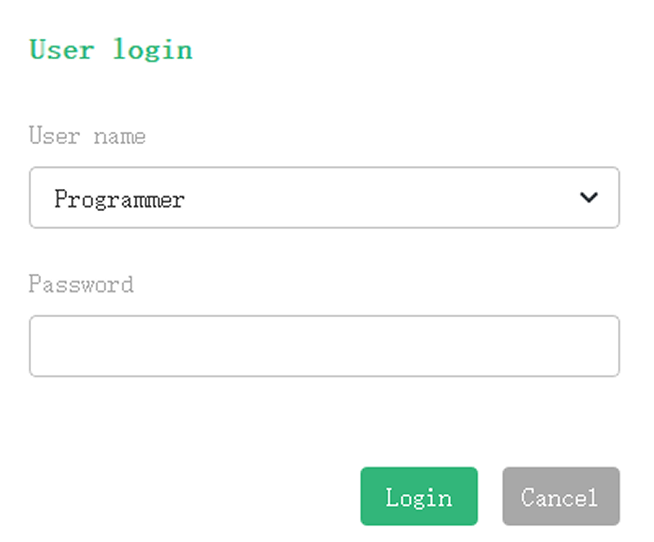
During operation, the login dialog box may occasionally pop up automatically on the teach pendant interface. At this time, select Programmer as the user name, enter admin as the password, and tap Login to continue.
Set up the Network Connection
Connect the Hardware
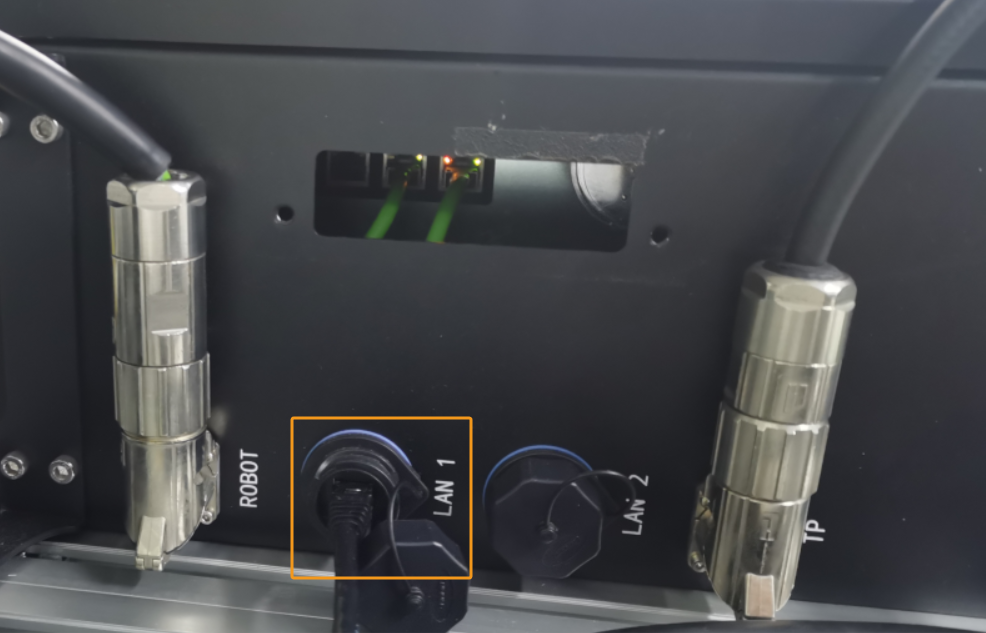
Plug one end of the Ethernet cable into the port of the IPC and the other end into the LAN1 port of the robot controller. The following figure shows a sample LAN1 port.
Set the IP Address
-
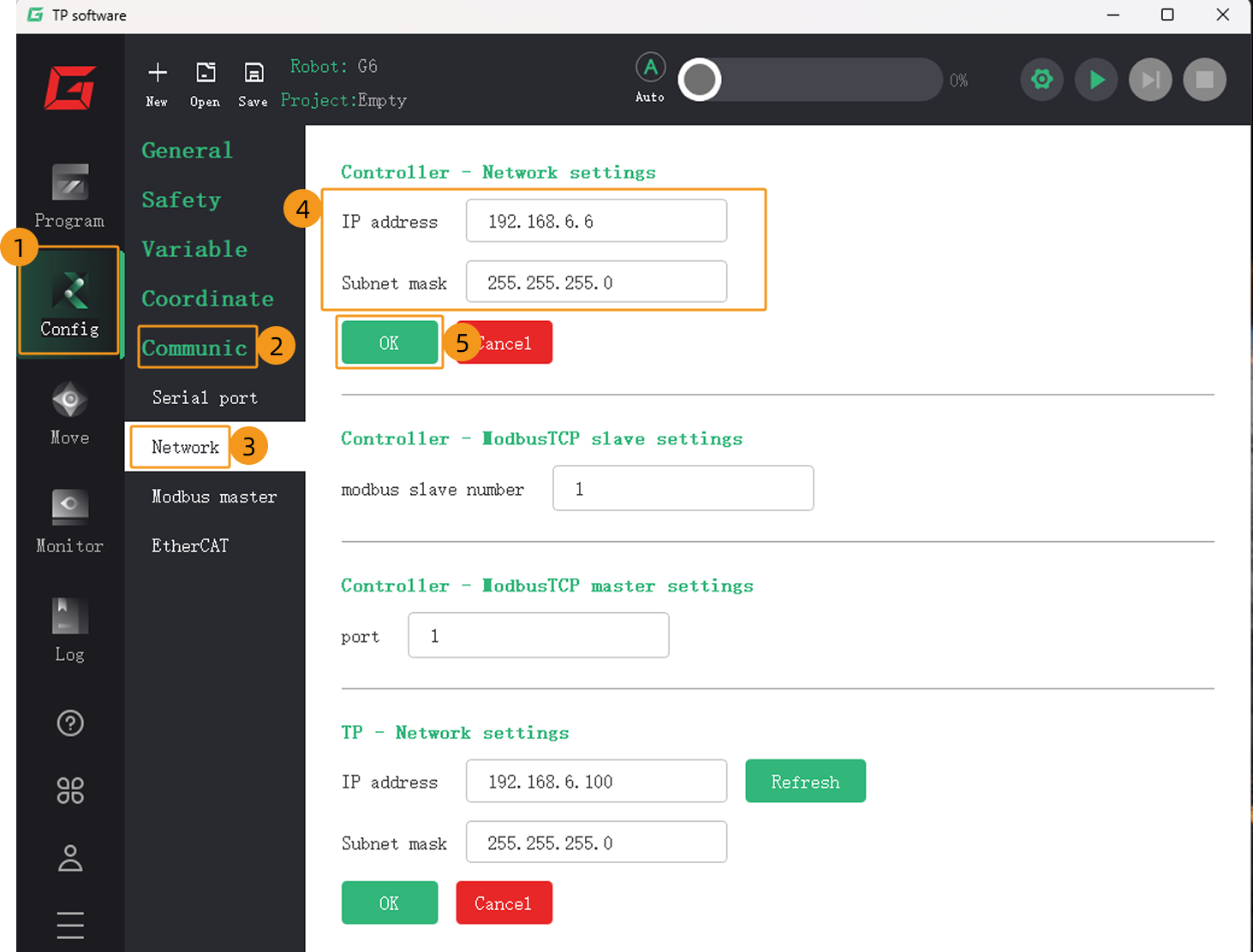
On the teach pendant interface, tap to open the network settings page. Under Controller – Network settings, enter the controller’s IP address and subnet mask, and then tap OK.
-
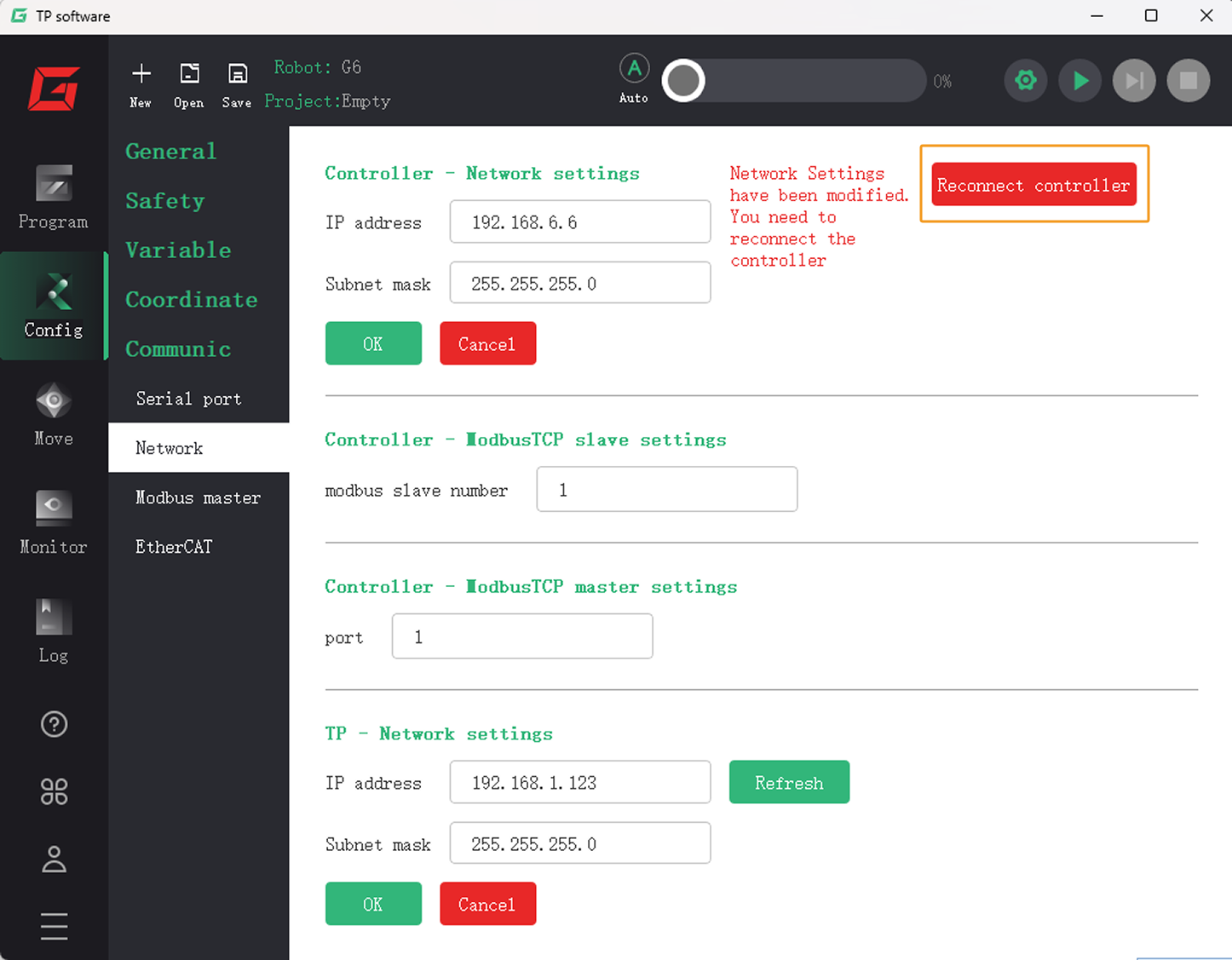
In the upper-right corner, tap Reconnect controller for the above network settings to take effect.
-
In the IPC, set the IP address of the IPC.
To allow communication between the IPC and the robot controller, the IP addresses of the IPC and robot controller must reside in the same subnet. This means that the network portions and subnet masks of the IP addresses should be the same. For example, 192.168.100.169/255.255.255.0 and 192.168.100.170/255.255.255.0 are in the same subnet.
Test Master-Control Communication
Switch to the AUTO mode
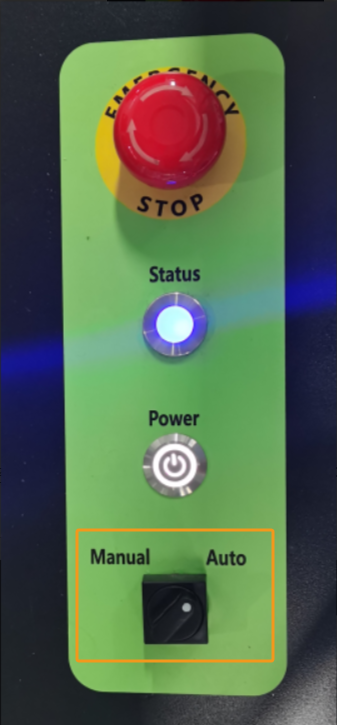
On the controller, turn the mode selection switch (white dot) to Auto. After powering on, the robot arm will operate in Auto mode.
Create a Mech-Viz Project
-
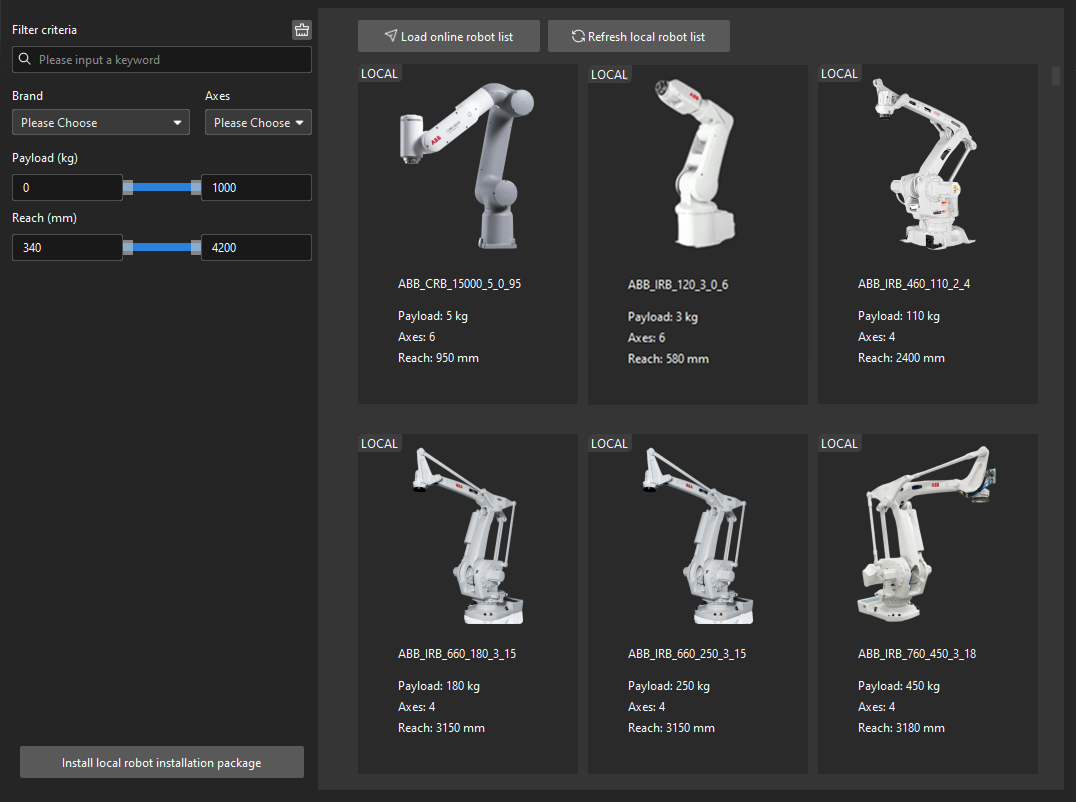
Open Mech-Viz, press Ctrl + N on the keyboard to create a new project. Select the robot model corresponding to your real robot brand and model on the interface as shown below.
-
Press Ctrl + S and create or select a folder to save the project.
-
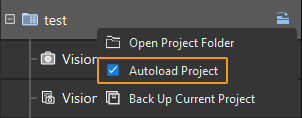
Right-click the project name in the left panel in Mech-Viz and select Autoload Project.
Connect to the Robot
-
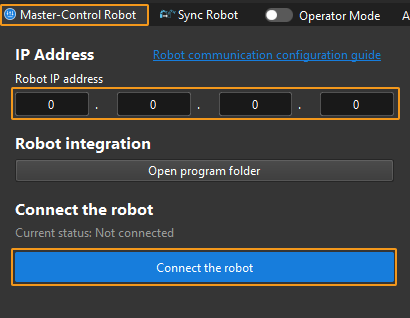
Click Master-Control Robot on the toolbar of Mech-Viz.
-
Input the IP address of the real robot in Robot IP address (the IP address in the picture is only an example). Click Connect the robot.
If Mech-Viz successfully connects the real robot, the current status will change to Connected. Meanwhile, the icon in the toolbar will turn from blue to green.
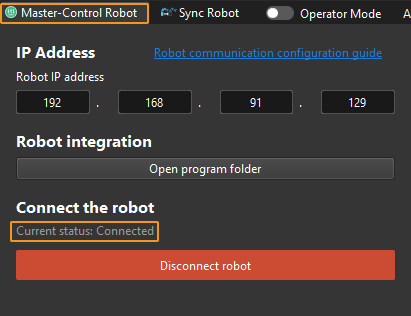
If the connection fails, please double-check the robot IP address.
Move the Robot
-
In the toolbar of Mech-Viz, change the “Vel.” (velocity) and “Acc.” (acceleration) parameters to 5%.

-
Click Sync Robot in the toolbar, and you can synchronize the poses of the simulated robot in the 3D simulation space with the poses of the real robot. Then click Sync Robot again to unselect it.

-
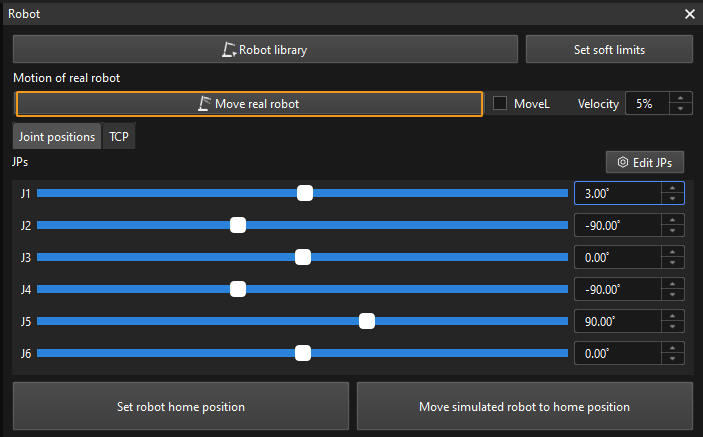
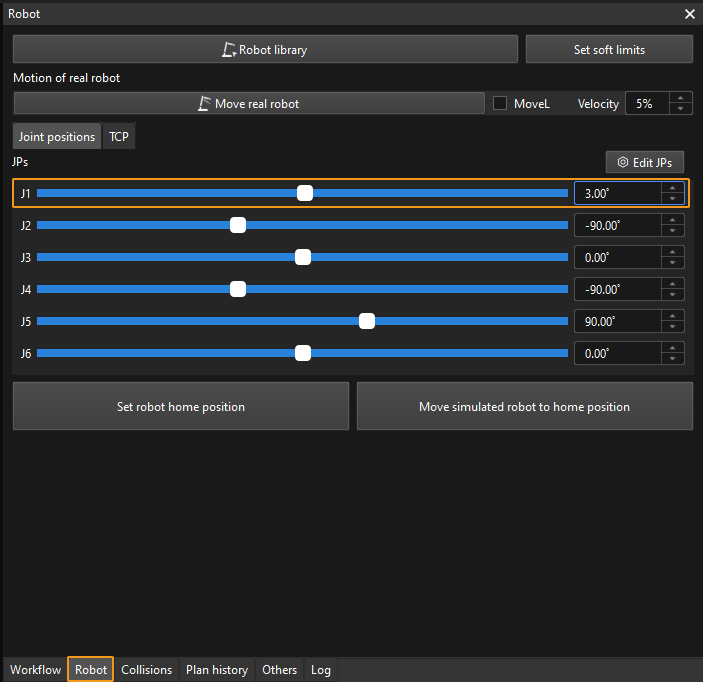
In the Robot tab, slightly adjust the value of “J1”, for example, from 0˚ to 3˚. This operation will move the simulated robot.
-
Click Move real robot and check if the real robot has moved. If the real robot has reached the JPs set for the simulated robot, the master-control communication is working.
When moving the robot, please ensure the safety of personnel. In the case of an emergency, press the emergency stop button on the teach pendant!